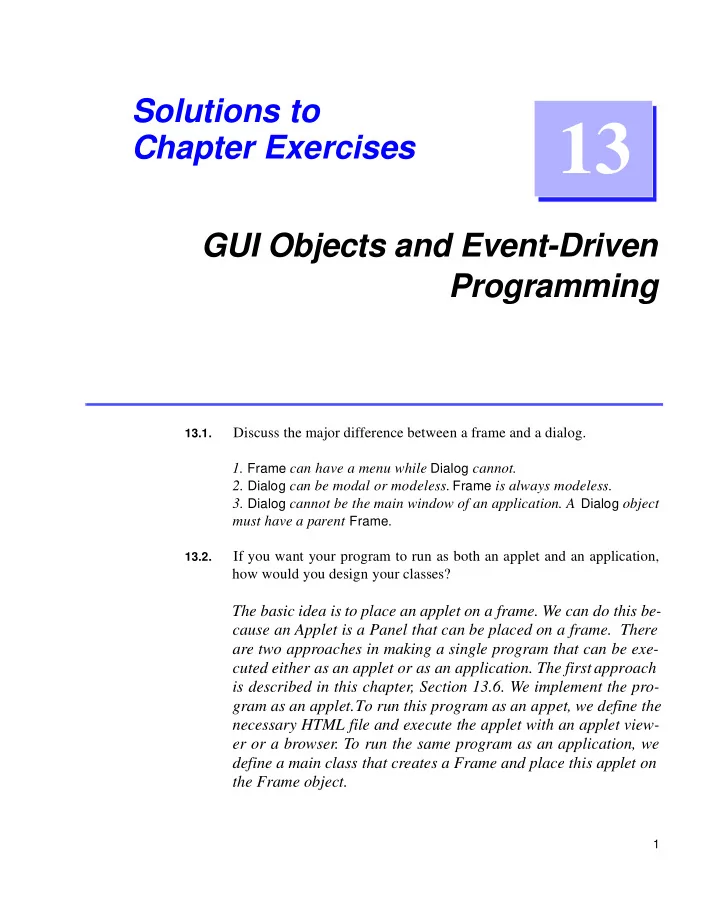
13 Chapter Exercises GUI Objects and Event-Driven Programming - - PDF document

13
SMART_READER_LITE
LIVE PREVIEW

13 Chapter Exercises GUI Objects and Event-Driven Programming - - PDF document

Solutions to 13 Chapter Exercises GUI Objects and Event-Driven Programming Discuss the major difference between a frame and a dialog. 13.1. 1. Frame can have a menu while Dialog cannot. 2. Dialog can be modal or modeless. Frame is always


slide-1
SLIDE 1

1

GUI Objects and Event-Driven Programming

13

Solutions to Chapter Exercises

13.1.

Discuss the major difference between a frame and a dialog.

  • 1. Frame can have a menu while Dialog cannot.
  • 2. Dialog can be modal or modeless. Frame is always modeless.
  • 3. Dialog cannot be the main window of an application. A Dialog object

must have a parent Frame.

13.2.

If you want your program to run as both an applet and an application, how would you design your classes?

The basic idea is to place an applet on a frame. We can do this be- cause an Applet is a Panel that can be placed on a frame. There are two approaches in making a single program that can be exe- cuted either as an applet or as an application. The first approach is described in this chapter, Section 13.6. We implement the pro- gram as an applet. To run this program as an appet, we define the necessary HTML file and execute the applet with an applet view- er or a browser. To run the same program as an application, we define a main class that creates a Frame and place this applet on the Frame object.

slide-2
SLIDE 2

2 Solutions to Chapter 13 Exercises

The second approach is to define the main method to the applet it- self, instead of defining a separate main class. This technique of making an instantiable class also the the main class is described in the Special Topics No. 3 document. Here’s how such applet can be implemented.

import java.applet.Applet; import java.awt.*; class AppletApp extends Applet

{ //applet methods here public static void main(String[] args) { Frame f = new Frame("AppletFrame"); f.setSize(300, 300); f.add(new AppletApp()); f.setVisible(true); } } 13.3.

One of the GUI objects in the java.awt package that we did not cover in this chapter is List. Look up this class in a Java reference manual and re- view the ListBox class from the javabook package. Do you see the simi- larities between the two? Identify the GUI components used in the

  • ListBox. Read the definition of ListBox. Do you understand the code?

ListBox is a dialog (it is a subclass of JavaBookDialog) and contains a List and two Button objects. ListBox provides addItem and deleteItem

methods that correspond to the addItem and delItem methods of List. Both objects have getSelectedItem and getSelectedIndex methods. The

getItemFromIndex corresponds to the getItem method of List. We can

view ListBox as a simple container of a List functionalities.

13.4.

One of the GUI objects in the java.awt package that we did not cover in this chapter is TextArea. Look up this class in a Java reference manual and review the OutputBox class from the javabook package. Identify the GUI components used in the OutputBox. Read the definition of Output-

  • Box. Do you understand the code?
slide-3
SLIDE 3

Solutions to Chapter 13 Exercises 3

OutputBox is a dialog (it is a subclass of JavaBookDialog) and contains

a TextArea object. We use a TextArea object to display multiple lines of text.

13.5.

Rewrite the Arithmetic class in the game package from Chapter 9 as a

  • dialog. The ArithmeticDialog class uses a Label for a problem and a Tex-

tField for the user answer. When the user presses the ENTER key (while

the TextField object is active) or clicks the OK button, the dialog dis- plays a message stating whether the user’s answer is correct or not. Use another Label for the message. Consider using a larger font for the Label and TextField text.

13.6.

Rewrite the EggyPeggy class in the game package from Chapter 9 as a

  • dialog. The EggyPeggyDialog class uses two TextField objects for enter-

ing the original text and displaying the encrypted text. When the user presses the ENTER key (while the original text TextField object is ac- tive) or clicks the OK button, the dialog displays the encrypted text in the second TextField. OK

8 X 7 =

Correct! 56

Label Label TextField OK TextField

Jeggavegga Java

TextField

Original Eggy-Peggy

Label Label

slide-4
SLIDE 4

4 Solutions to Chapter 13 Exercises

Consider using TextArea objects instead of TextField objects so the user can enter multiple lines of original text. TextArea is a GUI object not covered in this chapter. See exercise 4.

13.7.

Extend the HiLoDialog class so the user has the option of quitting the

  • game. Add a button Give Up to the dialog. When the user clicks on the

Give Up button, the dialog displays the secret number and the number of

guesses the user has made. The dialog then resets itself for a new game.

13.8.

Extend the HiLoDialog class to include the listing of guesses made by the user. Use a List object to list the user’s guesses; see exercis e3.

9.

Modify the EggyPeggyDialog class of exercise 6 so now the dialog has three choices for encryption: Sha, Na, and Ava. The encryption methods are explained in exercise 16 on page 409. Guess List

78 50 Lo 75 Lo 87 Hi

Na TextField TextField

Original Encrypted

Label Label Sha Ava

slide-5
SLIDE 5

Solutions to Chapter 13 Exercises 5

You should design one class to handle the user interaction and another class for encrypting the original text instead of doing everything in a single class.

13.10.

Extend the MySketchPad class to allow the user to sketch in color. Add the following menu choices. When the user selects a color, set the color of a Graphics object so the subsequent sketching is made in the selected color. Selecting the menu item Erase will erase the drawing.

13.11.

In the Calculator program from Section 13.7, an error message was dis- played in the leftOperand text field. This could potentially overwrite good data (e.g., when the invalid input occurs in the rightOperand text field). Modify the class to eliminate this problem.

File Edit Quit Erase Color Red Green Blue Pink Black

slide-6
SLIDE 6

6 Solutions to Chapter 13 Exercises 13.12.

(Challenge) Write a class that implements a more realistic calculator than the one defined in this chapter. The user enters a number using digit buttons only (see exercise 13). Some of the issues you need to consider:

  • How to determine whether the user is entering a left operand
  • r a right operand.
  • How to handle the entering of multiple decimal points. A typi-

cal calculator accepts the first decimal point and ignores the

  • rest. For example, if you press 1 . 4 . 3 . , the number entered is

1.43.

  • When the display is 0 and the user enters 0, the display will

not change. However, if the display is nonzero and the user en- ters 0, the 0 is appended to the number currently displayed.

  • How to handle the operator precedence. For example, what

will be the result if the user enters 4 + 3 × 2? Will it be 14 or

10? It is easier to treat all operators as having equal prece-

dence and process them from left to right. Study any real four-function calculator and try to implement a software calculator that simulates the real calculator as faithfully as possible, but feel free to make any reasonable changes.

slide-7
SLIDE 7

Solutions to Chapter 13 Exercises 7 13.13.

Extend the calculator of exercise 12 to allow the user to enter a number using the keyboard. The class needs to implement the KeyListener inter- face and define the keyTyped method. You have to find information on

KeyListener and KeyEvent from a Java API reference manual.

13.14.

Write an application that draws a circle every time the mouse button is

  • clicked. The position where the mouse is clicked will become the center
  • f the circle. Set the radius of the circle to 100 pixels.

13.15.

Extend exercise 14 by adding the following menu to let the user select the shape to draw every time the mouse button is clicked. The clicked point will be the center of the selected shape. Choose appropriate values for the dimensions of the three shapes.

13.16.

Modify the mortgage table program of exercise 22 on page 351. Add the following menu

Shape Circle Rectangle Square File New Table Quit Help About...

slide-8
SLIDE 8

8 Solutions to Chapter 13 Exercises

to the program. When the user selects the menu choice New Table, the program opens a dialog in which the user can enter three input values. The input dialog should look something like this: If the user clicks on the Compute button and the three input values are valid, generate a mortgage table. If the input values are invalid, then print out an appropriate error message. Decide the range of valid values for the loan amount, interest rate, and loan period. When the user selects the menu choice About..., describe the purpose of the program using an

  • OutputBox. You may want to use a dedicated OutputBox for this pur-

pose instead of using the same OutputBox for displaying both the mort- gage table and the program description.

13.17.

Modify exercise 13 on page 349 using any GUI objects and techniques you learned in this chapter.

Compute Loan Amount: Interest Rate: Cancel Loan Period: