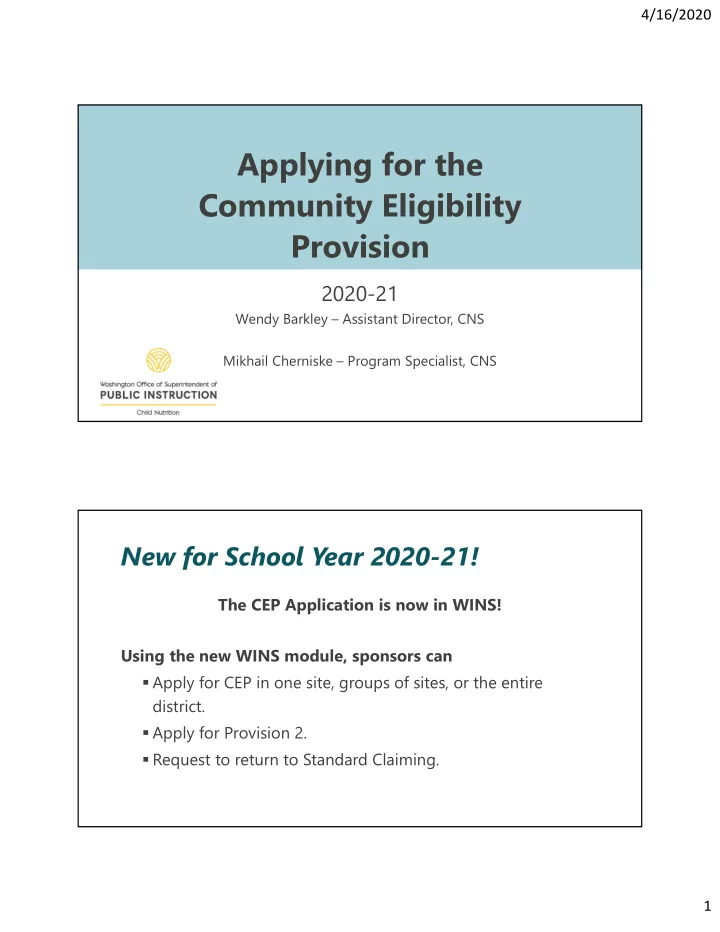
Applying for the Community Eligibility Provision 2020-21 Wendy - - PDF document

applying for the community eligibility provision
SMART_READER_LITE
LIVE PREVIEW

Applying for the Community Eligibility Provision 2020-21 Wendy - - PDF document

4/16/2020 Applying for the Community Eligibility Provision 2020-21 Wendy Barkley Assistant Director, CNS Mikhail Cherniske Program Specialist, CNS New for School Year 2020-21! The CEP Application is now in WINS! Using the new WINS


slide-1
SLIDE 1

4/16/2020

Applying for the Community Eligibility Provision

2020-21

Wendy Barkley – Assistant Director, CNS Mikhail Cherniske – Program Specialist, CNS

New for School Year 2020-21!

The CEP Application is now in WINS! Using the new WINS module, sponsors can

  • Apply for CEP in one site, groups of sites, or the entire

district.

  • Apply for Provision 2.
  • Request to return to Standard Claiming.

1

slide-2
SLIDE 2

4/16/2020

  • 1. Know the NEW Deadlines

New Deadlines with USDA Waiver:

CEP Requirement Normal Deadlines New 2020-21 Deadlines Data Used to Calculate ISP April 1 Anytime between April 1-June 30, 2020 LEA Must Inform OSPI of Intention to Operate CEP In Upcoming School Year and Submit Application. June 30 August 31, 2020

  • 1. Know the NEW Deadlines – ISP Data

What this means

  • In regular years the data used for calculating the Identified

Student Percentage (ISP) must be based on data from April 1.

  • For the first time, districts have flexibility and can use data

from any date between April 1 and June 30! 2

slide-3
SLIDE 3

4/16/2020

  • 1. Know the NEW Deadlines – ISP Data

What this means

  • Because of the economic impacts of the Coronavirus outbreak, the

number of categorically eligible students in your community may be raising.

  • Diligent direct certification is important to capture these new

students.

  • It may be beneficial to use data closer to June 30th to capture this

increased need in your community.

  • 2. Gather Supplies

To apply for CEP with the WINS module, you will need the following:

  • WINS Log-in
  • Signed WINS Agreement

TIP! To speed up the Verification Process, submit:

  • Alphabetical list of all enrolled students by school as of date selected for CEP

calculation (Between April 1 – June 30)

  • Highlight Identified Students
  • P223 Form - as of date selected for CEP calculation

3

slide-4
SLIDE 4

4/16/2020

  • 3. Collect CEP Data =

Enrollment Records and Identified Student Records

  • Assistance Program Households

(Basic Food, TANF, FDPIR, Medicaid - Free)

  • Other Source Categorical Eligible Students

(Foster Care, Homeless, Migrant)

  • 3. Collect CEP Data – Resolving Near Matches

Resolve any “Near Matches” first Direct Certification list showing students eligible as of the date you have selected for your ISP.

4

slide-5
SLIDE 5

4/16/2020

  • 3. Collect CEP Data – Download DC List

Direct Certification list showing students eligible as of the date you have selected for your ISP .

Download as an excel file

  • Sort by school
  • Alphabetical by student last

name

  • Do the same for DC Medicaid

List- Free

  • 3. Collect CEP Data – Extended Eligibility

List showing students eligible by extending eligibility

  • 1st day of school – Date of ISP
  • Alphabetical by last name
  • Sub-sort by family #ID

5

slide-6
SLIDE 6

4/16/2020

  • 3. Collect CEP Data – EDS Student Search

EDS DC “Student Search” feature

  • 3. Collect CEP Data – Other categories
  • Assistance Program Households

(Basic Food, TANF, FDPIR)

  • Other Source Categorical Eligible Students

(Foster Care, Homeless, Migrant)

6

slide-7
SLIDE 7

4/16/2020

  • 3. Collect CEP Data – Students Experiencing

Homelessness

List from Homeless Liaison

  • 1st day of school – Date of ISP
  • Alphabetical by last name
  • By school
  • 3. Collect CEP Data – Migrant and ECEAP

You may use the Migrant Student List

7

slide-8
SLIDE 8

4/16/2020

  • 3. Collect CEP Data – Adding it All Together!

Direct Cert List 1297 Direct Cert – extended eligibility + 5 Direct Cert – student search + 2 Direct Cert – Medicaid Free 10 Homeless List + 2 Migrant List + 7 = 1323

  • 3. Collect CEP Data – Total Enrollment

Identified Student % = 1323 X100

Total # of enrolled students with access to NSLP/SBP

What data sources can I use? 8

slide-9
SLIDE 9

4/16/2020

  • 3. Collect CEP Data – Total Enrollment – P223

Sort by school AND alphabetical by student last name Do not include students that do not have access to meals

Enrollment and Identified Students = same date

  • 3. Collect CEP Data – Cross Reference!

Best Practice: Color code enrollment list to reflect the “Identified Student Population”

9

slide-10
SLIDE 10

4/16/2020

  • 3. Collect CEP Data – Complete!

Now that you have both numbers

  • Number of Identified Students
  • Total Enrollment from P223

You’re ready to Apply!

  • 4. Navigate to the CEP Module
  • Under the main Claims Tab you will find the Claiming Options Tab
  • Here you can review current Claiming Options and view Site Claiming

Option History

10

slide-11
SLIDE 11

4/16/2020

Information Screens in the CEP Module

  • Claiming Option

History Screen

  • Shows current and

past claiming options, including Free Claiming Percentages in CEP .

  • 5. Get Started - Claiming Option Requests

Screen

  • The Claiming Option

Requests screen will display all claiming option requests and the status of those requests

  • This is where you begin the

application process

  • Click the Select Claiming

Option Action to get started

11

slide-12
SLIDE 12

4/16/2020

Claiming Option Requests Screen – Select Sites

  • After selecting an action,

the screen will display the current claiming option for each site.

  • You can select one or more

sites from the list by clicking the individual boxes next to the site name.

If a site currently operating CEP is selected, that site will be included as part of the new request and is approved, this will start a new CEP 4-year cycle.

  • 6. Select Level of Election
  • After selecting sites you want to elect CEP

, a pop-up modal screen will display for selecting Level of Election.

  • The options for selection include
  • Groups

Identified Student and Claiming Percentages

  • District-Wide

The Identified Student and Claiming Percentages screen

  • Individual Sites

will display selected sites in groups according to the level

  • f election selected. Using data from dale selected for

ISP , enter the Total Enrolled Students and the Total Identified Students. Based on these entries, the system will calculate the ISP and Claiming Percentages.

12

slide-13
SLIDE 13

4/16/2020

Select Level of Election – District Wide

  • If District-Wide is

selected as the level

  • f election, the system

will calculate the total ISP for all district sites.

  • Claiming percentages

will be based on the district-wide calculations.

Select Level of Election – Individual Sites

  • If Individual Sites is

selected.

  • System calculates the total

ISP for each site individually.

  • Claiming percentages will be

based on that site’s percentages.

  • If an individual site does

not meet the required 40%, it will be reviewed by a Specialist.

13

slide-14
SLIDE 14

4/16/2020

Select Level of Election – Groups of Schools

If Groups and Individual Sites is selected:

  • The screen will first display all

sites as individual sites.

  • Click Add Group to add

groups.

  • Click and drag sites into

groupings or leave as individual sites to achieve the best claiming percentages.

  • 7. Upload Documents
  • Last screen in the CEP

application process.

  • Upload documentation

and identify required contacts.

  • Upload Signed

Agreement and Initial Documentation

14

slide-15
SLIDE 15

4/16/2020

Document Checklist – Signed Agreement

  • Submit a signed CEP

Agreement, found on our OSPI CEP Webpage.

  • This must be signed and dated

by:

  • District Superintendent
  • Business Manager
  • Food Service Director

Document Checklist – Initial Documentation

  • Although not required to be

uploaded at the time of submitting your application, including initial documentation will help save time in processing your application.

15

slide-16
SLIDE 16

4/16/2020

Document Checklist – Initial Documentation

Using the Excel Template found on our website, provide the following information by site.

  • 1. Alphabetical list of all enrolled students by school as of date selected

for CEP calculation (Between April 1 – June 30)

  • Highlight Identified Students
  • 2. Enrollment from P223 Form as of date selected for CEP calculation.
  • 8. Submit Application!
  • Once completed, submit the CEP request from the Document

Checklist screen.

  • It will then be sent to the program specialist for review.
  • If the specialist returns the application for additional work, it will be displayed

as a work queue item on your Claims work queue on the home screen.

  • If the CEP application is approved or denied, a notice will be sent to

the Claims Notifications and Alerts queue on your home screen.

16

slide-17
SLIDE 17

4/16/2020

  • 9. What comes next?

After submitting the application, the program specialists will request the following submissions (all data must be representative of the date selected for ISP calculation):

  • Actual Direct Certification – Free and Direct Certification – Free via Medicaid

downloads from EDS

  • Certification documents for students “extended eligibility” by shared household –

include supporting data for qualifying student found on the DC list

  • Certification documents for homeless students (signed list provided by Homeless

Liaison)

  • Certification documents for Migrant students
  • Certification documents for ECEAP or HeadStart students
  • Any other source document necessary to qualify a child – such as a letter from DSHS

for foster children

Validation and Approval

  • Specialist selects a statistical sample of student names
  • Cross references with source document and enrollment
  • Next steps depend on error rate in validation process
  • After validation complete- approval to operate CEP

Best Practice

  • CEP application for 20-21 due August 31. Submit early for best

chance of being approved before school year 20-21 begins.

17

slide-18
SLIDE 18

4/16/2020

Creative Commons

Except where otherwise noted, this work by the Office of Superintendent of Public Instruction is licensed under a Creative Commons Attribution License. All logos and trademarks are property of their respective owners. This presentation may contain or reference links to websites operated by third parties. These links are provided for your convenience only and do not constitute or imply any affiliation, endorsement, sponsorship, approval, verification, or monitoring by OSPI of any product, service, or content offered on the third party websites. In no event will OSPI be responsible for the information or content in linked third party websites or for your use of or inability to use such websites. Please confirm the license status

  • f any third-party resources and understand their terms of use before reusing them.

Photos not marked are used with permission and not included in the open license.

18

slide-19
SLIDE 19

4/16/2020

Connect with us!

k12.wa.us facebook.com/waospi twitter.com/waospi youtube.com/waospi medium.com/waospi linkedin.com/company/waospi

19