CHAPTER 5: Direct Manipulation and Virtual Environments Examples of - - PDF document

chapter 5 direct manipulation and virtual environments
SMART_READER_LITE
LIVE PREVIEW

CHAPTER 5: Direct Manipulation and Virtual Environments Examples of - - PDF document

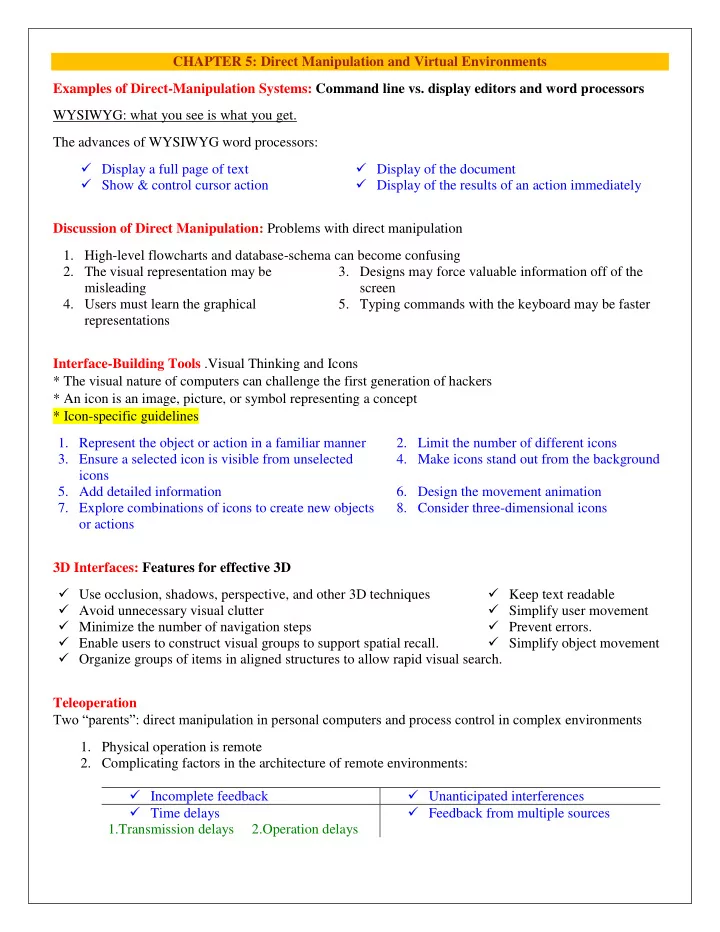
CHAPTER 5: Direct Manipulation and Virtual Environments Examples of Direct-Manipulation Systems: Command line vs. display editors and word processors WYSIWYG: what you see is what you get. The advances of WYSIWYG word processors: Display a


slide-1
SLIDE 1

CHAPTER 5: Direct Manipulation and Virtual Environments Examples of Direct-Manipulation Systems: Command line vs. display editors and word processors WYSIWYG: what you see is what you get. The advances of WYSIWYG word processors:  Display a full page of text  Display of the document  Show & control cursor action  Display of the results of an action immediately Discussion of Direct Manipulation: Problems with direct manipulation

  • 1. High-level flowcharts and database-schema can become confusing
  • 2. The visual representation may be

misleading

  • 3. Designs may force valuable information off of the

screen

  • 4. Users must learn the graphical

representations

  • 5. Typing commands with the keyboard may be faster

Interface-Building Tools .Visual Thinking and Icons * The visual nature of computers can challenge the first generation of hackers * An icon is an image, picture, or symbol representing a concept * Icon-specific guidelines

  • 1. Represent the object or action in a familiar manner
  • 2. Limit the number of different icons
  • 3. Ensure a selected icon is visible from unselected

icons

  • 4. Make icons stand out from the background
  • 5. Add detailed information
  • 6. Design the movement animation
  • 7. Explore combinations of icons to create new objects
  • r actions
  • 8. Consider three-dimensional icons

3D Interfaces: Features for effective 3D  Use occlusion, shadows, perspective, and other 3D techniques  Keep text readable  Avoid unnecessary visual clutter  Simplify user movement  Minimize the number of navigation steps  Prevent errors.  Enable users to construct visual groups to support spatial recall.  Simplify object movement  Organize groups of items in aligned structures to allow rapid visual search. Teleoperation Two “parents”: direct manipulation in personal computers and process control in complex environments

  • 1. Physical operation is remote
  • 2. Complicating factors in the architecture of remote environments:

 Incomplete feedback  Unanticipated interferences  Time delays 1.Transmission delays 2.Operation delays  Feedback from multiple sources

slide-2
SLIDE 2

Virtual and Augmented Reality: Virtual reality breaks the physical limitations of space and allow users to act as though they were somewhere else  Augmented reality shows the real world with an overlay of additional overlay  Situational awareness shows information about the real world that surrounds you by tracking your  Movements in a computer model  Augmented reality is an important variant  Successful virtual environments depend on the smooth integration of:

  • 1. Visual Display
  • 2. Head position sensing
  • 3. Hand-position sensing
  • 4. Force feedback
  • 5. Sound input and output
  • 6. Cooperative and competitive virtual reality

WEEK 7-CHAPTER 7: Command and Natural Languages The Basic Goals of Language Design

  • 1. Precision
  • 2. Speed in learning
  • 3. Ease in writing and reading
  • 4. Compactness
  • 5. Simplicity to reduce errors
  • 6. Ease of retention over time

Higher-Level Goals of Language Design

  • Compatibility
  • Flexibility
  • Visual appeal
  • Expressiveness to encourage creativity
  • Close correspondence between reality and the

notation Functionality to Support User’s Tasks. Users do wide range of work:  text editing  electronic mail  financial management  airline or hotel reservations  Gaming  inventory  manufacturing process control Designers should  determine functionality of the system  represent low-level interface syntax  create a list of task actions and objects  create a table of user communities and tasks  evaluate destructive  identify error conditions and prepare error messages  allow shortcuts for expert users  determine hierarchy of importance of user communities Six Potential Abbreviation Strategies

  • 1. Simple truncation
  • 2. Vowel drop with simple truncation
  • 3. First and last letter
  • 4. Phonics: Focus attention on the sound.
  • 5. First letter of each word in a phrase: Use

with a hierarchical

  • 6. Standard abbreviations from other

contexts: Use familiar abbreviations. Natural Language in Computing  Natural-language interaction  Text-database searching  Natural-language text generation  Adventure games and instructional systems  Natural-language queries and question answering

slide-3
SLIDE 3

WEEK 9 CHAPTER 6: Menu Selection, Form Fill-In, and Dialog Boxes The primary goal for menu, form fill-in, and dialog-box designers is to create a sensible, comprehensible, memorable, and convenient organization relevant to the user's task. Single Menus  Binary Menus (Mnemonic letters – Radio Buttons – Button Choice)  Multiple-item Menus  Multiple-selection menus or check boxes  Pull-down, pop-up, and toolbar menus Pull-down menus: Always available to the user by making selections on a top menu bar EX(Key board shortcuts - Toolbars, iconic menus, and palletes).Appear on a display in response to a check or tap with a pointing device.  Menus for long list (Scrolling menus, combo boxes, and fisheye menus - Sliders and alpha sliders – Two-dimensional menus)  Embedded menus and hotlinks. Allow users reading about people, place. Combination of multiple menus  Menu Maps  Tree-structured menus  Linear menu sequences and simultaneous menus  Acyclic and Cyclic Networks Linear: Guide the user through complex decision-making process (Ex: Wizards) Simultaneous: Present multiple active menus at the same time and allows users to enter choices in any order. Menu Maps: Menu maps can help users stay oriented in a large menu tree &Effective for providing

  • verviews to minimize user disorientation.

Content Organization

  • 1. Task-related grouping in tree organization
  • 2. Item Presentation Sequence
  • 3. Menu layout

 Titles: For single menus, use a simple descriptive title. For tree-structured menus, use the exact

same words in the higher-level menu items as in the titles for the next lower-level menu)

 Techniques  Graphic layout and design  Establish guidelines for consistency of at least these menu components:

 Titles  Item placement  Instructions  Status reports  Error messages Fast Movement through Menus (Keyboard shortcuts) Data Entry with Menus: Form Fill-in, Dialog Boxes, and Alternatives  Form Fill-in  Format-specific field  Novel design combining menus and direct manipulation  Dialog Boxes a) Internal layout (Meaningful title-Standard buttons-Top-left to bottom-right sequencing) b) External Relationship (Size small - Easy to make disappear - Clear how to complete/cancel)

slide-4
SLIDE 4

Week10 CHAPTER 10: Quality of Service Models of response-time impacts  Response time: The number of seconds it takes from the moment users initiate an activity until the computer presents results on the display.  User think time: The number of seconds the user thinks before entering the next action.  Designers of response times and display rates in HCI must consider:  cost  task complexity  user expectations  error handling procedures  error rates  speed of task performance  complex interaction of technical feasibility  Overall majority of users prefer rapid interactions

  • Lengthy response times (15 seconds) are detrimental to productivity
  • Rapid response times (1 second or less) are preferable, but can increase errors for complex tasks

 Display Rate  Reading textual information from a screen  Cognitive human performance  Limitations of short-term and working memory  Any cognitive model must emerge from an understanding of human problem-solving abilities  Magic number seven - plus or minus two

  • The average person can rapidly recognize seven chunks of information at a time
  • This information can be held for 15 to 30 seconds in short-term memory
  • Size of the chunks depends on the person' s familiarity with the material

 Short-term memory and working memory are used in conjunction for processing information and problem solving – Short-term memory processes perceptual input – Working memory generates and implements solutions  People learn to cope with complex problems by developing higher-level concepts using several lower-level concepts brought together into a single chunk  Short term and working memory are highly volatile – Disruptions cause loss of memory – Delays require that memory be refreshed  Source of errors  Conditions for optimum problem solving

  • Longer response time causes uneasiness in the user because the penalty for error increases.
  • Shorter response time may cause the user to fail to comprehend the presented materials.
  • Progress indicators shorten perceived elapsed time and heighten.

Summary – Users pick up the pace of the system to work more quickly with shorter response time – Higher throughput of work demands more attention must be paid to minimizing the cost of delay of error recovery

slide-5
SLIDE 5

Week11 CHAPTER 11: Balancing Function and Fashion Error messages  Phrasing of error messages or diagnostic warnings is critical, especially when dealing with novices  Avoid – imperious tone that condemns user – messages that are too generic (e.g. WHAT? or SYNTAX ERROR) – messages that are too obscure (e.g. FAC RJCT 004004400400)  Specificity  User-centered phrasing  Appropriate physical format  Development of effective messages  Constructive guidance and positive tone Display design  Effective display designs must provide all the necessary data in the proper sequence to carry out the task:  Mullet and Sano's categories of design principles: – Elegance and Simplicity (unity, refinement and fitness) – Scale, Contrast, and Proportion (clarity, harmony, activity, and restraint) – Organization and Visual Structure (grouping, hierarchy, relationship, and balance) – Module and Program (focus, flexibility, and consistent application) – Image and Representation (immediacy, generality, cohesiveness, and characterization) – Style (distinctiveness, integrity, comprehensiveness, and appropriateness)  Field layout

  • Blank spaces and separate lines can distinguish fields.
  • Names in chronological order, alignment of dates, familiar date separators.
  • Labels are helpful for all but frequent users.
  • Distinguish labels from data with case, boldfacing, etc.
  • If boxes are available they can be used to make a more appealing display, but they consume screen

space.

  • Specify the date format for international audiences
  • Other coding categories – background shading, color, and graphic icons

 Empirical results – structured form superior to narrative form – improving data labels, clustering related information, using appropriate indentation and underlining, aligning numeric values, and eliminating extraneous characters improves performance – performance times improve with fewer, denser displays for expert users – screen contents should contain only task-relevant information – consistent location, structure, and terminology across displays important – sequences of displays should be similar throughout the system for similar tasks – sequences of displays should be similar throughout the system for similar tasks  Display-complexity metrics Although knowledge of the users’ tasks and abilities is key to designing effective screen displays,

  • bjective and automatable metrics of screen complexity are attractive aids

 Tullis (1997) developed four task-independent metrics for alphanumeric displays:  Overall Density  Local Density  Grouping  Layout Complexity

slide-6
SLIDE 6

Web page design

Window design 1) Image browsing The design of image browsers should be governed by the users’ tasks, which can be classified as follows:  Image generation  Open-ended exploration  Diagnostics  Navigation  Monitoring  2) Personal role management A role centered design emphasizes he users’ takes rather than the applications and documents  Vision statement  Set of people  Task hierarchy  Set of documents  Schedule Color: Color can  Soothe or strike the eye  Add accents to an uninteresting display  Draw attention to warnings  Emphasize the logical organization of information  Facilitate subtle discriminations in complex displays  Evoke string emotional reactions of joy, excitement, fear, or anger Guidelines of color  Use color conservatively  Use color in graphic displays for greater information density  Color can help in formatting  Color coding should support the task  Be consistent in color coding  Consider the needs of color-deficient users  Design for monochrome first  Color coding should appear with minimal user effort  Limit the number and amount of colors  Color coding should be under user control  Be alert to problems with color pairings  Recognize the power of color to speed or slow tasks  Use color changes to indicate status changes  Be alert to common expectations about color codes

slide-7
SLIDE 7

Week12CHAPTER 8: Interaction Devices  Keyboard Layouts

  • QWERTY layout: put frequently used letter pairs far apart, thereby increasing finger travel distances
  • Dvorak layout: reduces finger travel - it takes about 1 week of regular typing to make the switch
  • ABCDE style: 26 letters of the alphabet laid out in alphabetical order nontypists will find it easier to

locate the keys Keys

  • 1/2 inch square keys
  • matte finish to reduce glare finger slippage
  • 1/4 inch spacing between keys
  • tactile and audible feedback important
  • slight concave surface
  • 40- to 125-gram force to activate
  • 3 to 5 millimeters displacement
  • key labels should be large, meaningful, permanent
  • certain keys should be larger (e.g. ENTER, SHIFT, CTRL)
  • some keys require state indicator, such as lowered position or light indicator (e.g. CAPS LOCK)
  • some "home" keys may have additional features, such as deeper cavity or small raised dot, to help user

locate their fingers properly (caution - no standard for this)

  • Function keys
  • Users must either remember each key's function, identify them from the screen's display, or use a

template over the keys in order to identify them properly

  • can reduce number of keystrokes and errors
  • meaning of each key can change with each application
  • placement on keyboard can affect efficient use
  • special-purpose displays often embed function keys in monitor bezel
  • lights next to keys used to indicate availability of the function, or on/off status
  • Typically simply labeled (F1, F2, etc) also have meaningful labels, such as CUT, COPY, etc.
  • frequent movement between keyboard home position and mouse or function keys can be disruptive

to use

  • alternative is to use closer keys (e.g. ALT or CTRL) and one letter to indicate special function
  • Cursor movement keys
  • up, down, left, right
  • some keyboards also provide diagonals
  • best layout is natural positions
  • inverted-T positioning allows users to place their middle three fingers in a way that reduces hand and

finger movement

  • cross arrangement better for novices than linear or box
  • typically include typamatic (auto-repeat) feature
  • important for form-fillin and direct manipulation
  • other movements may be performed with other keys, such as TAB, ENTER, HOME, etc.

Keyboard and keypads for small devices  Pens and touchscreens  Cloth keyboards  Soft keys  Virtual keyboards  Wireless or foldable keyboards

slide-8
SLIDE 8

Pointing Devices Novel devices Foot controls Handheld devices Data Glove Smart pens Eye-tracking Game controllers Table top touch screens Haptic feedback Bimanual input Multiple-degrees-of-freedom devices Ubiquitous computing and tangible user interfaces Display technology Monochrome displays Plasma panel RGB shadow-mask displays Light-emitting diodes (LEDs) Raster-scan cathode-ray tube (CRT) Electronic ink Liquid-crystal displays (LCDs) Braille displays

slide-9
SLIDE 9

WEEK 14 CHAPTER 9: Collaboration and Social Media Participation Collaboration Goals of Cooperation

  • 1. Conference
  • 2. Meeting and decision support
  • 3. Electronic commerce
  • 4. Telepresence
  • 5. Structured work processes
  • 6. Lecture or demo
  • 7. Collaboratories
  • 8. Tele-democracy
  • 9. Focused partnerships
  • 10. On-line communities

Time/space matrix model of group-supported work