CNBC Matlab Mini-Course Inf and NaN 3/0 returns Inf 0/0 returns - - PDF document

cnbc matlab mini course inf and nan
SMART_READER_LITE
LIVE PREVIEW

CNBC Matlab Mini-Course Inf and NaN 3/0 returns Inf 0/0 returns - - PDF document

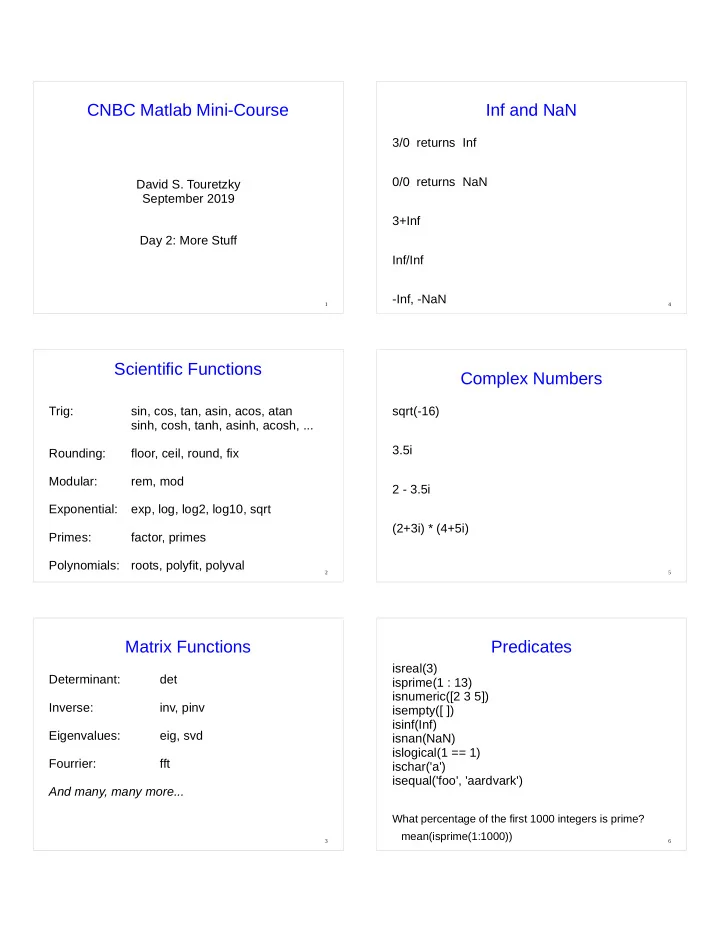
CNBC Matlab Mini-Course Inf and NaN 3/0 returns Inf 0/0 returns NaN David S. Touretzky September 2019 3+Inf Day 2: More Stuff Inf/Inf -Inf, -NaN 1 4 Scientific Functions Complex Numbers Trig: sin, cos, tan, asin, acos, atan


slide-1
SLIDE 1

1

CNBC Matlab Mini-Course

David S. Touretzky September 2019 Day 2: More Stuff

2

Scientific Functions

Trig: sin, cos, tan, asin, acos, atan sinh, cosh, tanh, asinh, acosh, ... Rounding: floor, ceil, round, fix Modular: rem, mod Exponential: exp, log, log2, log10, sqrt Primes: factor, primes Polynomials: roots, polyfit, polyval

3

Matrix Functions

Determinant: det Inverse: inv, pinv Eigenvalues: eig, svd Fourrier: fft And many, many more...

4

Inf and NaN

3/0 returns Inf 0/0 returns NaN 3+Inf Inf/Inf

  • Inf, -NaN

5

Complex Numbers

sqrt(-16) 3.5i 2 - 3.5i (2+3i) * (4+5i)

6

Predicates

isreal(3) isprime(1 : 13) isnumeric([2 3 5]) isempty([ ]) isinf(Inf) isnan(NaN) islogical(1 == 1) ischar('a') isequal('foo', 'aardvark')

What percentage of the first 1000 integers is prime? mean(isprime(1:1000))

slide-2
SLIDE 2

7

Return Values

Functions can return multiple values: A = rand(5, 3); s = size(A) [rows, cols] = size(A)

8

Optional Return Values

Functions can choose whether to return values, depending on if the user is asking for values. plot([1 2 3], [3 1 2]) no return value h = plot([1 2 3], [3 1 2]) single return value set(h, 'LineStyle', '--') set(h, 'LineWidth', 8)

9

Variable Number of Arguments

Some functions accept a variable number of arguments: peaks peaks(10)

10

Variable In and Out

hist(randn(2000,1)) hist(randn(2000,1), 50) counts = hist(randn(2000,1), 5) [counts, centers] = hist(randn(2000,1), 5)

11

nargin and nargout

Inside a function, nargin is the number of input arguments supplied with the call. nargout is the number of output arguments requested with the call.

12

Testing nargin/nargout

function [x,y,z] = nargtest(p,q,r,s,t) if nargout >= 1 x = 50; if nargout >= 2 y = 'foo'; if nargout >= 3 z = 3:7; end end end whos % show the local workspace end

Try: a = nargtest(5,6,7) [a, b] = nargtest(3) [a, ~, c] = nargtest(9,8)

slide-3
SLIDE 3

13

Name Spaces

  • Base workspace: variables created outside of

any function exist in the base workspace.

  • Local workspaces: each function executes in

a separate local workspace holding the arguments, return variables, and any local variables created by the function. Functions cannot access variables of the base workspace.

14

Name Spaces (cont.)

  • Global workspace: variables declared global

by a function are accessed in the global workspace. It's a good idea to also declare the variable global in the base workspace.

15

Global Variables

global pts pts = 0 : pi/20 : 2*pi ; function h = circ(x,y) % draws a circle centered on (x,y) global pts hh = plot(x+cos(pts), y+sin(pts)); if nargout > 0 h = hh; % return h only if requested end end

16

Scripts Called By Functions

  • Scripts do not have their own workspaces.
  • A script called from the keyboard executes in

the base workspace.

  • A script called from within a function executes in

the function's local workspace.

17

Resetting Variables

clear x removes variable x and undoes any global declaration You can also click on a variable in the workspace pane and hit the Delete key, or right-click on the variable and choose from the menu. clear all clears everything clear global clears global declarations whos global shows all global variables

18

Handle Graphics

Root = 0 Figure = 1, 2, ... Axes Line Text Image Surface

slide-4
SLIDE 4

19

Taking Apart A Figure

clf, plot(rand(5, 3)) ax = get(gcf, 'Children') get(ax) lines = get(gca, 'Children') get(lines(1))

20

Multiple Axes: Subplot

clf subplot(2,2,1), plot(rand(5, 5)) subplot(2,2,2), bar3(rand(5, 3)) subplot(2,2,3), a=rand(15, 1); pie(a, a > 0.7) subplot(2,2,4), polar(cos(0:150)) set(gca, 'Position', [0.32 0.1 0.4 0.4])

21

Exploring Graphics Objects

set(gca,'Units') set(gca) propedit(gca) click on “More Properties” Matlab online documentation: Help pulldown menu or '?' icon: > Documentation > MATLAB > Graphics > Graphics Objects

22

3D Graphics

peaks rotate3d on

  • r click on the rotation arrow in the toolbar

set(gca, 'CameraViewAngleMode', 'manual')

  • r right-click in the figure,

select Rotate Options, then select Fixed Aspect Ratio Axes

23

Plotting Surfaces

[x, y, z] = peaks; surf(x, y, z, z) surf(x, y, z, x) surf(x, y, z, rand(length(x)))

24

Plotting in 3D

Don't type all this in! Download this file: www.cs.cmu.edu/~dst/Tutorials/Matlab/helix.m

  • r cd /afs/andrew/usr/dst/matlab

function helix pts = 0 : pi/20 : 4*pi; x1 = cos(pts); y1 = sin(pts); x2 = cos(pts+pi); y2 = sin(pts+pi); z = pts/(2*pi); clf, whitebg(gcf, [0 0 0]), hold on plot3(x1, y1, z, 'y') plot3(x2, y2, z, 'w') axis([ -3 3 -3 3 0 2]) view(95, 9) end

slide-5
SLIDE 5

25

Helix (cont.)

colors = 'rgbm'; for i = 4 : 4 : length(pts)-4 plot3([x1(i) x2(i)], [y1(i) y2(i)], z([i i]), ... colors(ceil(rand(1)*length(colors))), 'LineWidth', 3) end axis off set(gcf, 'Color', 'k') set(gca, 'CameraViewAngleMode', 'manual') az = -180 ; while true view(az, 9), pause(0.05) az = az + 5 ; end

26

Color Maps

clf reset, peaks, colorbar m = colormap; whos m colormap(spring) brighten(0.5) colormap(jet) colormap(bone) colormap(hot)

27

2D Data

[x, y] = meshgrid(-2 : 0.05 : 2) ; z = sin(x) .* cos(y); contour(z, 20) imagesc(z) colormap(hot) imagesc(x(:), y(:), z) surf(z), colormap(jet) surfc(z)

28

Surface Objects

sphere [x,y,z] = sphere(20); x(1 : 5 : 21*21) = NaN; surf(x, y, z) alpha(0.7) Use the rotate tool to rotate the sphere; set Fixed Aspect Ratio Axes first. surf(x, y, z, rand(size(x))) shading interp, grid off, axis off set(gcf, 'Color', 'w')

29

Data From Files

Create a file temps.txt: Use the “New Script” button. Enter this data:

38 50 42 53 33 57 45 56 44 46 41 40

Save the file as temps.txt load temps.txt plot(temps)

30

Importing Data From Files

  • You can import data from Excel (and many
  • ther file formats) using the Import Data button.

Select the file you want to import; the wizard will guide you through the rest.

  • There are also built-in functions specifically for

dealing with Excel files: doc xlsread doc xlswrite

slide-6
SLIDE 6

31

Curve Fitting for Extrapolation

x = randn(1, 2000); y = sin(x) + 0.2 * randn(1, 2000) ; clf, hold on, plot(x, y, '.') c = polyfit(x, y, 3) Example polynomial representation: c = [ 5 -1 4 3] 5x3 – x2 + 4x + 3 pts = min(x) : range(x)/100 : max(x); plot(pts, polyval(c, pts), 'r', 'LineWidth', 3)

32

Saving Variables

clear all a = 'aardvark' [x, y, z] = sphere(5); save stuff.mat clear all whos -file stuff.mat load stuff.mat save junk.dat x y -ascii type junk.dat

33

General Operating System Stuff

pwd cd dir ls *.m delete stuff.mat !ps -a

34

Debugging

Poor man's debugger: Remove semicolons from assignments. Add 'quoted strings' in appropriate places. Add a call to keyboard. (Use return to return from keyboard input mode.) function y = buggy(vec) p = vec > 5 'got this far' keyboard z = p * vec y = sin(z) ; end

Try: buggy([4 6]) Type 'return' to exit keboard mode and continue.

35

The Matlab Debugger

dbtype helix dbstop helix 5 helix dbstep dbstep 7 whos Look at the Stack pulldown menu in the toolbar. dbstep 30 dbquit dbclear helix doc debug

36

Formatted Output

for i = 1 : 10 fprintf('The square root of %2d is %f \n', ... i, sqrt(i)) end doc fprintf title(sprintf('f(x) over range %g to %g', ...

  • 3.5, 5.125))