
SLIDE 1
Digital Images and Vector Graphics
Lecture 13 – COMPS CI111/ 111G
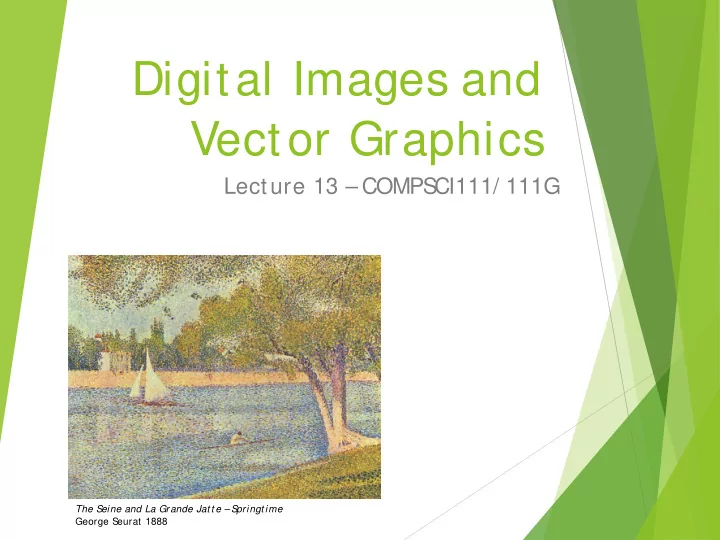
The S eine and La Grande Jat t e – S pringt ime George S eurat 1888
Digital Images and Vector Graphics Lecture 13 COMPS CI111/ 111G - - PowerPoint PPT Presentation
Digital Images and Vector Graphics Lecture 13 COMPS CI111/ 111G The S eine and La Grande Jat t e S pringt ime George S eurat 1888 Learning Outcomes S tudents should be able to: Describe the differences between bitmap graphics
Lecture 13 – COMPS CI111/ 111G
The S eine and La Grande Jat t e – S pringt ime George S eurat 1888
S tudents should be able to:
Describe the differences between bitmap graphics
and vector graphics
Calculate the size in bytes of a bitmap image Compare and contrast different compression
methods (j peg, gif and png)
26/ 03/ 2019 COMPS CI 111/ 111G - Digital Images 2
S toring pictures digitally
S
ample the image (divide into dots)
Image resolution (number of dots)
26/ 03/ 2019 COMPS CI 111/ 111G - Digital Images 3
200 x 250 40 x 50 20 x 25
http:/ / en.wikipedia.org/ wiki/ Raster_graphics
Digital Pictures consist of small dots
Each dot is called a picture element (pixel)
S toring information
Black and White are only two states Use bits to represent pixels (0 = OFF
, 1 = ON)
One to one mapping, so known as Bitmap
26/ 03/ 2019 COMPS CI 111/ 111G - Digital Images 4
1 1 1 1 0000011001100000
http:/ / en.wikipedia.org/ wiki/ Pixel
Images are displayed on an output device
S
creen / Printer
Physical devices have limitations
26/ 03/ 2019 COMPS CI 111/ 111G - Digital Images 5
S creen Printer Very small dots Large dots
26/ 03/ 2019 COMPS CI 111/ 111G - Digital Images 6
Image information with given resolution
8 x 6 pixels
26/ 03/ 2019 COMPS CI 111/ 111G - Digital Images 7
S ampled at higher resolution 16 x 12 S ampled at lower resolution 4 x 3
Printer and S creen have different sized dots
S
cale (resample) the bitmap to ensure it looks good
26/ 03/ 2019 COMPS CI 111/ 111G - Digital Images 8
Printer
Printer resolution 600 or 1200 dpi
On disk On screen
Screen resolution 72 dpi
Imagine you have taken a picture with a 4 megapixel digital
picture is square, not rectangular. Assume that you are printing this picture out on a printer that has approximately 4000 dots per inch. How many inches across would the picture be when it was printed?
4,000,000 = 2000 * 2000 Therefore the picture would take up 0.5 by 0.5 inches. If you viewed this image on a screen that had 1000 dots across, what portion of the image would be visible?
Y
Therefore you would see: ½ * ½ = ¼ of the image
26/ 03/ 2019 COMPS CI 111/ 111G - Digital Images 9
4 million pixels
Colours
Use more than 1 bit per pixel Map the binary number to a colour
26/ 03/ 2019 COMPS CI 111/ 111G - Digital Images 10
1100 0010 1111 1111 1010 0101 0010 1111 1000 0111 0000 1101 0110 1111 1110 1010 Each pixel uses 4 bits
Bits Colour 0000 Black 0001 Red 0010 Green 0011 Blue 0100 Yellow … …
Colour table used for display
One binary number used for each pixel
1 bit 2 colours
2 bits 4 colours
4 bits 16 colour
8 bits 256 colours
16 bits 65536 colours
24 bits 16,777,216 colours How many bits are required for a 16 colour image 100 pixels wide x 8 pixels high?
100x8x4 = 3200 bits = 400 bytes
An image using 24 bit colour, 1000 wide x 1000 high (1 Megapixel)? 3 MB
26/ 03/ 2019 COMPS CI 111/ 111G - Digital Images 11
How many colours can be represented by 3 bits?
23 = 8 colours
How many bits are required to represent 128 different colours?
128 = 27. Therefore 7 bits are required.
How much memory would be required to store a black and white image that is 10 pixels high and 5 pixels wide? S how your working.
Number of colours = 21. Therefore 1 bit is required per pixel. Number of pixels = h * w = 10 * 5 = 50 Memory needed = 50 * 1 = 50 bits
26/ 03/ 2019 COMPS CI 111/ 111G - Digital Images 12
How much memory (in bytes) would be required to store an image that has 256 different colours and is 3 pixels high and 5 pixels wide? S how your working.
Number of colours = 256 = 28. Therefore 8 bits or 1 byte are required per pixel. Number of pixels = h * w = 3 * 5 = 15 Memory needed = 15 * 1 = 15 bytes
26/ 03/ 2019 COMPS CI 111/ 111G - Digital Images 13
S creens use a combination of Red, Green and Blue lights
RGB colour
Use one byte (8 bits) for each colour
256 different levels of red brightness 256 different levels of green brightness 256 different levels of blue brightness
26/ 03/ 2019 COMPS CI 111/ 111G - Digital Images 14
A single pixel at distance A single pixel close up
S imply reducing number of colours Image is 200 pixels wide, 200 pixels high = 40,000 pixels
26/ 03/ 2019 COMPS CI 111/ 111G - Digital Images 15
31,942 colours 75 KB 256 colours 40 KB 16 colours 20 KB
Graphics Interchange Format (GIF)
Lossless method 256 colours Good for graphics, poor for photos Uses an algorithm that was patented
26/ 03/ 2019 COMPS CI 111/ 111G - Digital Images 16
Image Size: 200x200 Original (256 colours): 40KB GIF (256 colours): 32KB Image Size: 200x100 Original (256 colours): 20KB GIF (256 colours): 3KB
http:/ / en.wikipedia.org/ wiki/ Gif
Portable Network Graphics (PNG)
Replacement to GIF Lossless method 16 million colours (24 bit) Good for graphics, poor for photos
26/ 03/ 2019 COMPS CI 111/ 111G - Digital Images 17
Image Size: 200x200 Original (16M colours): 120KB PNG (16M colours): 68KB Image Size: 200x100 Original (256 colours): 20KB PNG (16M colours): 4KB
http:/ / en.wikipedia.org/ wiki/ Png
Joint Photographic Experts Group (JPEG)
Lossy method 16 Million colours (24 bit) Averages nearby colours Different degrees of compression Good for photos, poor for graphics
26/ 03/ 2019 COMPS CI 111/ 111G - Digital Images 18
Image Size: 200x200 Original: 120KB JPEG (50%): 6KB Image Size: 200x200 Original: 120KB JPEG (99%): 2KB Image Size: 200x100 Original: 60KB JPEG (50%): 5KB
http:/ / en.wikipedia.org/ wiki/ j peg
Obj ect-oriented graphics
Obj ects created independently Defined by mathematical formulae
Advantages
Very small memory requirements Memory independent of the image size S
cale to any size without loss of quality
26/ 03/ 2019 COMPS CI 111/ 111G - Digital Images 19
Obj ect Type: S quare Height: 100 Width: 100 Position_X: 354 Position_Y: 289 Fill Colour: Light Blue http:/ / en.wikipedia.org/ wiki/ Vector_graphics
26/ 03/ 2019 COMPS CI 111/ 111G - Digital Images 20
Bitmap .gif, .j pg, .png Vector Graphics .svg
Format for representing vector graphics images
Open standard created by W3C New, gaining popularity XML, text file similar to HTML
26/ 03/ 2019 COMPS CI 111/ 111G - Digital Images 21
<?xml version="1.0" encoding="utf-8" standalone="yes"?> <!DOCTYPE svg PUBLIC "-//W3C//DTD SVG 1.1//EN" "http://www.w3.org/Graphics/SVG/1.1/DTD/svg11.dtd"> <svg xmlns="http://www.w3.org/2000/svg" xmlns:xlink="http://www.w3.org/1999/xlink" version="1.1" width="520" height="520"> <style type="text/css"> <![CDATA[ text{font-size:362px;font- weight:bold;font-family:"Times New Roman", serif} #P0 {fill:#d4a000;stroke:#000;stroke-width:9} #P1 {fill:url(#tl)} #P2 {fill:url(#bl)} #P3 {fill:url(#br)} #P4 {fill:url(#tr)} ]]> </style> <defs> <linearGradient id="dk"> <stop/> <stop style="stop-opacity:0" offset="1"/> </linearGradient> <linearGradient id="lt"> <stop style="stop-color:#ffe681"/> <stop style="stop-color:#ffe681;stop-opacity:0" offset="1"/> </linearGradient> <linearGradient x1="136.4" y1="136.4" x2="167.5" y2="167.5" id="tl" xlink:href="#lt" gradientUnits="userSpaceOnUse"/> <linearGradient x1="136.4" y1="383.6" x2="167.5" y2="352.5" id="bl" xlink:href="#lt" gradientUnits="userSpaceOnUse"/> <linearGradient x1="383.6" y1="383.6" x2="352.5" y2="352.5" id="br" xlink:href="#dk" gradientUnits="userSpaceOnUse"/> <linearGradient x1="383.6" y1="136.4" x2="352.5" y2="167.5" id="tr" xlink:href="#dk" gradientUnits="userSpaceOnUse"/> </defs> <path id="P0" d="M260,6.3L 6.3,260L 260,513.7L 513.7,260L 260,6.3z"/> <text y="380" x="200">!</text> <path id="P1" d="M260,12.7L 260,75L 75,260L 12.7,260L 260,12.7z"/> <path id="P2" d="M260,507.3L 260,445L 75,260L 12.7,260L 260,507.3z"/> <path id="P3" d="M260,507.3L 260,445L 445,260L 507.3,260L 260,507.3z"/> <path id="P4" d="M260,12.7L 260,75L 445,260L 507.3,260L 260,12.7z"/> </svg>
http:/ / en.wikipedia.org/ wiki/ Svg
Bitmap Images
Pixel width x pixel height = resolution
Use numbers to encode colour of each pixel (more colours = more bits per pixel)
Look j agged when enlarged too much
Take a lot of memory but can be compressed (e.g. JPG) Vector Images
Defined by mathematical formulae
Can be enlarged and still look nice
S mall compared to bitmap images
26/ 03/ 2019 COMPS CI 111/ 111G - Digital Images 22