Disas Dis aster R Recovery an and Gr Gran ant t Re Reporting - - PowerPoint PPT Presentation

disas dis aster r recovery an and gr gran ant t re
SMART_READER_LITE
LIVE PREVIEW

Disas Dis aster R Recovery an and Gr Gran ant t Re Reporting - - PowerPoint PPT Presentation

Disas Dis aster R Recovery an and Gr Gran ant t Re Reporting g (DRGR) ) System m DRGR Release 8.1 | Overview | CDBG-DR and CDBG-MIT Webinar Series Summer 2020 Presenters Presenters HUD Steven Edwards, DRGR Specialist Hana


slide-1
SLIDE 1

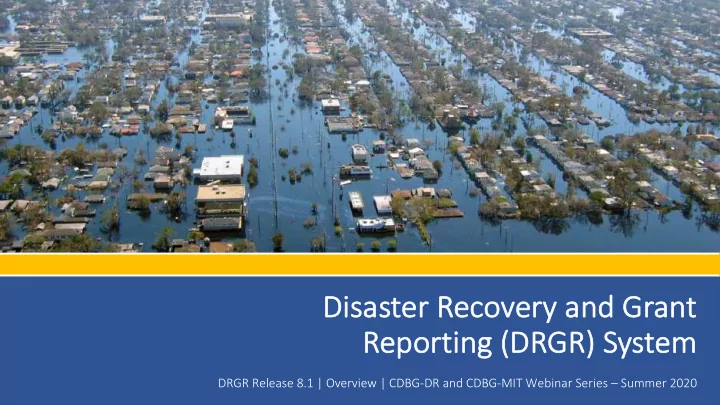
Dis Disas aster R Recovery an and Gr Gran ant t Re Reporting g (DRGR) ) System m

DRGR Release 8.1 | Overview | CDBG-DR and CDBG-MIT Webinar Series – Summer 2020
slide-2
SLIDE 2

Presenters Presenters

HUD Steven Edwards, DRGR Specialist Hana Nelson, CPD Specialist TDA Jennifer Alpha, Senior Consultant

2

slide-3
SLIDE 3

Training Objectives

  • Accessing and navigating the DRGR modules and reports
  • Creating and editing DRGR Action Plans
  • Editing and submitting Quarterly Performance Reports (QPRs)
  • Creating and approving drawdown vouchers
  • Finding resources on DRGR

3

slide-4
SLIDE 4

Fo Format rmat

  • Most of presentation will be a live demonstration
  • This is a high-level tutorial most suitable for beginners or those hoping to

become more familiar with the new look of DRGR, however, we will discuss tips and tricks!

  • Questions can be asked in the Q&A feature
  • Breaks will be taken between sections to answer questions
  • We may not get to answer everyone’s question verbally but will do our best

to answer in written form.

4

slide-5
SLIDE 5

DRG DRGR R Navigation Navigation

  • 1. DRGR allows users to choose a grant and “lock” the system to that

grant for certain functions so that users can navigate efficiently. 2. The system will default to the most recently accessed grant upon log

  • in. To work on a different grant, click in the grant box or on the lock

icon to select the preferred grant from the list in the dropdown menu. 3. When working within a grant, the system will display an alert if a new grant is chosen from the locked grant bar.

6

slide-6
SLIDE 6

DRG DRGR R Navigation Navigation

7

slide-7
SLIDE 7

DRG DRGR R Navigation Navigation

  • The system defaults to the grant that is ‘locked” in the grant box as

the user navigates the functions in the system.

  • Navigate across the modules by clicking on the icons along the top

menu bar.

8

slide-8
SLIDE 8

DRG DRGR R Navigation Navigation

9

slide-9
SLIDE 9

ICON MODULE ICON MODULE Home Page Administration Manage My Grants Data Analytics Manage My Financials My Profile Manage My Compliance

DRG DRGR R Navigation Navigation

  • The icons correspond to the modules as noted below.
  • Selecting each module reveals a dropdown menu of functions

available in that module. The following slides show the menus for each module. The remainder of this presentation will be a live demonstration of some key functions across DRGR.

10

slide-10
SLIDE 10

Manage Manage My Grants My Grants Menu Menu

11

slide-11
SLIDE 11

Hoe Grant Management Financial Compliance Administration Utilities

Manage Manage My Financials My Financials Menu Menu

12

slide-12
SLIDE 12

Manage Manage My Compliance My Compliance Menu Menu

13

slide-13
SLIDE 13

Administration Administration Menu enu

14

slide-14
SLIDE 14

My Profile My Profile Menu Menu

15

slide-15
SLIDE 15

Da Data A a Ana nalyti tics M s Menu nu

  • DRGR reports are accessed via the Data Analytics module, which

connects users to MicroStrategy.

  • Users will see a folder for DRGR OLAP and for Data Analytics. DRGR

OLAP contains the old format of DRGR reports, or “Legacy” reports. HUD encourages users to use the reports in the new format under DRGR Analytics.

  • Users can find a crosswalk of Legacy reports to Data Analytics reports

in the Fact Sheet entitled “Data Analytics (Reports)” under Release 8.0

  • n the HUD Exchange Fact Sheets page. Link below:
  • https://files.hudexchange.info/resources/documents/DRGR-Fact-Sheet-R-8-0-

Analytics-Reports.pdf

16

slide-16
SLIDE 16

Data Analytics Menu Data Analytics Menu

To access reports, (1) Select <Reports> under the Analytics menu of the Data Analytics 1 module. (2) Choose the DRGR Analytics folder on the page that loads. 2

17

slide-17
SLIDE 17

Data Analytics Menu Data Analytics Menu

(3) Select Shared Reports. 3

18

slide-18
SLIDE 18

Data Analytics Menu Data Analytics Menu

(4) Choose the folder for the report type you would like to access. 4

19

slide-19
SLIDE 19

Data Analytics Menu Data Analytics Menu

(5) Choose the report. 5

20

slide-20
SLIDE 20

Data Analytics Menu Data Analytics Menu

(6) The report loads.

21

6

slide-21
SLIDE 21

Reso sourc urces

Access DRGR Resources on the HUD Exchange at . https://www.hudexchange.info/programs/drgr/ .

22

slide-22
SLIDE 22

THANK YOU!

23