
SLIDE 1
Graphical User Interfaces 2
Fundamentals of Computer Science
Graphical User Interfaces 2 Fundamentals of Computer Science - - PowerPoint PPT Presentation
Graphical User Interfaces 2 Fundamentals of Computer Science Outline Extending JFrame Dialog boxes Getting user input Displaying message or error Drawing shapes and images JPanel Listening for input Mouse
Fundamentals of Computer Science
Getting user input Displaying message or error
JPanel
Mouse Keyboard
Runs instance method, e.g. go() Creates a JFrame and associated GUI elements How Head First Java does it Preferred method
Create a class that extends JFrame Constructor handles GUI setup No need to create a JFrame Main program class instantiates the class
import javax.swing.*; import java.awt.event.*; public class ButtonCount implements ActionListener { private int count = 0; private JButton button; public void actionPerformed(ActionEvent event) { count++; button.setText("count = " + count); } public void go() { JFrame frame = new JFrame("ButtonCount"); button = new JButton("count = " + count); frame.setDefaultCloseOperation(JFrame.EXIT_ON_CLOSE); frame.getContentPane().add(button); frame.setSize(300,300); frame.setVisible(true); button.addActionListener(this); } public static void main(String [] args) { ButtonCount gui = new ButtonCount(); gui.go(); } }
4
import javax.swing.*; import java.awt.event.*; public class ButtonCount2 extends JFrame implements ActionListener { private int count = 0; private JButton button; public void actionPerformed(ActionEvent event) { count++; button.setText("count = " + count); } public ButtonCount2() { super("ButtonCount2"); button = new JButton("count = " + count); setDefaultCloseOperation(JFrame.EXIT_ON_CLOSE); getContentPane().add(button); setSize(300,300); setVisible(true); button.addActionListener(this); } public static void main(String [] args) { ButtonCount2 gui = new ButtonCount2(); } }
5
JFrame, but we are a JFrame, so no
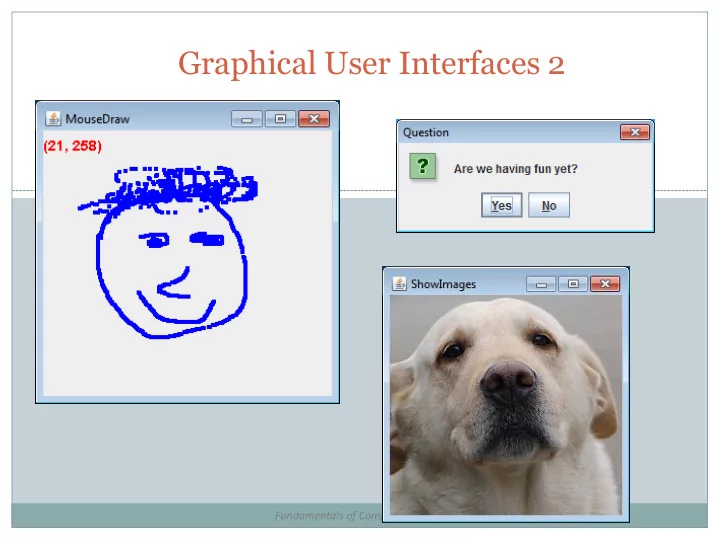
Asks a question Or gives an error, information, etc. Typically modal Blocks rest of GUI until closed Displays different icons depending on parameter
JOptionPane.ERROR_MESSAGE JOptionPane.INFORMATION_MESSAGE JOptionPane.WARNING_MESSAGE JOptionPane.QUESTION_MESSAGE JOptionPane.PLAIN_MESSAGE
public class NameDialog { public static void main(String [] args) { String name = JOptionPane.showInputDialog("What is your name?"); JOptionPane.showMessageDialog(null, "Hello there " + name + "!", "Greetings", JOptionPane.PLAIN_MESSAGE); } }
(text entered)
(no text entered)
JFrame object
7
public class YesNoDialog { public static void main(String [] args) { int result = JOptionPane.showConfirmDialog(null, "Are we having fun yet?", "Question", JOptionPane.YES_NO_OPTION); JOptionPane.showMessageDialog(null, "Answer = " + result, "Result", JOptionPane.PLAIN_MESSAGE); } }
(Windows 7)
http://docs.oracle.com/javase/tutorial/uiswing/components/dialog.html#dialogdemo
8
Purpose 1: Container for other widgets Allows more control of layout Purpose 2: Place to draw lines, circles, images, etc. Like StdDraw Needs to be added to a JFrame Class that extends JPanel, drawing done by: public void paintComponent(Graphics g) Called automatically when needed
e.g. window resized
Or by calling repaint() on JFrame
public class MyDrawPanel extends JPanel { public void paintComponent(Graphics g) { g.setColor(Color.ORANGE); g.fillRect(20,50,100,100); g.setColor(new Color(1.0f, 0.0f, 1.0f)); g.drawLine(0, 0, 100, 100); g.setColor(Color.BLUE); g.fillOval(200, 100, 50, 25); BufferedImage image = null; try { image = ImageIO.read(new File("cat.jpg")); } catch (IOException e) { e.printStackTrace(); } g.drawImage(image, 70, 170, null); } } public class Panel { public static void main(String [] args) { JFrame frame = new JFrame(); MyDrawPanel panel = new MyDrawPanel(); frame.getContentPane().add(BorderLayout.CENTER, panel); frame.setSize(400, 400); frame.setDefaultCloseOperation(JFrame.EXIT_ON_CLOSE); frame.setVisible(true); } }
Construct BufferedImage using static method Pass it a File object constructed using filename Will be null on error
ImageIO.read can throw IOException
BufferedImage image = ImageIO.read(new File("cat.jpg")); if (image != null) { int width = image.getWidth(); int height = image.getHeight(); }
In the paintComponent(Graphics g) method g.drawImage(Image image, int x, int y,
NOTE: (x, y) is the upper-left corner of image Keep the BufferedImage object around Avoid loading from disk each time you need it
g.drawImage(image, 0, 0, null);
Watches for mouse entry/exit from component Watches for button events No events if moving mouse inside component Only if inside the listening component!
mousePressed(MouseEvent)
mouseReleased(MouseEvent) After the user releases a mouse button after a
mouseClicked(MouseEvent)
mouseEntered(MouseEvent)
mouseExited(MouseEvent)
(x, y) pixel coordinate: (0,0) is upper-left Number of consecutive clicks Button that changed state (pushed, released, clicked)
int getClickCount()
int getX()
int getY()
Point getPoint()
int getButton()
BUTTON2, or BUTTON3.
Add line of text to area on MouseListener event Output event type and mouse (x, y) Events only triggered in JTextArea not JButton
JTextArea
JScrollPane
JTextArea
Ye Olde JButton
Detects movement of mouse inside a component With or without the mouse pressed
mouseMoved(MouseEvent)
mouseDragged(MouseEvent)
During MouseDragged event, add Point objects Requires a custom JPanel that draws all the points Override paintComponent(Graphics g) method Also display current mouse (x, y) in upper-left
MouseDrawPanel extends JPanel
When a key is pressed, released, or typed Typed event only for printable characters
Not arrow keys, etc.
Numeric key codes for all event types Component must have focus to fire event For custom components (e.g. game drawing panel):
Ensure it can accept focus: setFocusable(true)
mouseClicked() handler that calls requestFocusInWindow()
Or make all other UI widgets not focusable
keyTyped(KeyEvent)
keyPressed(KeyEvent)
keyReleased(KeyEvent)
Figure out what was typed or pressed Actual character for typed events Only key code for pressed/released events
int getKeyChar()
int getKeyCode()
int getModifiersEx() Extended modifier mask for the event, such as
Output text about each event
JPanel forced to
JTextArea inside a JScrollPane
Constructor sets up the GUI widgets
Collect a response, provide info or error
Requires a JPanel