
SLIDE 1
1
How to Add Voice Overs Your Course Slides in PowerPoint
MS PowerPoint allows users to add voice overs to slides. Please follow the steps.
- 1. Open up your slides.
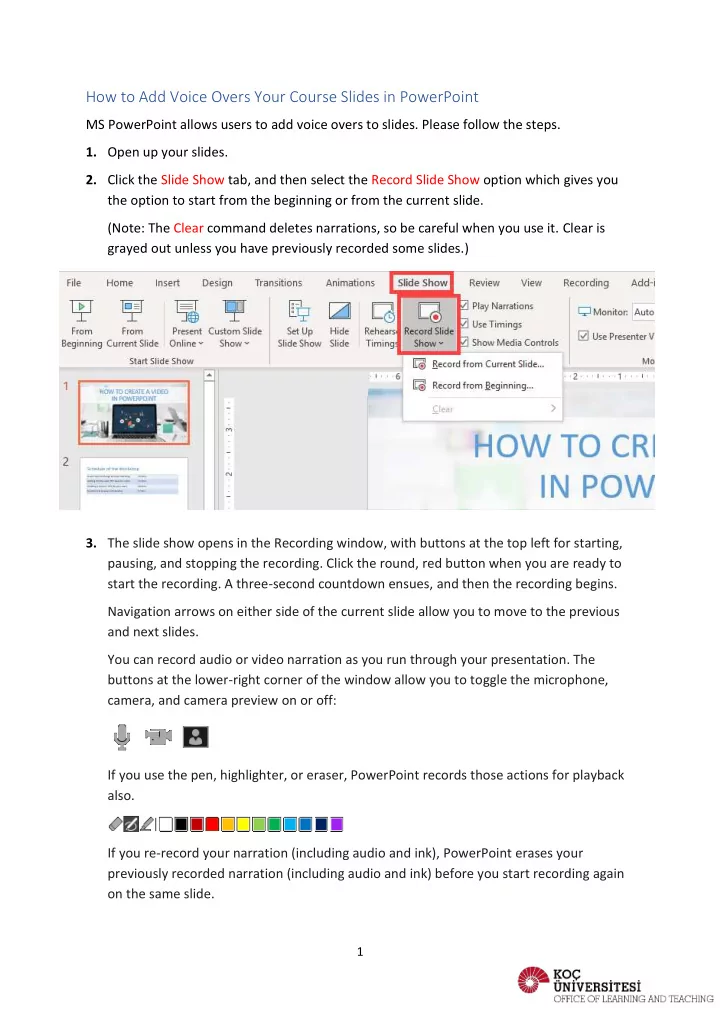
- 2. Click the Slide Show tab, and then select the Record Slide Show option which gives you
the option to start from the beginning or from the current slide. (Note: The Clear command deletes narrations, so be careful when you use it. Clear is grayed out unless you have previously recorded some slides.)
- 3. The slide show opens in the Recording window, with buttons at the top left for starting,
pausing, and stopping the recording. Click the round, red button when you are ready to start the recording. A three-second countdown ensues, and then the recording begins. Navigation arrows on either side of the current slide allow you to move to the previous and next slides. You can record audio or video narration as you run through your presentation. The buttons at the lower-right corner of the window allow you to toggle the microphone, camera, and camera preview on or off: If you use the pen, highlighter, or eraser, PowerPoint records those actions for playback also. If you re-record your narration (including audio and ink), PowerPoint erases your previously recorded narration (including audio and ink) before you start recording again
- n the same slide.