SLIDE 1 HTML
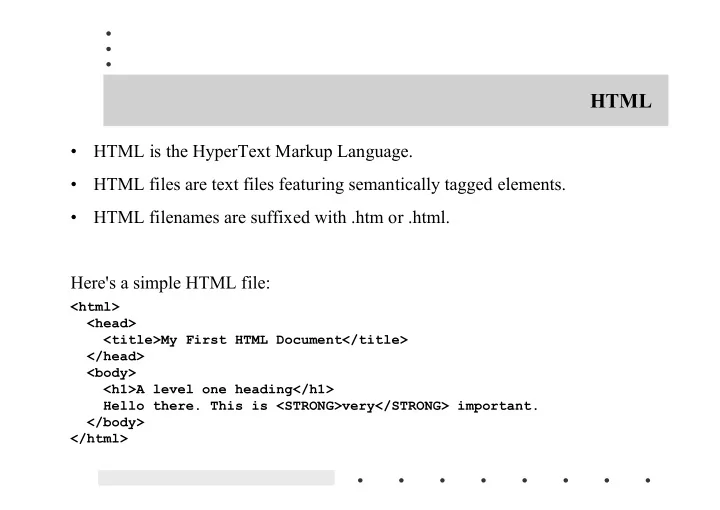
HTML is the HyperText Markup Language. HTML files are text files featuring semantically tagged elements. HTML filenames are suffixed with .htm or .html. Here's a simple HTML file:
<html> <head> <title>My First HTML Document</title> </head> <body> <h1>A level one heading</h1> Hello there. This is <STRONG>very</STRONG> important. </body> </html>
SLIDE 2 Attributes
Some tags have attributes. An attribute is a name, followed by an = sign, followed by the value.
<h1 align="center">A level one heading</h1>
SLIDE 3 URLs
URL stands for uniform resource locator. A URL is a pointer to a particular resource on the Internet at a particular location.
http://metalab.unc.edu/javafaq/course/week5/exercises.html ftp://ftp.macfaq.com/pub/macfaq/ are both URLs.
protocol://hostname[:port]/path/filename#section
SLIDE 4 The protocol
file a file on your local disk ftp an FTP server http a World Wide Web server gopher a Gopher server mailto an email address news a Usenet newsgroup telnet a connection to a Telnet-based service WAIS a WAIS server
SLIDE 5 The parts of a URL
<A NAME="xtocid1902914">Comments</A>
A URL that points to this name, includes not only the filename, but also the named anchor separated from the rest of the URL by a # like this
http://metalab.unc.edu/javafaq/javafaq.html#xtocid1902914
SLIDE 6 Links
<A HREF="http://metalab.unc.edu/javafaq/course/week5/exercises.html"> exercises </A>
SLIDE 7 Hello World: The Applet
import java.applet.Applet; import java.awt.Graphics; public class HelloWorldApplet extends Applet { public void paint(Graphics g) { g.drawString("Hello world!", 50, 25); } }
SLIDE 8 <HTML> <HEAD> <TITLE> Hello World </TITLE> </HEAD> <BODY> This is the applet:<P> <applet code="HelloWorldApplet" width="150" height="50"> </applet> </BODY> </HTML>
SLIDE 9
What is an Applet?
Four definitions of applet:
– A small application – A secure program that runs inside a web browser – A subclass of java.applet.Applet – An instance of a subclass of java.applet.Applet
SLIDE 10 public class Applet extends Panel java.lang.Object | +----java.awt.Component | +----java.awt.Container | +----java.awt.Panel | +----java.applet.Applet
SLIDE 11 The APPLET HTML Tag
<APPLET CODE="HelloWorldApplet" CODEBASE="http://www.foo.bar.com/classes" WIDTH="200" HEIGHT="200"> </APPLET>
SLIDE 12 If the applet is in a non-default package, then the full package qualified name must be used. For example,
<APPLET CODE="com.macfaq.greeting.HelloWorldApplet" CODEBASE="http://www.example.com/classes" WIDTH="200" HEIGHT="200"> </APPLET>
SLIDE 13 Spacing Preferences
<applet code="HelloWorldApplet" CODEBASE="http://www.foo.bar.com/classes" width=200 height=200 ALIGN=RIGHT HSPACE=5 VSPACE=10> </APPLET>
SLIDE 14 Alternate Text
<applet code="HelloWorldApplet" CODEBASE="http://www.foo.bar.com/classes" width="200" height="200" ALIGN="RIGHT" HSPACE="5" VSPACE="10" ALT="Hello World!"> </APPLET> <applet code="HelloWorldApplet" CODEBASE="http://www.foo.bar.com/classes" width=200 height=200 ALIGN=RIGHT HSPACE=5 VSPACE=10 ALT="Hello World!"> Hello World!<P> </APPLET>
SLIDE 15 Naming Applets
<APPLET CODE="HelloWorldApplet" NAME="Applet1" CODEBASE="http://www.foo.bar.com/classes" WIDTH="200" HEIGHT="200" align="right" HSPACE="5" VSPACE="10" ALT="Hello World!"> Hello World!<P> </APPLET>
SLIDE 16 JAR Archives
<APPLET CODE="HelloWorldApplet" WIDTH="200" HEIGHT="100" ARCHIVES="HelloWorld.jar"> <hr> Hello World! <hr> </APPLET>
SLIDE 17 The OBJECT Tag
<OBJECT classid="MyApplet" CODEBASE="http://www.foo.bar.com/classes" width=200 height=200 ALIGN=RIGHT HSPACE=5 VSPACE=10> </OBJECT>
You can support both by placing an <APPLET> element inside an <OBJECT> element like this:
<OBJECT classid="MyApplet" width="200" height="200"> <APPLET code="MyApplet" width="200" height="200"> </APPLET> </OBJECT>
SLIDE 18 Finding an Applet's Size
import java.applet.*; import java.awt.*; public class SizeApplet extends Applet { public void paint(Graphics g) { Dimension appletSize = this.getSize(); int appletHeight = appletSize.height; int appletWidth = appletSize.width; g.drawString("This applet is " + appletHeight +" pixels high by “ + appletWidth + " pixels wide.",15, appletHeight/2); } }
SLIDE 19 Passing Parameters to Applets
import java.applet.*; import java.awt.*; public class DrawStringApplet extends Applet { private String defaultMessage = "Hello!"; public void paint(Graphics g) { String inputFromPage = this.getParameter("Message"); if (inputFromPage == null) inputFromPage = defaultMessage; g.drawString(inputFromPage, 50, 25); } }
SLIDE 20 You also need an HTML file that references your applet. The following simple HTML file will do:
<HTML> <HEAD> <TITLE> Draw String </TITLE> </HEAD> <BODY> This is the applet:<P> <APPLET code="DrawStringApplet" width="300" height="50"> <PARAM name="Message" value="Howdy, there!"> This page will be very boring if your browser doesn't understand Java. </APPLET> </BODY> </HTML>
SLIDE 21 Processing An Unknown Number Of Parameters
<PARAM name="Line1" value="There once was a man from Japan"> <PARAM name="Line2" value="Whose poetry never would scan"> <PARAM name="Line3" value="When asked reasons why,"> <PARAM name="Line4" value="He replied, with a sigh:"> <PARAM name="Line5" value="I always try to get as many syllables into the last line as I can.">
SLIDE 22 Processing An Unknown Number Of Parameters
import java.applet.*; import java.awt.*; public class PoetryApplet extends Applet { private String[] poem = new String[101]; private int numLines; public void init() { String nextline; for (numLines = 1; numLines < poem.length; numLines++) { nextline = this.getParameter("Line" + numLines); if (nextline == null) break; poem[numLines] = nextline; } numLines--; } public void paint(Graphics g) { int y = 15; for (int i=1; i <= numLines; i++) { g.drawString(poem[i], 5, y); y += 15; } } }
SLIDE 23
What Can an Applet Do?
An applet can:
– Draw pictures on a web page – Create a new window and draw in it. – Play sounds. – Receive input from the user through the keyboard or the mouse. – Make a network connection to the server from which it came and can send to and receive arbitrary data from that server.
SLIDE 24 An applet cannot:
– Write data on any of the host's disks. – Read any data from the host's disks without the user's permission. In some environments, notably Netscape, an applet cannot read data from the user's disks even with permission. – Delete files – Read from or write to arbitrary blocks of memory, even on a non-memory-protected
- perating system like the MacOS. All memory access is strictly controlled.
– Make a network connection to a host on the Internet other than the one from which it was downloaded. – Call the native API directly (though Java API calls may eventually lead back to native API calls). – Introduce a virus or trojan horse into the host system. – An applet is not supposed to be able to crash the host system. However in practice Java isn't quite stable enough to make this claim yet.
SLIDE 25 The Basic Applet Life Cycle
- 1. The browser reads the HTML page and finds any <APPLET> tags.
- 2. The browser parses the <APPLET> tag to find the CODE and possibly CODEBASE attribute.
- 3. The browser downloads the .class file for the applet from the URL found in the last step.
- 4. The browser converts the raw bytes downloaded into a Java class, that is a java.lang.Class object.
- 5. The browser instantiates the applet class to form an applet object. This requires the applet to have
a noargs constructor.
- 6. The browser calls the applet's init() method.
- 7. The browser calls the applet's start() method.
- 8. While the applet is running, the browser passes any events intended for the applet, e.g. mouse
clicks, key presses, etc., to the applet's handleEvent() method. Update events are used to tell the applet that it needs to repaint itself.
- 9. The browser calls the applet's stop() method.
- 10. The browser calls the applet's destroy() method.
SLIDE 26 The Basic Applet Life Cycle
All applets have the following four methods:
public void init(); public void start(); public void stop(); public void destroy();
SLIDE 27
The Coordinate System
SLIDE 28
Graphics Objects
In Java all drawing takes place via a Graphics object. This is an instance of the class java.awt.Graphics.
SLIDE 29 Drawing Lines
g.drawLine(x1, y1, x2, y2)
This program draws a line diagonally across the applet.
import java.applet.*; import java.awt.*; public class SimpleLine extends Applet { public void paint(Graphics g) { g.drawLine(0, 0, this.getSize().width, this.getSize(). height); } }
SLIDE 30
Here's the result
SLIDE 31
Drawing Rectangles
public void drawRect(int x, int y, int width, int height)
This uses drawRect() to draw a rectangle around the sides of an applet.
import java.applet.*; import java.awt.*; public class RectangleApplet extends Applet { public void paint(Graphics g) { g.drawRect(0, 0, this.getSize().width - 1, this.getSize().height - 1); } }
SLIDE 32
SLIDE 33 Filling Rectangles
import java.applet.*; import java.awt.*; public class FillAndCenter extends Applet { public void paint(Graphics g) { int appletHeight = this.getSize().height; int appletWidth = this.getSize().width; int rectHeight = appletHeight/3; int rectWidth = appletWidth/3; int rectTop = (appletHeight - rectHeight)/2; int rectLeft = (appletWidth - rectWidth)/2; g.fillRect(rectLeft, rectTop, rectWidth-1, rectHeight-1); } }
SLIDE 34 Clearing Rectangles
public abstract void clearRect(int x, int y, int width, int height)
- This program uses clearRect() to blink a rectangle on the screen.
import java.applet.*; import java.awt.*; public class Blink extends Applet { public void paint(Graphics g) { int appletHeight = this.getSize().height; int appletWidth = this.getSize().width; int rectHeight = appletHeight/3; int rectWidth = appletWidth/3; int rectTop = (appletHeight - rectHeight)/2; int rectLeft = (appletWidth - rectWidth)/2; for (int i=0; i < 1000; i++) { g.fillRect(rectLeft, rectTop, rectWidth-1, rectHeight-1); g.clearRect(rectLeft, rectTop, rectWidth-1, rectHeight-1); } } }
SLIDE 35 Ovals and Circles
public void drawOval(int left, int top, int width, int height) public void fillOval(int left, int top, int width, int height)
SLIDE 36 Angles are given in degrees. The signatures are:
public void drawArc(int left, int top, int width, int height, int startangle, int stopangle) public void fillArc(int left, int top, int width, int height, int startangle, int stopangle)
SLIDE 37
Bullseye
import java.applet.*; import java.awt.*; public class Bullseye extends Applet { public void paint(Graphics g) { int appletHeight = this.getSize().height; int appletWidth = this.getSize().width; for (int i=8; i >= 0; i--) { if ((i % 2) == 0) g.setColor(Color.red); else g.setColor(Color.white); // Center the rectangle int rectHeight = appletHeight*i/8; int rectWidth = appletWidth*i/8; int rectLeft = appletWidth/2 - i*appletWidth/16; int rectTop = appletHeight/2 - i*appletHeight/16; g.fillOval(rectLeft, rectTop, rectWidth, rectHeight); } } }
SLIDE 38 Polygons
public Polygon(int[] xpoints, int[] ypoints, int npoints)
SLIDE 39
to construct a 3-4-5 right triangle with the right angle on the origin you would type
int[] xpoints = {0, 3, 0}; int[] ypoints = {0, 0, 4}; Polygon myTriangle = new Polygon(xpoints, ypoints, 3);
SLIDE 40 Polylines
public abstract void drawPolyline(int[] xPoints, int[] yPoints, int nPoints)
SLIDE 41 Loading Images
URL imageURL = new URL("http://www.prenhall.com/logo.gif"); java.awt.Image img = this.getImage(imageURL);
You can compress this into one line as follows
Image img = this.getImage(new URL("http://www.prenhall.com/ logo.gif"));
SLIDE 42 Code and Document Bases
Image img = this.getImage(this.getCodeBase(), "test.gif");
SLIDE 43 Drawing Images at Actual Size
g.drawImage(img, x, y, io)
A paint() method that does nothing more than draw an Image starting at the upper left hand corner of the applet may look like this
public void paint(Graphics g) { g.drawImage(img, 0, 0, this); }
SLIDE 44 Scaling Images
public boolean drawImage(Image img, int x, int y, int width, int height, ImageObserver io)
For instance this is how you would draw an Image scaled by one quarter in each dimension:
g.drawImage(img,0,0,img.getWidth(this)/4, img.getHeight(this)/4,this);
SLIDE 45 import java.awt.*; import java.applet.*; public class MagnifyImage extends Applet { private Image image; private int scaleFactor; public void init() { String filename = this.getParameter("imagefile"); this.image = this.getImage(this.getDocumentBase(), filename); this.scaleFactor = Integer.parseInt(this.getParameter ("scalefactor")); } public void paint (Graphics g) { int width = this.image.getWidth(this); int height = this.image.getHeight(this); scaledWidth = width * this.scaleFactor; scaledHeight = height * this.scaleFactor; g.drawImage(this.image, 0, 0, scaledWidth, scaledHeight, this); } }
SLIDE 46 Scaling Images
import java.applet.*; import java.awt.*; public class MagnifyImage extends Applet { private Image theImage; private int scaledWidth; private int scaledHeight; public void init() { String filename = this.getParameter("imagefile"); theImage = this.getImage(this.getDocumentBase(), filename); int scalefactor = Integer.parseInt(this.getParameter ("scalefactor")); int width = theImage.getWidth(this); int height = theImage.getHeight(this); caledWidth = width * scalefactor; scaledHeight = height * scalefactor; } public void paint (Graphics g) { g.drawImage(theImage, 0, 0, scaledWidth, scaledHeight, this); } }