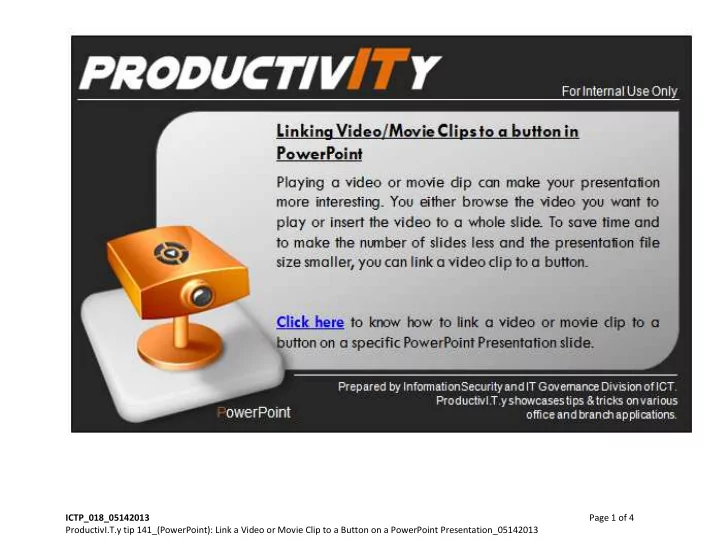
ICTP_018_05142013 Page 1 of 4 ProductivI.T.y tip 141_(PowerPoint): - - PowerPoint PPT Presentation

ictp 018 05142013 page 1 of 4 productivi t y tip 141
SMART_READER_LITE
LIVE PREVIEW

ICTP_018_05142013 Page 1 of 4 ProductivI.T.y tip 141_(PowerPoint): - - PowerPoint PPT Presentation

ICTP_018_05142013 Page 1 of 4 ProductivI.T.y tip 141_(PowerPoint): Link a Video or Movie Clip to a Button on a PowerPoint Presentation_05142013 Link a Video or Movie Clip to a Button on a PowerPoint Presentation 1. Display the slide to which the


slide-1
SLIDE 1

ICTP_018_05142013 Page 1 of 4 ProductivI.T.y tip 141_(PowerPoint): Link a Video or Movie Clip to a Button on a PowerPoint Presentation_05142013

slide-2
SLIDE 2

ICTP_018_05142013 Page 2 of 4 ProductivI.T.y tip 141_(PowerPoint): Link a Video or Movie Clip to a Button on a PowerPoint Presentation_05142013

Link a Video or Movie Clip to a Button on a PowerPoint Presentation

  • 1. Display the slide to which the link has to be made in slide view.
  • 2. Click Insert.
  • 3. Select your button from Picture, Clip Art or Shapes. Highlight it then click Action.
  • 4. On the Mouse Click tab, tick Run program then click Browse.
slide-3
SLIDE 3

ICTP_018_05142013 Page 3 of 4 ProductivI.T.y tip 141_(PowerPoint): Link a Video or Movie Clip to a Button on a PowerPoint Presentation_05142013

  • 5. Select All Files. Navigate through the appropriate drive and directory and locate the Video Clip file.

If you do not select All Files, you will not be able to browse the video you want to link.

  • 6. Double click the file name.
  • 7. Click OK.

The Video Clip file will be inserted as a linked object to the button you have selected on the slide. Using the Action feature, you can also link other files like Programs, Pictures or Documents to a button. And for the Button, you can use Pictures, Clip Arts, Shapes or Texts by inserting/typing it to a slide and highlighting it.

slide-4
SLIDE 4

ICTP_018_05142013 Page 4 of 4 ProductivI.T.y tip 141_(PowerPoint): Link a Video or Movie Clip to a Button on a PowerPoint Presentation_05142013

We value your feedback. Please help us improve our ProductivI.T.y releases by filling out the “Serbisyong Bida” online survey form.

You may also email your comments and suggestions to ict-process@pjlhuillier.com. Click here for back issues of ProductivI.T.y in MyLink.