SLIDE 1
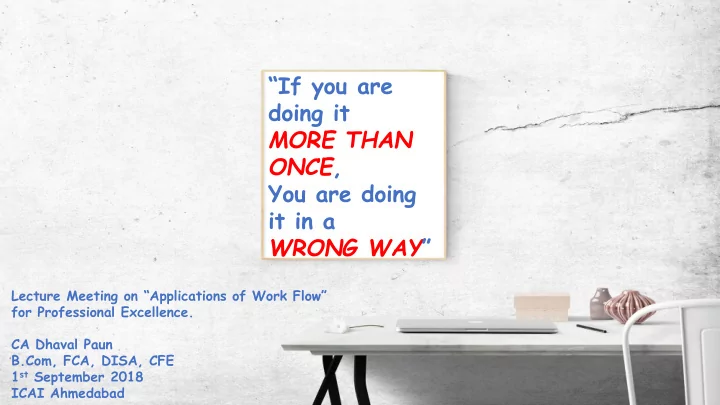
“If you are doing it MORE THAN ONCE, You are doing it in a WRONG WAY”
Lecture Meeting on “Applications of Work Flow” for Professional Excellence. CA Dhaval Paun B.Com, FCA, DISA, CFE 1st September 2018 ICAI Ahmedabad
SLIDE 2
SLIDE 3
SLIDE 4
https://resource.cdn.icai.org/ 47921daab37895dcmm.pdf
SLIDE 5
SLIDE 6
Features of a Productivity Tool
Cloud Based Sync to Multiple Devices Integrate with other Apps Team Collaboration Adaptable to match our Need Free of Cost/Cost Effective If you opt to upgrade
SLIDE 7
SLIDE 8
SLIDE 9
SLIDE 10
Benefits of IFTTT
Helps your Apps and Devices Work Together Number of Ready-to-use Applets to automate the process totally or converts the process into one click. For Example, To save a receipt on Evernote, Open Camera; Take Photo; Go to Gallery; Share the Photo to Evernote. With correct IFTTT Applet, you can directly save receipts to Evernote in one click Other Example of Applet, It automatically saves starred emails in Evernote, if you have that Applet One other Example of Applet, It save all your new iOS contacts to a Google Spreadsheet. Most Powerful Applet is “Add to a Note in Evernote”, with this turned on and a widget activated on your mobile devices, you can externalize your ideas, thoughts and To-dos in a single note in Evernote with Date and Time stamp with a single click.
SLIDE 11
Examples of IFTTT Applets
SLIDE 12
SLIDE 13
SLIDE 14
SLIDE 15
SLIDE 16
SLIDE 17
SLIDE 18
SLIDE 19
SLIDE 20
SLIDE 21
Basic Email Management
Outlook vs Browser-based Access Rename Emails adding keywords to assist searching CLEAR your Inbox, don’t check it! Do; Waiting On; Achieve(Information); Delete (become ruthless) Create “Quick Steps” Macro in Outlook Unsubscribe from Unwanted mail services Read Receipts Tracking with Chrome Extension Streak
SLIDE 22
SLIDE 23
Backup and Restore (Windows 7)
SLIDE 24
Q & A
SLIDE 25
CA Dhaval Paun B.Com, FCA, DISA, CFE +91 82 0044 6905 dhavalpaun@gmail.com