Internet Software Technologies I t t S ft T h l i Dynamic HTML - - PDF document

internet software technologies i t t s ft t h l i dynamic
SMART_READER_LITE
LIVE PREVIEW

Internet Software Technologies I t t S ft T h l i Dynamic HTML - - PDF document

Internet Software Technologies I t t S ft T h l i Dynamic HTML part two Dynamic HTML part two IMCNE IMCNE A.A. 2008/09 Gabriele Cecchetti Gabriele Cecchetti Events: another simple example Every element on a web page has


slide-1
SLIDE 1

I t t S ft T h l i Internet Software Technologies Dynamic HTML – part two Dynamic HTML part two

IMCNE IMCNE

A.A. 2008/09 Gabriele Cecchetti Gabriele Cecchetti

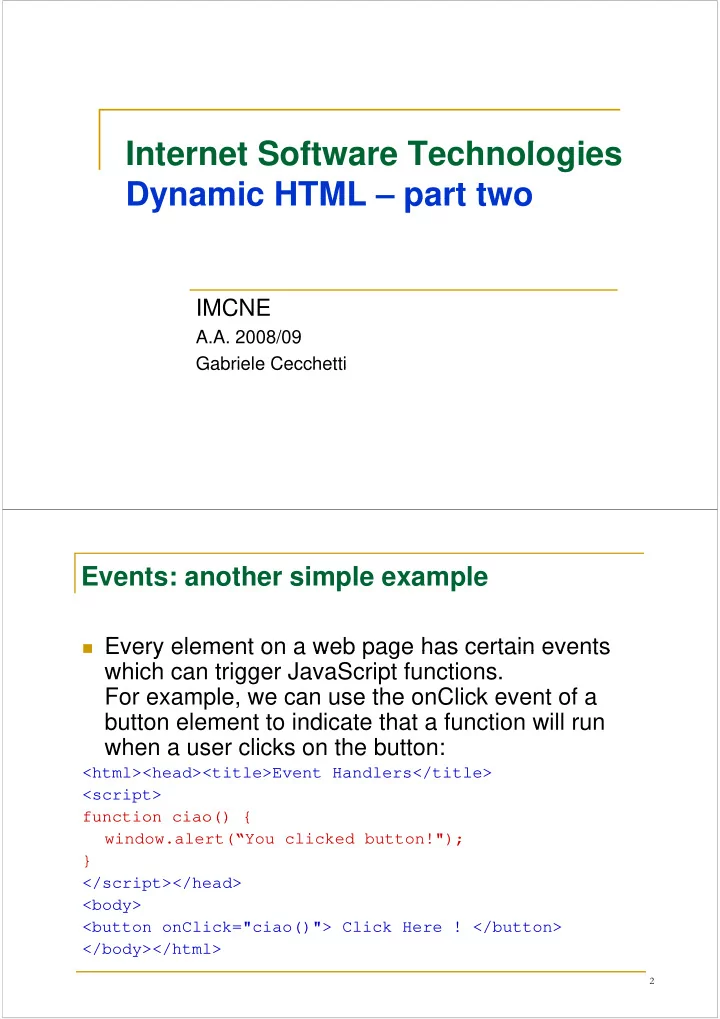
Events: another simple example

Every element on a web page has certain events Every element on a web page has certain events

which can trigger JavaScript functions. For example, we can use the onClick event of a p , button element to indicate that a function will run when a user clicks on the button:

<html><head><title>Event Handlers</title> <script> function ciao() { function ciao() { window.alert(“You clicked button!"); } </script></head> <body> <button onClick="ciao()"> Click Here ! </button>

2

() / </body></html>

slide-2
SLIDE 2

Examples of actions which can trigger JavaScript functions

A mouse click A mouse click A web page or an image loading Mousing over a hot spot on the web page Selecting an input box in an HTML form Submitting an HTML form A keystroke A keystroke

N t th t i d f ti ill t b t d

Note: the triggered function will not be executed

before the event occurs!

  • G. Cecchetti

Internet Software Technologies 3

Main event handlers (1/2)

Event handler Description Event handler Description

  • nAbort

abort loading an <img>

  • nFocus

acquire window focus or form’s element focus

  • nBlur

loss form’s element focus

  • nChange

change <input> and <textarea> content)

  • nClick

click on form’s elements or on link

  • nDblClick

double click on same elements K D K d

  • nKeyDown

Key down

  • nKeyUp

Release a key

  • nKeyPress

Press and hold a key

  • nKeyPress

Press and hold a key

  • nLoad

page loaded

  • nUnload

page unloaded

4

slide-3
SLIDE 3

Main event handlers (2/2)

Event handler Description

  • nMouseMove

cursor moving

  • nMouseOut

cursor going out from map link or area

  • nMouseOut

cursor going out from map, link or area

  • nMouseOver

cursor over map, link or area

  • nMouseDown

mouse button pressed and cursor over a link p

  • nMouseUp

mouse button released and cursor over a link

  • nMove

window moving

  • nResize

window resizing

  • nSubmit

form submitting – submit button pressed

  • nReset

form resetting reset button pressed

  • nReset

form resetting – reset button pressed

  • nselect

selecting content on a page

5

Mouse and Keyboards attributes

Property Description altKey Returns whether or not the "ALT" key was pressed when an event was triggered gg button Returns which mouse button was clicked when an event was triggered clientX Returns the horizontal coordinate of the mouse pointer when an event was triggered triggered clientY Returns the vertical coordinate of the mouse pointer when an event was triggered ctrlKey Returns whether or not the "CTRL" key was pressed when an event was ctrlKey Returns whether or not the CTRL key was pressed when an event was triggered metaKey Returns whether or not the "meta" key was pressed when an event was triggered triggered relatedTarget Returns the element related to the element that triggered the event screenX Returns the horizontal coordinate of the mouse pointer when an event was triggered triggered screenY Returns the vertical coordinate of the mouse pointer when an event was triggered

6

shiftKey Returns whether or not the "SHIFT" key was pressed when an event was triggered
slide-4
SLIDE 4

Other event attributes

Property Description bubbles Returns a Boolean value that indicates whether or not an event is a bubbling event event is a bubbling event cancelable Returns a Boolean value that indicates whether or not an event can have its default action prevented currentTarget Returns the element whose event listeners triggered the event tPh R t hi h h f th t fl i tl b i eventPhase Returns which phase of the event flow is currently being evaluated target Returns the element that triggered the event g gg timeStamp Returns the time stamp, in milliseconds, from the epoch (system start or event trigger)

  • G. Cecchetti

Internet Software Technologies 7

type Returns the name of the event

Example: what is the unicode of the key pressed?

<html><head> <script type="text/javascript"> function whichButton(event) { alert(event.keyCode); } </script></head> <body onkeyup="whichButton(event)"> y y p <p>Press a key on your keyboard.<br> An alert box will alert the unicode of the key d </ > pressed.</p> </body></html>

  • G. Cecchetti

Internet Software Technologies 8

slide-5
SLIDE 5

Example: what are the coordinates of the cursor?

<html><head> <script type="text/javascript"> function show_coords(event) { x=event.clientX; y=event clientY; y=event.clientY; alert("X coords: " + x + ", Y coords: " + y); } </script> </head> <body onmousedown="show_coords(event)"> <p>Click in the document. An alert box will alert the x and y coordinates of the mouse pointer.</p> and y coordinates of the mouse pointer.</p> </body></html>

  • G. Cecchetti

Internet Software Technologies 9

Example: which mouse button was clicked ?

<html><head> <script type="text/javascript"> function whichButton(event) { if (event.button==2) alert("You clicked the right mouse button!"); alert( You clicked the right mouse button! ); else alert("You clicked the left mouse button!"); } </script></head> <body onmousedown="whichButton(event)"> <p>Click in the document. An alert box will alert which mouse button you clicked.</p> mouse button you clicked.</p> </body></html>

  • G. Cecchetti

Internet Software Technologies 10

slide-6
SLIDE 6

Adding events via scripting

This is an alternative technique to classic event This is an alternative technique to classic event

handler. You can assign and set up event handlers to

You can assign and set up event handlers to

elements using scripting, and inside your script. Thi ll f h h dl b

This allows for the event handlers to be

dynamically set up, without having to mess around i h h HTML d h with the HTML codes on the page.

When setting up event handlers for an element

directly inside your script, the code to execute for the events must be defined inside a function.

  • G. Cecchetti

Internet Software Technologies 11

Example of event handler via scripting

<a id="test" href=http://retis.sssup.it> retis.sssup.it</a> i " /j i " <script type="text/javascript"> function changestatus(){ window.status="Click here for RETIS site" return true } function changebackstatus() { window status='' window.status= } document.getElementById("test").onmouseover=changestatus document.getElementById("test").onmouseout=changebackstatus </script>

Notice how we attached the two functions to execute for the two events- Notice how we attached the two functions to execute for the two events the function names without the parenthesis. This is called a reference call to the function.\When assigning a function to an event via scripting, always use a function call If you were to include the parenthesis of the function use a function call. If you were to include the parenthesis of the function inside the definition, an error will be generated.

  • G. Cecchetti

Internet Software Technologies 12

slide-7
SLIDE 7

The DOM event flow

The DOM introduces a new concept for detecting The DOM introduces a new concept for detecting

events and assigning corresponding event handlers to react to them handlers to react to them.

Naturally, it also supports the 2 conventional

techniques discussed earlier techniques discussed earlier.

  • G. Cecchetti

Internet Software Technologies 13

How events are handled in the DOM ?

The DOM interprets all user action very differently from the

E l i th li k t th DOM user . Example: moving the mouse over a link: to the DOM the following events took place

1) the mouse was moved over the document 1) the mouse was moved over the document 2) the mouse was moved over any tags containing the target <a> tag 3) the mouse was moved over the <a> tag of the link in question ) g q 4) the mouse was moved over any tags containing the target <a> tag 5) the mouse was moved over the document.

  • Summary: Mouse over document Mouse over any

containment tags of <A> Mouse over destination <A> Mouse over any containment tags of <A> Mouse Mouse over any containment tags of <A> Mouse

  • ver document
  • We call the event as it travels to the intended element
  • We call the event as it travels to the intended element

event capture, and as it travels back event bubble.

  • G. Cecchetti

Internet Software Technologies 14

slide-8
SLIDE 8

Event capture and Event bubble

Event capture it basically refers to the process Event capture it basically refers to the process

  • f an event as it travels to its destination element.

Actually it further refers to the ability to "capture" Actually, it further refers to the ability to capture ,

  • r intercept this event.

Event bubble it is the exact opposite of event

Event bubble it is the exact opposite of event

capture, and points to the traveling upwards of an event from the source element to the topmost or event from the source element to the topmost, or document.

  • G. Cecchetti

Internet Software Technologies 15

Assigning event handlers in the DOM (1/2)

In light of the new event flow (event capture and In light of the new event flow (event capture and

event bubble) that occurs inside the DOM, new methods for assigning event handlers are methods for assigning event handlers are introduced. A concept for attaching event handlers is

A concept for attaching event handlers is

introduced- event listeners. Two methods:

  • bject addEventListener(event

function capture)

  • bject.addEventListener(event, function, capture)
  • bject.removeEventListener(event, function, capture)

where the first method assigns an event handler where the first method assigns an event handler, while the second allows you to then remove it.

  • G. Cecchetti

Internet Software Technologies 16

slide-9
SLIDE 9

Assigning event handlers in the DOM (2/2)

  • bject.addEventListener(event, function, capture)

j ( , , p )

  • bject.removeEventListener(event, function, capture)

where: event should contain the event you wish to detect, such as click (onclick minus the "on" prefix) function should contain the reference call to the function to execute for this event, h d thi (d thi () i th th i ) such as dothis (dothis() minus the parenthesis) capture should contain the Boolean value "true" or "false";

l f "t " f ti t b t d h th t i

a value of "true" causes function to be executed when the event is

detected at the capture phase.

a value of "false" causes function to be executed when event is at

bubble phase.

  • G. Cecchetti

Internet Software Technologies 17

Example of using addEventListener

<div id="test"> Some text over div </div> <script type="text/javascript"> function alertit(){ alert("You moved your mouse over me!") } document getElementById("test") addEventListener("mouse document.getElementById( test ).addEventListener( mouse

  • ver",alertit,false)

</script>

Moving your mouse over the DIV now will cause an

alert message to popup. g p p p

  • G. Cecchetti

Internet Software Technologies 18

slide-10
SLIDE 10

Multiple addEventListener()

It can be used multiple times to attach multiple functions to It can be used multiple times to attach multiple functions to

the same event for the same element.

For example, we can have 3 separate onMouseover events

p , p for the previous DIV example:

document.getElementById("test").addEventListener("mouse l hi f l )

  • ver",alertthis,false)

document.getElementById("test").addEventListener("mouse

  • ver",alertdat,false)

, , ) document.getElementById("test").addEventListener("mouse

  • ver",alerttidat,false)

And all three will be responded to onMouseover. Note that two scripts can both apply the same event handler

t l t ith t th f b i ll d t to an element without the former being cancelled out.

  • G. Cecchetti

Internet Software Technologies 19

References to event specification

Look for them in Internet Look for them in Internet. Pay attention to the different browser

implementations implementations.

  • G. Cecchetti

Internet Software Technologies 20

slide-11
SLIDE 11

HTML DOM style specification

The Style object represents an individual style The Style object represents an individual style

statement. The Style object can be accessed from the

The Style object can be accessed from the

document or from the elements to which that style is applied is applied.

Syntax:

document.getElementById("id").style.property="value"

The property name usually is the style property as

defined in the CSS specification.

  • G. Cecchetti

Internet Software Technologies 21

Example: changing the case letter on the fly

<html> <head> <script type="text/javascript"> function changeText() { document.getElementById("p1").style.textTransform="ca pitalize"; p } </script> </head> <body> <p id="p1">This is an example paragraph </p> <p id= p1 >This is an example paragraph.</p> <input type="button" onclick="changeText()" value="Convert first letter of each word" /> </body></html>

  • G. Cecchetti

Internet Software Technologies 22