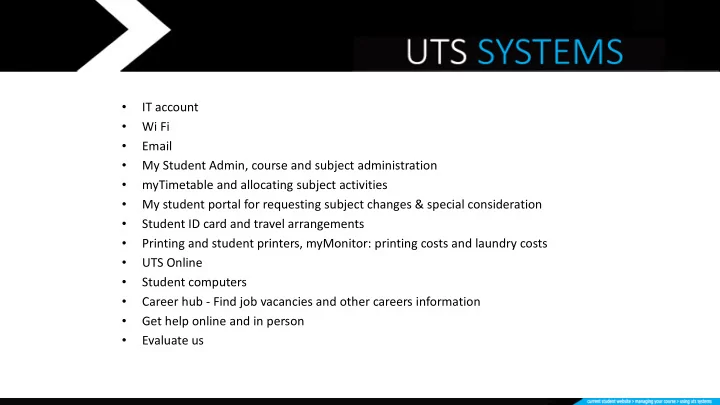
- IT account
- Wi Fi
- My Student Admin, course and subject administration
- myTimetable and allocating subject activities
- My student portal for requesting subject changes & special consideration
- Student ID card and travel arrangements
- Printing and student printers, myMonitor: printing costs and laundry costs
- UTS Online
- Student computers
- Career hub - Find job vacancies and other careers information
- Get help online and in person
- Evaluate us
IT account Wi Fi Email My Student Admin, course and - - PowerPoint PPT Presentation
IT account Wi Fi Email My Student Admin, course and subject administration myTimetable and allocating subject activities My student portal for requesting subject changes & special consideration Student ID
- Two ways to log in
- One way to manage your account
Your IT account
Two ways to log in
User name Password
Email account Full email address Eg: 12345678@student.uts.edu.au IT password Most other IT systems & computers Student number Eg: 12345678 IT password
One way to manage your account
- Password reset for all your IT systems
- Security questions & answers
MyAccount website
https://email.itd.uts.edu.au/webapps/myaccount/
Password reset
https://email.itd.uts.edu.au/webapps/myaccount/passwordreset/
UTS Wi Fi
UTS-WPA
Turn on wifi in your settings and select UTS-WPA while on site
UTS-WPA Secure Wi Fi while on site EDUROAM Secure Wi Fi while visiting a participating university & teaching hospitals Set up instructions are online
Using Wi Fi
Wi Fi instructions
https://serviceconnect.uts.edu.au
Email address: student-number@student.uts.edu.au For example 12345678@student.uts.edu.au
Website https://login.microsoftonline.com
Webmail
- Use outlook app
- Use mail on your phone
Email on your device
- Use your own clients for your personal computers
- IT Support team are not resourced to help you set
up your personal computers and lap tops Email on your own desktops
- Microsoft Office365 is cloud based
- 50GB is the default
- 25MB size limit on an email
- Don’t delete we can’t retrieve – set up
an archive folder Email tips
17% completed 83% to go
Student Administration Systems Student Administration Unit
Student Administration – who are we?
- We deal with all of the administrative work involved in your student lifecycle
- For example: enrolment, fees, timetabling, graduation
- We also have a Student Enquiry Team – a customer service team that answers
general questions
Student Administration – systems
1. My student admin Who am I as a student? Personal details, my subject enrolment, exams, results and more. 2. myTimetable What classes do I have for this subject? When are they on and where are they located? 3. UTS Online Who is my teacher? What materials do I need? What assignments am I doing? 4. My student portal Your way of communicating with Student admin online 5. Student ID cards and travel concession
MyStudentAdmin is linked directly to your official University Record. Use My Student Admin to:
- Update your contact details (phone and address)
- Download your e-Invoice
- Submit Commonwealth Assistance Forms (e.g. HECS-HELP)
- Download your Study Plan (personalised course structure)
- Enrol or withdraw from subjects
- View your personalised exam times
- View your results and download your unofficial transcript
- Consent to UTS sending basic information to Opal
My Student Admin (MSA)
Who am I as a student? Personal details, my subject enrolment, exams, results and more.
https://www.onestopadmin.uts.edu.au OR click on UTS Current students>Overview student forms, apps & systems (under quick links)
Use myTimetable AFTER enrolling in subjects on My Student Admin:
- Allocate yourself to classes (lectures, tutorials, workshops etc.)
- You can change your classes up until 26th March for Autumn session
(12th March for Calendar B students)
- Be aware of the difference between last day to enrol and census date (9th April)
- View your Timetable
- View teaching dates, and locations for each subject
myTimetable
What classes do I have for this subject? When are they on and where are they located?
Go to: https://mytimetable.uts.edu.au/ OR click on UTS Current students>Overview student forms, apps & systems (under
quick links)
UTS Timetable planner
- Use this when you want to find out
the timetable details of a subject without enrolling into it
- UTS Website – search for ‘UTS
Timetable Planner’
- Can search by subject code or name
- Can search by advanced filter
myTimetable Need help? My timetable help guide
UTS Online
Who is my teacher? What materials do I need? What assignments am I doing?
- Not officially linked to any of your records or enrolment
- Managed by your subject coordinator, not by Student Admin
My Student Portal
Your way of communicating with Student admin online
Ask UTS enquiries: general questions My applications:
- 1. E-request – apply for changes to your study plan that you cannot self manage
- 2. Special Consideration – special circumstances affect your exam/assignment
Go to https://mystudent.uts.edu.au/ OR go to UTS Current students student forms, apps & systems (under quick links)
My Student Portal
My Applications - eRequest
Ask: UTS Enquiries
ID cards
Why?
ID can be requested at any time on campus – you will need it to borrow books, enter computer labs, attend exams, load printing credit. There is a $30 replacement fee if you do not have a police report number
How?
Go to the UTS website and search for Student ID cards for the full process. 3 key steps:
- 1. Familiarise yourself with our UTS ID photo requirements
- 2. Upload your photograph via the CaptureME portal
- 3. Check your UTS webmail account for further instructions
ID Photo Requirements
When creating student ID cards the University has a specific set of photo requirements that must be adhered to by students. Full details can be found on the ID photo requirements page. If you do not adhere to the above requirements, your student ID card will not be approved.
OPAL concession (for eligible local students)
What do you need to do?
STEP 1: Agree to the consent in My Student Admin ‘Agreements’ tab STEP 2: Wait up to 48 hours before ordering your Concession Opal Card at https://www.opal.com.au/ Receive in 5-7 business days STEP 3: You MUST carry your student card on you at all times when travelling For more info please search for Travel Concession on the UTS website
40% completed 60% to go
Student printing
- Self-service printing (available 24/7):
- from computer labs
- from your device via the Internet
- Specialist services and help (available business hours):
- Student Print Centre, bldg 10 lvl 2
- Digital Imaging Service, bldg 6 lvl 3
How to print at UTS
https://www.uts.edu.au/current-students/managing-your-course/using-uts-systems/student-printing/how-print
Self-service printing
Steps:
- 1. Transfer enough value to your UTS Student ID at a Recharge station, or online at
mymonitor.uts.edu.au
- 2. From a lab computer or your device, make settings and ‘Print’ your file.
- 3. Release your print job from the Print Release station, or enabled printer, and collect
- 1. Transfer value
Transfer value to your UTS Student ID account at a Recharge station…
> Tap your UTS ID card on the reader, then follow the prompts. > Wave or insert your credit/debit card to complete.
> Log in to mymonitor.uts.edu.au with UTS ID > Click ‘Add Value’ and follow prompts
- 1. Transfer value - online
When you release your print job, the cost will be deducted from your UTS ID account.
Printing cost (per sheet)
Size Printed sides b&w Colour A4 single 0.11c 0.40c double (default) 0.19c $0.80 A3 single 0.21c $0.80 double 0.36c $1.60
*Scanning is at no cost
Online
mymonitor.uts.edu.au
With cash
- CB10.02
- Library
Where to transfer value
From bank card
- Library
- CB10.02
- CB05C
- CB06.03
- 2. Print your file – via Internet
> Log in to MyPrint myprint.uts.edu.au > Upload your file, or send as email attachment > Choose print attributes Or send an email to myprint@uts.edu.au Release the print job at any UTS General Access printer
Releasing print jobs
- 3. Release your print job – Print Release station
> Log in at the Print Release station… > Select the print job and click Print to accept charges and release.
- 3. Release your print job – at Monitor enabled printer
> Tap UTS ID card on reader to log in > Tap ‘Print Release’ > Select the print job and tap ‘Print’ to accept cost and release.
- 3. Release your print job – at a release station
> Input your student ID > Input IT account password > Select the print job and tap ‘Print’ to accept cost and release
Printer locations
How to print
Studen dent P Print C Centre e and Digit ital I l Imagin ing Se Servic vices centres offer printing and presentation services for students, as well as help and advice.
- A4, A3 digital printing &
copying
- Poster printing
- Plan printing
- Document binding
- Thesis printing & binding
- Scanning
- Laminating
- Fax service, and more
Student Print Centre Phone: 9514 2042 spc@uts.edu.au Location: Building 10, Level 2, Room 473 Digital Imaging Services Phone: 9514 8030 digital.image@uts.edu.au Location: Building 6, Level 3, Room 011a
UTSOnline
UTS Online
- subject outlines
(read these before your classes start)
- Pre work
- announcements
- blogs, wikis and discussion boards
- assessment details
- assignment submission tools
- results and feedback
- collaboration workspaces
Subject Outlines for all subjects Available on UTS Online one week before classes start for each subject If you cannot find your subject outline on UTS Online within one week prior to your classes starting, please inform your Student Centre Content managed by Subject Coordinator
https://help.online.uts.edu.au/information-for-all-users/for-students/downloading-a-subject-outline/
67% completed 33% to go
Student computing
- 3000 computers
- Mac and PC
- Locations, opening hours
and availability online
- Faculty and student
computing Student computing
- Computers are available in
lab and open study spaces around campus in all buildings
- Login to any UTS computer
using your username and password
Student computing
- Difference between faculty lab
and student lab
- Login to any UTS computer using
your username and password Student computing
- Save your work
- Find available computers
Web: computers.uts.edu.au Student computing tips
73% completed 27% to go
Career hub
23k+ Jobs since 2014 729 Currently Available Jobs* 9304 Verified Employers* & GROWING
*As of 12th Feb 2018
Create the future you with
Website: https://careerhub.uts.edu.au Email: Careers@uts.edu.au Phone: 02 9154 1741 (Mon-Fri, 9 to 5)
Get UTS Systems helphelp
- AskUTS for fees, subject, course queries
- ServiceConnect for IT systems
- CareerHub for careers queries
Online help
Get help
Help in person
- Student Centre for fees, subject, course
- IT Support Centres for IT systems
- Careers Service, Level 4, building 1
Using UTS systems website
Managing your course > UTS Systems http://www.uts.edu.au/current-students
Student Centre IT Support Centre Building 10, Level 2 9:00am – 4:30pm 8:00am – 9:30pm
9:00am – 5:00pm weekends
In person Building 5, Block C, Level 1 In person 9:00am – 4:30pm In person 9:00am – 9:30pm
Get help in person
Student Centre IT Support Centre By phone 1300 275 887 9514 2222
8:00am – 9:30pm weekdays 9:00am – 5:00pm weekends
Get help by phone
76
Orientation
ORIENTATION 2018
Where can I go for additional support?
77
Orientation
ORIENTATION 2018
Where can I go for additional support?
78 ORIENTATION 2018
HELPS Orientation workshops
Check out HELPS workshops designed to help you succeed at Uni
- Studying at UTS: Preparation for University Study
- Avoiding Plagiarism at UTS
- Writing in Academic Style
- Giving a Presentation
Register at https://orientationregistration.uts.edu.au/ For more information, visit www.helps.uts.edu.au
79 ORIENTATION 2018
Before you go… Tell us what you think!
- Amend your
schedule
- Book new sessions
- Stay connected
80 ORIENTATION 2018
Before you go… Tell us what you think!
1.Take out your mobile device 2.Open your web browser 3.Type http://bit.ly/aut18sys
- 4. Takes 30 seconds!