Kansas Courts Civil Appellate Electronic Filing Only lawyers in good - - PowerPoint PPT Presentation

kansas courts civil appellate electronic filing
SMART_READER_LITE
LIVE PREVIEW

Kansas Courts Civil Appellate Electronic Filing Only lawyers in good - - PowerPoint PPT Presentation

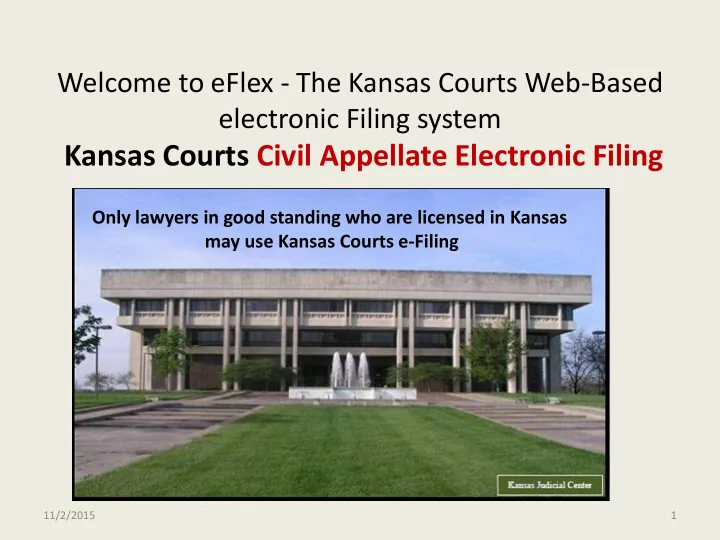
Welcome to eFlex - The Kansas Courts Web-Based electronic Filing system Kansas Courts Civil Appellate Electronic Filing Only lawyers in good standing who are licensed in Kansas may use Kansas Courts e-Filing Updated July 16, 2015 11/2/2015 1


slide-1
SLIDE 1

Welcome to eFlex - The Kansas Courts Web-Based electronic Filing system

Kansas Courts Civil Appellate Electronic Filing Updated July 16, 2015

1

Only lawyers in good standing who are licensed in Kansas may use Kansas Courts e-Filing

11/2/2015

slide-2
SLIDE 2

Before you Request an e-Flex Account

https://filer.kscourts.org/

  • Make sure that your Kansas Attorney Registration is up to
  • date. Only lawyers in good standing who are licensed in

Kansas may use Kansas Courts e-Filing

  • If your Kansas Attorney Registration Information needs

updating, visit the Kansas CLE Commission website at https://www.kscle.org/lawyer/addressChange.asp and complete the change of address form. Once completed, it will automatically be sent to the Kansas CLE Commission, U.S. District Court, and the Attorney Registration Office.

  • Questions? Send emails to

efilingadministrator@kscourts.org

2 11/2/2015

slide-3
SLIDE 3

E-filing System Log In Screen

https://filer.kscourts.org/

Request an Account Home Page for eFiling Log In or to Request an Account

3 11/2/2015

slide-4
SLIDE 4

Requesting a User Account User Agreement

  • 1. Only Lawyers in good standing who are licensed

in Kansas may use the Kansas Courts e-Filing System

  • 2. Read the Terms of Use (Very Important)
  • 3. Accept User Agreement Terms
  • 4. Select User Role
  • 5. Select New or Existing Firm
  • 6. Complete Request and Submit

Note: Primary e-mail address must match the e-mail address

  • n file with Attorney Registration

4 11/2/2015

slide-5
SLIDE 5

User Agreement Acceptance

Please Read Thoroughly

5 11/2/2015

slide-6
SLIDE 6

Terms of Use

Please Read Thoroughly

6 11/2/2015

slide-7
SLIDE 7

Select User Role (Attorney or Attorney/Financial Administrator)

7

Select a role

11/2/2015

slide-8
SLIDE 8

Select New or Existing Company

8

Search the drop down list for your company. If you do not see your company listed in the drop down list, select New to create the new company.

11/2/2015

slide-9
SLIDE 9

Complete Request and Submit

Alternative Email fields are recommended for Office Staff

  • r a generic email address for your company

All attorney information entered MUST match the information on file with Attorney Registration

Enter your Kansas Attorney Bar Number. If your bar number is 4 digits, please add a leading zero to the number. Enter your Kansas Attorney Bar Number. If your bar number is 4 digits, please add a leading zero to the number.

Company address MUST match the information on file with Attorney Registration.

9 11/2/2015
slide-10
SLIDE 10

Request Confirmation

You will receive e-mail confirmation

  • nce your request has been

approved or denied. You will also receive an additional email with instructional attachments regarding functionality of the e-Filing system.

10 11/2/2015

slide-11
SLIDE 11

After submitting your request, you will be returned to this login screen. You will be unable to login until your account has been approved, and you have received e-mail confirmation.

11

Once you have been approved for an account, this is the login screen you will access to log into the e-Filing system.

11/2/2015

slide-12
SLIDE 12

User Request Approved

The filer has the ability to modify their profile once their request has been

  • approved. To do this, log in to eFlex and

select “My Profile”. Select the “Modify User Profile” button at the bottom of the screen. Modify user information as desired. If you need to have information changed that does not contain a change option within this screen, notify efilingadministrator@kscourts.org for those changes to be made. You must select “Submit” for the changes to be saved.

12 11/2/2015

slide-13
SLIDE 13

Notification Options in User Profile

These courtesy notifications inform you

  • f the eFlex filing progress.

ALL notifications will be sent to the email addresses listed within the user profile. These notifications are courtesy only, they do NOT contain copies of the filed documents.

13

The Batch Enabled Status checkbox is

  • nly for attorneys who have

programmed for batch filings within Shawnee county.

11/2/2015

slide-14
SLIDE 14

E-filing System Features

  • New Case
  • Existing Case
  • My Filings - View statuses of submitted documents
  • My Cases - View cases that you are an official attorney of

record and a document has been electronically filed to the case.

  • Notifications to a registered Filing User

14 11/2/2015

slide-15
SLIDE 15

e-Filing Home Page

New Case Initiation

To initiate a new case filing, select the “New Case” button.

15 11/2/2015

slide-16
SLIDE 16

Case Initiation for Appellate Courts

Select appropriate court Select Appellate Courts

16 11/2/2015

slide-17
SLIDE 17

Case Categories

Select the Appropriate Case Category

17 11/2/2015

slide-18
SLIDE 18

Civil Case Types

Select appropriate Case Type. Case Type options will be dependant upon Case Category selected.

18 11/2/2015

slide-19
SLIDE 19

Civil Case Information

Step 1: Add District Court Information 1) Populate County Location. 2) Enter District Court Judge in the Sitting Judge field. 3) Select the Interlocutory checkbox if applicable. 4) Enter the District Court Case Number. 5) Enter the District Court Case Caption. Select “Add My Parties” and “Add Other Parties” to enter parties on the case.

19

Step 2: Additional District Court Case Titles and Numbers (if applicable) and select the Add button for each additional case.

Save to Draft functionality allows the filer to go back to the filing if interrupted prior to the submission being sent to the

  • court. Go to eFile menu and select Draft Filings.

11/2/2015

slide-20
SLIDE 20

Add My Parties

Select the Litigant Type and enter litigant information. If there are additional attorneys (co-counsel) representing this party, add them here. Select “Save”

20

**The filer is assumed to be lead

  • counsel. If not, contact the

Appellate Court Clerk’s Office (785-296-3229).

11/2/2015

slide-21
SLIDE 21

Add Other Parties

Select the Litigant Type and enter litigant information.

Add the Last Name or Governmental Entity in the Last Name field. Add the Bar ID number for opposing counsel or governmental entity.

Select “Save”

21 11/2/2015

slide-22
SLIDE 22

Once all parties have been added, Select “Next”.

22 Save to Draft functionality allows the filer to go back to the filing if interrupted prior to the submission being sent to the

  • court. Go to eFile menu and select Draft Filings.

11/2/2015

slide-23
SLIDE 23

Submitting Documents

  • Documents may be submitted at time of case initiation or

by selecting “Existing Cases”.

  • Documents to be filed with the Appellate Court MUST be

submitted in .pdf format.

  • Locked, Encrypted, or Form Fill-able PDFs are not allowed.

These types of documents cannot be time-stamped.

  • Docketing is the ONLY time that multiple documents in the

same submission will be accepted by the Appellate Court. All

  • ther submissions refer to Supreme Court Rule 5.01.

23 11/2/2015

slide-24
SLIDE 24

Specified Order of Documents to be Filed Pursuant to Supreme Court Rule 2.04. Motion to Docket Out of Time

24

  • MOTION TO DOCKET APPEAL OUT OF TIME
  • DOCKET STATEMENT
  • NOTICE OF APPEAL FILED - MOT DOC OOT
  • JOURNAL ENTRY

OR MEMORANDUM DECISION OR DISTRICT COURT DOCUMENTS (Separate document entry for each District Court

  • Document. These must be submitted in chronological order starting from the earliest to the

most recent.)

  • ORDER APPOINTING COUNSEL

OR ORDER OF INDIGENCY OR CERTIFICATION OF INDIGENCY OR Nothing because no filing fee to be paid (Example: Habeas Corpus)

  • REQUEST FOR TRANSCRIPT

OR ORDER FOR TRANSCRIPT OR CERTIFICATION OF COMPLETION OF TRANSCRIPT OR NO TRANSCRIPT REQUESTED

All questions regarding Rule 2.04 call the Clerk

  • f the Appellate Courts

785-296-3229

11/2/2015

slide-25
SLIDE 25

Specified Order of Documents to be Filed Pursuant to Supreme Court Rule 2.04. Timely Docketing

25

  • DOCKET STATEMENT
  • NOTICE OF APPEAL FILED
  • JOURNAL ENTRY

OR MEMORANDUM DECISION OR DISTRICT COURT DOCUMENTS (Separate document entry for each District Court

  • Document. These must be submitted in chronological order starting from the earliest to the

most recent.)

  • ORDER APPOINTING COUNSEL

OR ORDER OF INDIGENCY OR CERTIFICATION OF INDIGENCY OR Nothing because no filing fee to be paid (Example: Habeas Corpus)

  • REQUEST FOR TRANSCRIPT

OR ORDER FOR TRANSCRIPT OR CERTIFICATION OF COMPLETION OF TRANSCRIPT OR NO TRANSCRIPT REQUESTED

All questions regarding Rule 2.04 call the Clerk

  • f the Appellate Courts

785-296-3229

11/2/2015

slide-26
SLIDE 26

Specified Order of Documents to be Filed Pursuant to Supreme Court Rule 2.04. Untimely Interlocutory Docketing

26

  • MOTION TO DOCKET APPEAL OUT OF TIME
  • DOCKET STATEMENT
  • INTERLOCUTORY APPEAL BY PROSECUTION
  • JOURNAL ENTRY
  • REQUEST FOR TRANSCRIPT

OR ORDER FOR TRANSCRIPT OR CERTIFICATE OF COMPLETION OF TRANSCRIPT OR NO TRANSCRIPT REQUESTED

All questions regarding Rule 2.04 call the Clerk

  • f the Appellate Courts

785-296-3229

11/2/2015

slide-27
SLIDE 27

Specified Order of Documents to be Filed Pursuant to Supreme Court Rule 2.04. Timely Interlocutory Docketing

27

  • DOCKET STATEMENT
  • INTERLOCUTORY APPEAL BY PROSECUTION
  • JOURNAL ENTRY
  • REQUEST FOR TRANSCRIPT

OR ORDER FOR TRANSCRIPT OR CERTIFICATE OF COMPLETION OF TRANSCRIPT OR NO TRANSCRIPT REQUESTED

All questions regarding Rule 2.04 call the Clerk

  • f the Appellate Courts

785-296-3229

11/2/2015

slide-28
SLIDE 28

Signatures

  • Signature block must provide required
  • information. K.S.A. 60-211; Supreme Court Rule

111.

  • For electronic signature, type “/s/[Name of Filing

User].” Administrative Order 268, E.2.(a).

  • Clerk can use electronic signature. K.S.A. 20-365;

Administrative Order No. 268, E.2.(c).

  • Multiple signatures – Electronic signatures by all

parties or one attorney attests for the other counsel on the case.

28 11/2/2015

slide-29
SLIDE 29

Notarized Documents

  • Document may be notarized and then

scanned, and filed electronically. K.S.A. 53- 501, et seq.

  • Document may use electronic notarization if

requirements are met. K.S.A. 16-1611 and K.A.R. 7-43-1, et seq.

  • Document may be e-filed using unsworn

declaration under K.S.A. 53-601, et seq.

29 11/2/2015

slide-30
SLIDE 30

Add Documents

Select the appropriate Document Category. (This will narrow the selections for Document Type.) Then select the appropriate Document Type. Then type the Document Title, which is the exact title

  • f the document you are
  • attaching. Document title is

80 characters in length maximum.

30 11/2/2015

slide-31
SLIDE 31

Add Documents Continued

Select the “Browse” button to locate the document you wish to upload. Notice all documents MUST be in .pdf

  • format. Document size maximum is

10 MB. The total submission size is 30 MB. You MUST select the “Add” button to add the document into e-flex. Once all documents have been added, select “Next”.

31 11/2/2015

slide-32
SLIDE 32

Submission Response Window

32

If filing fee is assessed, the filer will need to enter payment information. Payment information will be entered for each filing submission that requires a fee. This is the last chance to modify your submission before it is transmitted to the court.

Select the Submit the Filing button to send submission to the court. You will be charged when payment information has been entered at the

KanPay portal. Select OK to continue to the KanPay portal.

11/2/2015

slide-33
SLIDE 33

33

Visa, Master Card, Discover, and American Express are accepted.

11/2/2015

slide-34
SLIDE 34

34

For KanPay questions, call 1(800) 452-6727

11/2/2015

slide-35
SLIDE 35

Submission Response Window

35

The submission will appear in the My Filings for 60 days. You can still access the document in the My Cases as long as you are attorney of record.

Filing status will be explained later in the presentation. 11/2/2015

slide-36
SLIDE 36

Draft Filings

36

If you saved a submission to Draft Filings or if you were timed out of the system, you can access the un-submitted filings by selecting the e File drop down from the menu bar and then selecting Draft Filings. Select the link in the Filing Description column to continue with the filing process. These submissions will remain in the Draft Filings for 60 days unless you delete the submissions from the Draft Filings. Also, when logging out of the eFiling system , you will be notified if you have Draft Filings pending.

11/2/2015

slide-37
SLIDE 37

Filing on an Existing Case

Two ways to file on an Existing case 1) Find the case in the list of cases displayed at the bottom half of the screen and select the case title. 2) Select the Court and Court

  • Location. Enter the Case Number

and a Participant Name. You MUST have the case number (in proper format as shown in the example) and one of the Participants Last Name to file on an existing case. Select “Submit” **Only select the Add this case to your list button if you are filing the exact same document on multiple cases. Then, follow the same procedure for adding documents to new case filings.

From the Home page select the “Existing Case” button.

37 11/2/2015

slide-38
SLIDE 38

Entry of Appearance

The filing of an Entry of Appearance will give the filer the rights to view the documents within the entire case.

38 11/2/2015

slide-39
SLIDE 39

Entry of Appearance, cont.

39

1) Enter the Last Name of the Attorney entering their appearance. 2) Enter the Bar Number of the Attorney entering their appearance. 3) Enter which party the attorney will be representing. 4) Select the Add button. 5) When all attorneys have been added, select the Next button.

11/2/2015

slide-40
SLIDE 40

My Filings Report

40

Click on any Column Headings to sort in ascending or descending order.

The My Filings displays the status of the submissions at the court.

If you encounter issues that you need to report to the efilingadminstator@kscourts.org you will need the Filing ID number when reporting the issue. 11/2/2015

slide-41
SLIDE 41

Filing Status Definitions

  • Package Pending –The submission is being prepared for clerk

review but has not yet been sent

  • Packaged – The submission is prepared and sent for clerk review
  • Received – The submission has received a time stamp and will be

processed further

  • Awaiting Approval – The submission is awaiting further processing
  • Filed – The submission has been approved and is being processed.

No further action is required. The filer should look at their case history or receipt of the submission to download signed documents

  • Receipt Pending – There is an error with the submission
  • Filed-Presented to Judge – The submission has been sent to the

judge for review and further action

  • Resubmitted – The original submission has been resubmitted
  • Rejected – The submission has been denied

41 11/2/2015

slide-42
SLIDE 42

Case Search Using “My Cases”

You MUST have the Case # and one

  • f the Participant’s Last Names to

enable the search feature.

42

Select the Case Number link to view the Case Summary

  • Screen. (See next slide.)

Select Certificate of Service link to view which parties will be notified electronically and those that will need to be notified by traditional means.

11/2/2015

slide-43
SLIDE 43

Case Summary Screen

43

To view the File-stamped document select the document link.

11/2/2015

slide-44
SLIDE 44

Sort and Expansion Features (valid throughout system)

44

Click on any Column Headings to sort in ascending or descending order.

Click on the expansion sign (+) to view a list of documents included with the case.

11/2/2015

slide-45
SLIDE 45

Notice of Electronic Filing (NEF)

45

This is the official notification that the submission has been filed with the court. Email notification is a courtesy.

To view the Notice of Electronic Filing (NEF), select the Notification Title.

(See next slide.)

To view a file-stamped copy of the document select the case number link.

11/2/2015

slide-46
SLIDE 46

Notifications

There are three types of notifications sent to the attorney through E-Flex:

  • 1. Notice of Electronic Filings (NEF) notifications which are accessible through E-

Flex by selecting the Notifications Button from the home screen.

46

This is the official notification of the submission being filed to the court record.

Attorneys

11/2/2015

slide-47
SLIDE 47

Notifications, continued

  • 2. NEF Courtesy E-mail notifications that are sent when a submission is
  • fficially a part of the court record. Parties electronically notified will be
  • listed. All other parties will need to be served by traditional means.

47

Attorney The Courtesy NEF email cannot be inactivated in the User Profile.

Attorneys

11/2/2015

slide-48
SLIDE 48

Notifications, continued

  • 3. Status Update E-mail sent when a status change

has been made on a submission.

48

The status update e-mail can be inactivated in the User Profile.

11/2/2015

slide-49
SLIDE 49

Need to Know

  • E-filed document is deemed received in clerk’s
  • ffice when the electronic transmission ends.

Administrative Order 268, H.3.

  • Filing User is required to retain a record of the

transmission and is required to produce the document if requested by the court or a party. K.S.A. 60-234; Administrative Order 268, J.

  • Certified copies cannot be obtained thru the

e-Filing system.

49 11/2/2015

slide-50
SLIDE 50

Attorney Training Options

  • District Court Attorney training options

Web-based training sessions via GoToMeeting visit https://attendee.gotowebinar.com/rt/421586105713212418 Online training videos found here

http://efilingtraining.kscourts.org/Training.html

50 11/2/2015

slide-51
SLIDE 51

Kansas Courts Appellate Electronic Filing

Questions? – Send emails to: efilingadministrator@kscourts.org or Call the Appellate Courts Clerk’s Office (785)-296-3229

51 11/2/2015