Media gives you a library for your images and attached documents, - - PDF document

media gives you a library for your images and attached
SMART_READER_LITE
LIVE PREVIEW

Media gives you a library for your images and attached documents, - - PDF document

Using Media, Picture, and Focal Point modules Media gives you a library for your images and attached documents, so they can be reused across nodes, they can be edited in one place. The Media library offers this


slide-1
SLIDE 1

Using Media, Picture, and Focal Point modules

  • Media gives you a library for your images and attached documents, so they can be reused across

nodes, they can be edited in one place.

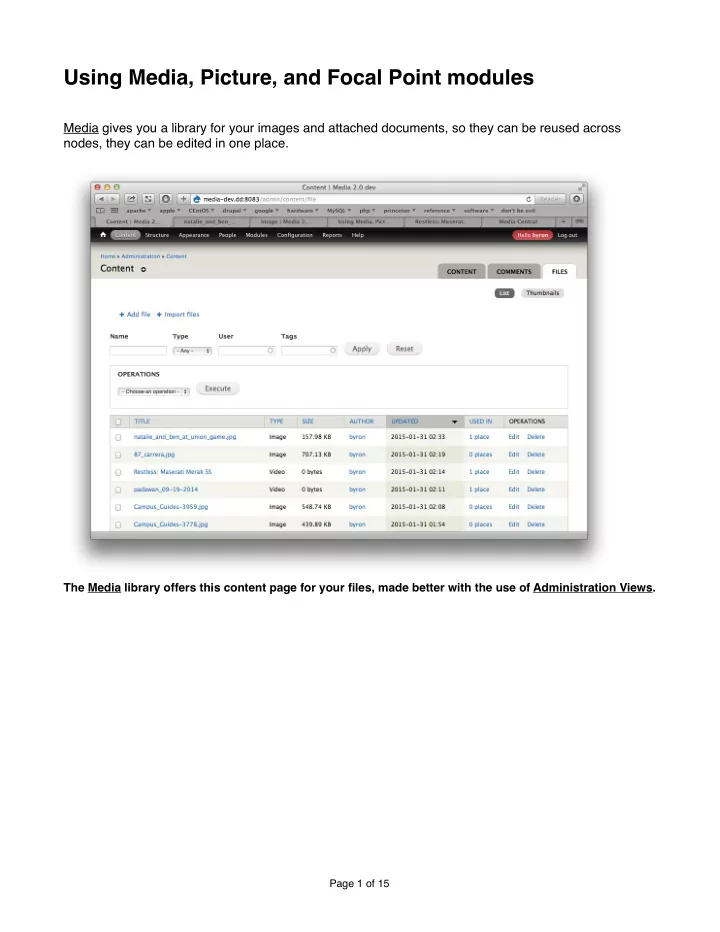
  • The Media library offers this content page for your files, made better with the use of Administration Views.
  • Page of

1 15

slide-2
SLIDE 2

Files are field-able entities, so you can expand their usefulness (with fields for captions, photographer,

  • ther metadata) and can manage them more easily (through the use of tags, for instance). And you

don't have to resort to FTP-ing into your server to, say, manually replace outdated files, among other benefits.

  • This look familiar? Yes, thanks to File Entity, files are like another content type.
  • Page of

2 15

slide-3
SLIDE 3

Picture uses HTML5 markup. In conjunction with Breakpoints, it lets you create responsive, mobile- friendly styles for your images by creating groups of image styles (called "picture mappings") that can be applied to image fields.

  • Set your break points to match your mobile-friendly theme…

Page of 3 15

slide-4
SLIDE 4
  • …then let Breakpoints create some image style groups for you based on those break points…

Page of 4 15

slide-5
SLIDE 5
  • …that you can then tweak under Image styles.
  • Page of

5 15

slide-6
SLIDE 6
  • Picture mappings ties it all together, automatically displaying the appropriate image based on the client…


Page of 6 15

slide-7
SLIDE 7
  • …you just point it toward the image styles Breakpoints set up for you.


Page of 7 15

slide-8
SLIDE 8

Entity View Modes makes it possible to embed your images in various formats, but as entities, so your custom fields can be displayed also.

  • Define your view modes…
  • Page of

8 15

slide-9
SLIDE 9
  • …then choose what fields you want to display (look familiar?).


Page of 9 15

slide-10
SLIDE 10
  • Choose your display mode…

Page

  • f

10 15

slide-11
SLIDE 11
  • …then set the particulars.
  • Page
  • f

11 15

slide-12
SLIDE 12
  • You can then select your view modes for display.
  • Page
  • f

12 15

slide-13
SLIDE 13

Focal Point provides a one-click easy way to control how your images will be cropped by your various image styles.

  • Set your focal point with the crosshairs, handy when trying to put a vertical peg in a horizontal hole.


Page

  • f

13 15

slide-14
SLIDE 14

Exif Custom lets you convert EXIF and other image metadata into field content associated with your image entities.

  • If your photographer uses Lightroom or something similar, you can set up a workflow to automatically

capture your images’ metadata into fields.

  • Page
  • f

14 15

slide-15
SLIDE 15

Links:

  • https://www.drupal.org/project/media

https://www.drupal.org/project/picture https://www.drupal.org/project/focal_point

  • https://www.drupal.org/project/breakpoints

https://www.drupal.org/project/file_entity https://www.drupal.org/project/entity_view_mode https://www.drupal.org/project/oembed https://www.drupal.org/project/exif_custom

  • https://www.drupal.org/project/media_dev
  • https://www.drupal.org/project/admin_views
  • https://www.drupal.org/node/1699054

https://drupalize.me/blog/201407/drupal-8-has-all-hotness-so-can-drupal-7 https://www.ostraining.com/blog/drupal/modules-avoid-drupal-8/ http://webwash.net/tutorials/handle-responsive-images-using-picture-module-drupal-7

Page

  • f

15 15