Package Development in Windows Duncan Murdoch Department of - - PDF document

package development in windows
SMART_READER_LITE
LIVE PREVIEW

Package Development in Windows Duncan Murdoch Department of - - PDF document

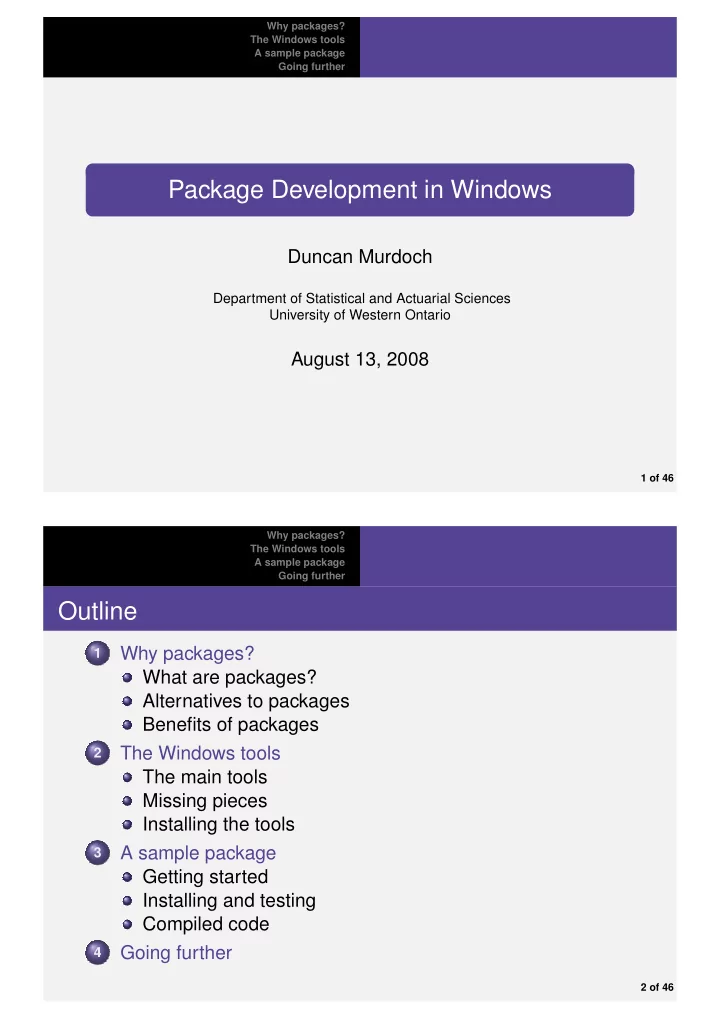
Why packages? The Windows tools A sample package Going further Package Development in Windows Duncan Murdoch Department of Statistical and Actuarial Sciences University of Western Ontario August 13, 2008 1 of 46 Why packages? The Windows


slide-1
SLIDE 1

Why packages? The Windows tools A sample package Going further

Package Development in Windows

Duncan Murdoch

Department of Statistical and Actuarial Sciences University of Western Ontario

August 13, 2008

1 of 46 Why packages? The Windows tools A sample package Going further

Outline

1

Why packages? What are packages? Alternatives to packages Benefits of packages

2

The Windows tools The main tools Missing pieces Installing the tools

3

A sample package Getting started Installing and testing Compiled code

4

Going further

2 of 46

slide-2
SLIDE 2

Why packages? The Windows tools A sample package Going further What are packages? Alternatives to packages Benefits of packages

R is mostly packages!

R ships with 12 base packages, and 14 recommended packages. CRAN contains about 1500 packages, Bioconductor has about 800. There are many other packages not in these repositories.

4 of 46 Why packages? The Windows tools A sample package Going further What are packages? Alternatives to packages Benefits of packages

What is in a package?

Permanent R objects: functions, data, etc. Man pages and vignettes documenting these objects. External code in C, C++, Fortran, Objective C, etc. to implement some of the functions, or link to external libraries or programs. Tests to help to keep the code working as R evolves.

5 of 46

slide-3
SLIDE 3

Why packages? The Windows tools A sample package Going further What are packages? Alternatives to packages Benefits of packages

Packages, libraries, repositories?

We use > library(foo) to load the package and put it on the search list, but a package is not a library. A library is a collection of packages installed on your

  • system. Use

> dir.create("newlib") > .libPaths("newlib") to create a new one, and add it as the first place to look. A repository is a collection of packages like CRAN, usually available online. Use install.packages() to install a package from a repository into your library.

6 of 46 Why packages? The Windows tools A sample package Going further What are packages? Alternatives to packages Benefits of packages

Not everyone uses packages

Packages are great, but they aren’t the only ways to save code and data. There are also binary images R scripts vignettes

7 of 46

slide-4
SLIDE 4

Why packages? The Windows tools A sample package Going further What are packages? Alternatives to packages Benefits of packages

Saving a binary image

Use save() or save.image() to save R objects to a file. Saved images are portable: all equal or newer versions of R on all platforms should be able to read then. These are very easy to create: just answer Yes when quitting! save() on a single large object is easy, and it may be easier to reload it than to recreate it.

8 of 46 Why packages? The Windows tools A sample package Going further What are packages? Alternatives to packages Benefits of packages

What’s wrong with saving your workspace?

Saved images are hard to work with: they are black boxes

  • utside of R.

It is very easy to save more than you intended, and get bloated saves, and unintended interactions. It is easy to forget how some objects were created.

9 of 46

slide-5
SLIDE 5

Why packages? The Windows tools A sample package Going further What are packages? Alternatives to packages Benefits of packages

Working with scripts and vignettes

You can put R code in a plain text file, and use copy and paste

  • r source() to read it into R.

You can write a vignette, containing a mixture of L

AT

EX (or other) text and R code. These are easy to transport and edit on any platform. It is easy to see what’s there (if you format your code nicely...) You can have a permanent record of how research results were produced. Vignettes using Sweave are great for explaining code.

10 of 46 Why packages? The Windows tools A sample package Going further What are packages? Alternatives to packages Benefits of packages

What’s wrong with scripts?

It is hard to re-use parts of scripts. Cut and paste is error prone. It is hard to remember which earlier part of a script needs to be re-executed, and which doesn’t.

11 of 46

slide-6
SLIDE 6

Why packages? The Windows tools A sample package Going further What are packages? Alternatives to packages Benefits of packages

So why packages?

Packages combine the good aspects of saved images and scripts. R packages can be distributed to others. R tools support quality control checks.

12 of 46 Why packages? The Windows tools A sample package Going further The main tools Missing pieces Installing the tools

Windows is not Unix

Much R development occurs on Unix-like machines using GNU tools. Linux and Mac OS X development use the same tools. The tools are generally available for MS Windows, but it takes some work to find them. We’ve done most of that work for you.

14 of 46

slide-7
SLIDE 7

Why packages? The Windows tools A sample package Going further The main tools Missing pieces Installing the tools

The Rtools collection

http://www.murdoch-sutherland.com/Rtools has news and downloads of the main tools. We have packaged most of them into an installer, Rtools28.exe. Download and run the installer, to get:

1

Unix-like command line tools

2

Vanilla Perl

3

MinGW gcc compilers (C, C++, Fortran, Objective C)

4

Some other files needed to build R itself

15 of 46 Why packages? The Windows tools A sample package Going further The main tools Missing pieces Installing the tools

Command line tools

These are a number of utilities to make Windows look more like

  • Unix. These tools will run in the Windows shell (CMD), or in a

Cygwin shell. (We include the Cygwin DLLs.) The GNU make utility: make A simple Bourne shell to run shell scripts: sh Tools for working with archives of files: tar, gzip, zip, unzip Unix-like file and system commands: cat, cp, date, echo, find, ls, mkdir, mv, rm, rmdir Tools for text manipulation: cut, diff, egrep, gawk, grep, sed, sort, tidy, touch Various others: basename, cmp, comm, expr, ln, makeinfo, md5sum, od, pedump, rsync, texindex, tr, uniq

16 of 46

slide-8
SLIDE 8

Why packages? The Windows tools A sample package Going further The main tools Missing pieces Installing the tools

Vanilla Perl

Perl is a nice programming language that is especially suited to text manipulations, and R makes use of it in building packages. In the past, we used a Perl implementation by ActiveState Software Inc., but its license does not allow us to redistribute it. We have switched to a minimal Perl implementation called Vanilla Perl.

17 of 46 Why packages? The Windows tools A sample package Going further The main tools Missing pieces Installing the tools

The MinGW compilers

On Windows we build R using the MinGW release of the gcc compiler suite, and it’s easiest to build packages using the same compilers (so it is the only one we support). These are not the Cygwin compilers: those are incompatible with R.

18 of 46

slide-9
SLIDE 9

Why packages? The Windows tools A sample package Going further The main tools Missing pieces Installing the tools

Missing pieces

With the Rtools installed, you can build packages, but you won’t be able to build some types of documentation. Windows CHM files The Windows Help Workshop is needed to build compiled help files. We are not allowed to distribute this with Rtools; you need to get it from http://msdn.microsoft.com. PDF help and vignettes You will need a copy of L

AT

EX to build the PDF documentation and vignettes. I recommend MikTeX, version 2.7, available from http://www.miktex.org. Neither of these is required, but I recommend getting at least MikTeX.

19 of 46 Why packages? The Windows tools A sample package Going further The main tools Missing pieces Installing the tools

Running the installers

The Rtools, Help Workshop and MikTeX all come with installers. I recommend installing Rtools last, because it is quite sensitive to the system PATH, and other installers might mess it up.

20 of 46

slide-10
SLIDE 10

Why packages? The Windows tools A sample package Going further The main tools Missing pieces Installing the tools

The dreaded PATH

The PATH is a list of directories on your system giving the search order for commands. Because the Rtools include so many commands, it is essential that they appear very early in the PATH, or other versions of those commands will be found instead. In Windows, there is a system PATH, which is set for any program started from Explorer. You can change the PATH within a CMD shell, or within R, to affect programs started locally. I recommend that for simplicity you let Rtools set the system PATH, but there’s the possibility of conflicts with

  • ther programs.

21 of 46 Why packages? The Windows tools A sample package Going further The main tools Missing pieces Installing the tools

How to set the PATH

Rtools will offer to edit the system PATH by adding these directories at the start: c:\Rtools\bin; c:\Rtools\perl\bin; c:\Rtools\MinGW\bin; You should also add (if their installers didn’t) the directories for the Help Workshop, and for MikTeX, as well as the directory for the R binaries. For example, c:\Program Files\HTML Help Workshop; c:\texmf\miktex\bin; c:\R\R-2.7.1\bin

22 of 46

slide-11
SLIDE 11

Why packages? The Windows tools A sample package Going further Getting started Installing and testing Compiled code

Starting from code

We’ll write a package to hold an autoregressive simulator. > rautoregressive <- function(n, rho=0){ + result <- double(n) + innov <- rnorm(n) + result[1] <- innov[1] + for (i in seq_len(n-1)+1) { + result[i] <- rho * result[i-1] + innov[i] + } + return(result) + }

24 of 46 Why packages? The Windows tools A sample package Going further Getting started Installing and testing Compiled code

Checking our code...

> set.seed(123) > plot(rautoregressive(1000, rho=0.99), type='l')

200 400 600 800 1000 −10 5 10 15 Index rautoregressive(1000, rho = 0.99)

Note: arima.sim is better!

25 of 46

slide-12
SLIDE 12

Why packages? The Windows tools A sample package Going further Getting started Installing and testing Compiled code

A skeleton package

> package.skeleton("Rauto", "rautoregressive", + path="c:/temp", + namespace = TRUE) Creating directories ... Creating DESCRIPTION ... Creating NAMESPACE ... Creating Read-and-delete-me ... Saving functions and data ... Making help files ... Done. Further steps are described in 'c:/temp/Rauto/Read-and-delete-me'.

26 of 46 Why packages? The Windows tools A sample package Going further Getting started Installing and testing Compiled code

What got created?

> list.files("c:/temp/Rauto", recursive=TRUE) [1] "DESCRIPTION" [2] "man/Rauto-package.Rd" [3] "man/rautoregressive.Rd" [4] "NAMESPACE" [5] "R/rautoregressive.R" [6] "Read-and-delete-me"

27 of 46

slide-13
SLIDE 13

Why packages? The Windows tools A sample package Going further Getting started Installing and testing Compiled code

Read-and-delete-me

* Edit the help file skeletons in 'man', possibly combining help files for multiple functions. * Edit the exports in 'NAMESPACE', and add necessary imports. * Put any C/C++/Fortran code in 'src'. * If you have compiled code, add a useDynLib() directive to 'NAMESPACE'. * Run R CMD build to build the package tarball. * Run R CMD check to check the package tarball. Read "Writing R Extensions" for more information.

28 of 46 Why packages? The Windows tools A sample package Going further Getting started Installing and testing Compiled code

man/rautoregressive.Rd

\name{rautoregressive} \alias{rautoregressive} %- Also NEED an '\alias' for EACH other topic documented here. \title{ ~~function to do ... ~~ } \description{ ~~ A concise (1-5 lines) description of what the function does. ~~ } \usage{ rautoregressive(n, rho = 0) } %- maybe also 'usage' for other objects ...

29 of 46

slide-14
SLIDE 14

Why packages? The Windows tools A sample package Going further Getting started Installing and testing Compiled code

The edited version

We now edit the *.Rd files, producing something like this: \name{rautoregressive} \alias{rautoregressive} \title{ Simulate an AR(1) process } \description{ This function simulates a Gaussian AR(1) process, started from zero. } \usage{ rautoregressive(n, rho = 0) } \arguments{ ...

30 of 46 Why packages? The Windows tools A sample package Going further Getting started Installing and testing Compiled code

The NAMESPACE file

The NAMESPACE file describes which functions in your package are visible to others. The default file contains just

  • ne line,

exportPattern("^[[:alpha:]]+") which says that all visible objects are exported. That’s reasonable for a start, but in a more complicated package you’ll want to hide some of the implementation. A NAMESPACE guarantees the search order for functions. Without one, your package may behave differently depending on which packages are attached first.

31 of 46

slide-15
SLIDE 15

Why packages? The Windows tools A sample package Going further Getting started Installing and testing Compiled code

The DESCRIPTION file

The DESCRIPTION file is key: you need to edit it too. Package: Rauto Type: Package Title: Simple demo package Version: 1.0 Date: 2008-08-13 Author: Duncan Murdoch Maintainer: Duncan Murdoch <murdoch@stats.uwo.ca> Description: A simple demo of building a package in Windows. License: GPL (version 2 or later) LazyLoad: yes

32 of 46 Why packages? The Windows tools A sample package Going further Getting started Installing and testing Compiled code

Installing your package

There are two ways to install a custom package: from the directory, or by building a tarball first, and installing from that. Start by installing directly from the directory. Go into the shell, and run R CMD INSTALL Rauto.

33 of 46

slide-16
SLIDE 16

Why packages? The Windows tools A sample package Going further Getting started Installing and testing Compiled code

C:\temp R CMD INSTALL Rauto installing to 'f:/R/R-2.7.1/library'

  • --------- Making package Rauto ------------

adding build stamp to DESCRIPTION installing NAMESPACE file and metadata installing R files preparing package Rauto for lazy loading installing man source files installing indices installing help >>> Building/Updating help pages for package 'Rauto' Formats: text html latex example chm Rauto-package text html latex chm rautoregressive text html latex example chm adding MD5 sums * DONE (Rauto)

34 of 46 Why packages? The Windows tools A sample package Going further Getting started Installing and testing Compiled code

Installing...

You could also use > install.packages("c:/temp/Rauto", repos=NULL, + type="source") In either case, Rauto is now available: > rm(rautoregressive) > library(Rauto) > rautoregressive(5) [1] -0.99579872 -1.03995504 -0.01798024 [4] -0.13217513 -2.54934277

35 of 46

slide-17
SLIDE 17

Why packages? The Windows tools A sample package Going further Getting started Installing and testing Compiled code

Testing...

One of the strengths of R is its quality control system. Use it! To check for common errors in a package, use C:\temp R CMD check Rauto

* checking for working pdflatex ... OK * using log directory 'C:/temp/Rauto.Rcheck' * using R version 2.7.1 (2008-06-23) * using session charset: ISO8859-1 * checking for file 'Rauto/DESCRIPTION' ... OK * checking extension type ... Package * this is package 'Rauto' version '1.0' * checking package name space information ... OK * checking package dependencies ... OK * checking if this is a source package ... OK * checking whether package 'Rauto' can be installed ... OK * checking package directory ... OK

36 of 46 Why packages? The Windows tools A sample package Going further Getting started Installing and testing Compiled code

* checking for portable file names ... OK * checking DESCRIPTION meta-information ... OK * checking top-level files ... OK * checking index information ... OK * checking package subdirectories ... OK * checking R files for non-ASCII characters ... OK * checking R files for syntax errors ... OK * checking whether the package can be loaded ... OK * checking whether the package can be loaded with stated dependencies ... OK * checking whether the name space can be loaded with stated dependencies ... OK * checking for unstated dependencies in R code ... OK * checking S3 generic/method consistency ... OK * checking replacement functions ... OK * checking foreign function calls ... OK * checking R code for possible problems ... OK

37 of 46

slide-18
SLIDE 18

Why packages? The Windows tools A sample package Going further Getting started Installing and testing Compiled code

* checking Rd files ... OK * checking Rd cross-references ... OK * checking for missing documentation entries ... OK * checking for code/documentation mismatches ... OK * checking Rd \usage sections ... OK * creating Rauto-Ex.R ... OK * checking examples ... OK * creating Rauto-manual.tex ... OK * checking Rauto-manual.tex using pdflatex ... OK

Success!

38 of 46 Why packages? The Windows tools A sample package Going further Getting started Installing and testing Compiled code

Other R CMDs

Some other related commands: R CMD build Rauto Build a *.tar.gz source tarball, for use on any system. R CMD INSTALL --build Rauto Install, and build a *.zip binary package for use

  • n Windows only.

R CMD Rd2dvi --pdf Rauto Collect manual pages into a PDF manual. R CMD --help Show the full list of CMDs.

39 of 46

slide-19
SLIDE 19

Why packages? The Windows tools A sample package Going further Getting started Installing and testing Compiled code

Linking external code

R code is convenient, and can be very fast when

  • perations are done on large vectors, but it is slow in some
  • perations (e.g. loops).

Compiled C, C++, or Fortran are much less convenient, but are much faster in loops. There are several interfaces for external code: .C(), .Fortran(), .Call(), and .External(). .C() and .Fortran() are the easiest to use and are very similar; we’ll rewrite our function using .C().

40 of 46 Why packages? The Windows tools A sample package Going further Getting started Installing and testing Compiled code

Rauto/R/rautoreg.R: rautoreg <- function(n, rho=0) { # Pass the innovations in the results vector, # return the results in the same place .C("rautoregC", as.integer(n), as.numeric(rho), results = rnorm(n))$results }

41 of 46

slide-20
SLIDE 20

Why packages? The Windows tools A sample package Going further Getting started Installing and testing Compiled code

Rauto/src/rautoreg.c: #include <R.h> void rautoregC(int *n, double *rho, double *results) { /* Use Rprintf for debugging messages */ Rprintf("In C, n=%d, rho=%f\n", *n, *rho); for (int i=1; i < *n; i++) { results[i] = (*rho)*results[i-1] + results[i]; } }

42 of 46 Why packages? The Windows tools A sample package Going further Getting started Installing and testing Compiled code

The NAMESPACE file needs to mention the external code, which the installer will have compiled into Rauto.dll. exportPattern("^[[:alpha:]]+") useDynLib(Rauto)

43 of 46

slide-21
SLIDE 21

Why packages? The Windows tools A sample package Going further Getting started Installing and testing Compiled code

Shut down R, re-install the package, and see the results: > library(Rauto) > set.seed(123) > system.time(x <- rautoregressive(1000000, 0.99)) user system elapsed 13.18 0.00 13.23 > set.seed(123) > system.time(y <- rautoreg(1000000, 0.99)) In C, n=1000000, rho=0.990000 user system elapsed 0.41 0.02 0.43

44 of 46 Why packages? The Windows tools A sample package Going further

Going further

R is very flexible: I have only shown one workflow. There are many others! The Writing R Extensions manual is the authoritative reference. Once things are set up properly, all platforms are very similar.

46 of 46