Part 1: Setup Google Map API for Android Prerequisites Please make - - PDF document

part 1 setup google map api for android
SMART_READER_LITE
LIVE PREVIEW

Part 1: Setup Google Map API for Android Prerequisites Please make - - PDF document

11/12/13 Setup Google Map API for Android Setup Google Map API for Android Part 1: Setup Google Map API for Android Prerequisites Please make sure that you can deploy a regular Android App on your device. See instructions if you did not finish


slide-1
SLIDE 1

11/12/13 Setup Google Map API for Android https://docs.google.com/a/objectgraph.com/document/d/1uhOGKdOMxrF-RIvJlwun-38N3E9AkHTqgX7uu4FHkJQ/pub 1/6

Setup Google Map API for Android

Part 1: Setup Google Map API for Android

Prerequisites

Please make sure that you can deploy a regular Android App on your device. See instructions if you did not finish that part.

Update Google Play Services App on Device

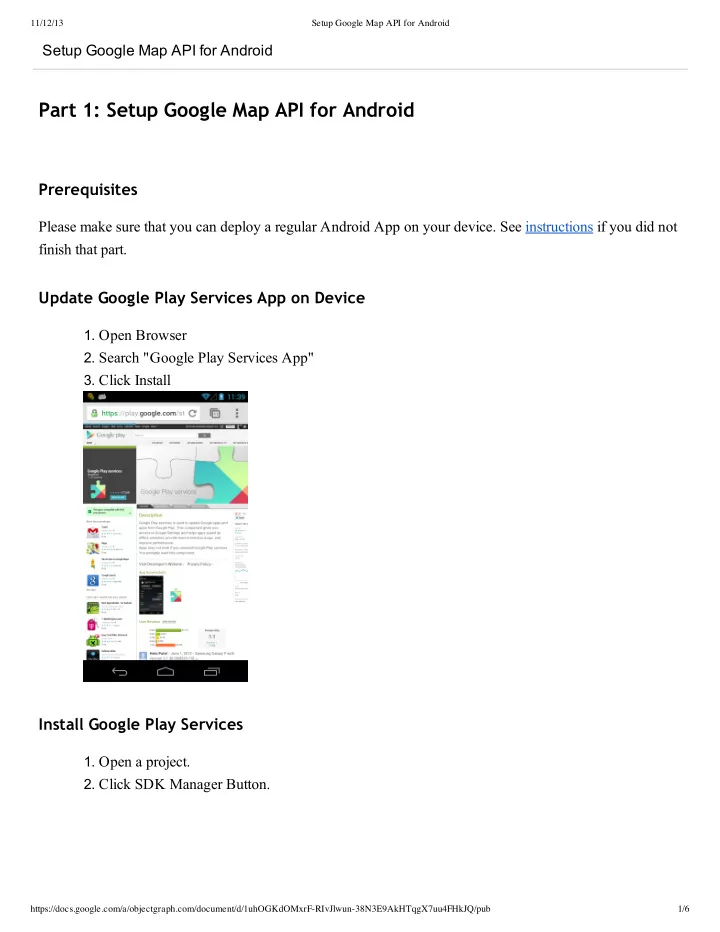
  • 1. Open Browser
  • 2. Search "Google Play Services App"
  • 3. Click Install

Install Google Play Services

  • 1. Open a project.
  • 2. Click SDK Manager Button.
slide-2
SLIDE 2

11/12/13 Setup Google Map API for Android https://docs.google.com/a/objectgraph.com/document/d/1uhOGKdOMxrF-RIvJlwun-38N3E9AkHTqgX7uu4FHkJQ/pub 2/6

  • 3. SDK Manager is a screen to update your Android development tools. Check this screen
  • periodically. In this instruction, we will install a new add­on, "Google Play Services" because

Google Map API is part of this package.

  • 4. Check Google APIs in your Android version and Google Play Services, and then Click Install
  • Packages. If you have some updates, it should also install them. In this example, I'm checking in the

API version 17.

slide-3
SLIDE 3

11/12/13 Setup Google Map API for Android https://docs.google.com/a/objectgraph.com/document/d/1uhOGKdOMxrF-RIvJlwun-38N3E9AkHTqgX7uu4FHkJQ/pub 3/6

Adding dummy.java

In order to make Android Studio to import the Google Services as module, we need to add one empty .java file.

  • 1. In Finder / Explorer, go to your Android Studio folder. If it's Mac, right click and select "Show

Package Contents"

  • 2. Navigate to
  • 3. Download dummy.java and save in the directory

https://www.dropbox.com/s/efbm8ajl7xu3a4t/dummy.java

  • 4. The folder contents should look like this

Generate Google Map API Key

  • 1. Go to Google API Console https://code.google.com/apis/console/
  • 2. Click Services in the menu.
  • 3. If it asks you to create project, type the project name (e.g. My Map Project).
  • 4. Enable Google Maps API Android v2
slide-4
SLIDE 4

11/12/13 Setup Google Map API for Android https://docs.google.com/a/objectgraph.com/document/d/1uhOGKdOMxrF-RIvJlwun-38N3E9AkHTqgX7uu4FHkJQ/pub 4/6

  • 5. Click API Access in the menu
  • 6. Click Create New Android Key button
  • 7. You will see the dialog below. In next step, we will go back to your machine, and we will

generate "finger print" of your machine so that Google can bind your machine and their Map Service for development purpose.

  • 8. Open Terminal Window.

Mac: Applications > Utilities > Terminal Windows: Start > Run > Type "cmd"

  • 9. We will get debug key using "keytool" command.
  • a. Mac

keytool ‐list ‐v ‐keystore ~/.android/debug.keystore (just hit Enter if it asked password)

  • b. Windows

First, we need to navigate to Java's bin directory, and then we will run keytool command to get debug.keystore under your home directory. Here is the example command. As I indicated in pink, replace the Java directory and your home directory with your own. You can find out directory from Explorer.

  • i. Watch Video for an example
  • ii. View the screenshot

cd "C:\Program Files\Java\jdk1.7.0_02\bin" keytool ‐v ‐list ‐keystore "C:/Documents and Settings/Kiichi Takeuchi/.android/debug.keystore" (just hit Enter if it asked password)

  • 10. You will see something like following output. Select and copy the SHA1 string (highlighted in

red). Windows: Click the top left corner icon and a menu will pop up. Click on Edit > Mark

slide-5
SLIDE 5

11/12/13 Setup Google Map API for Android https://docs.google.com/a/objectgraph.com/document/d/1uhOGKdOMxrF-RIvJlwun-38N3E9AkHTqgX7uu4FHkJQ/pub 5/6

***************** WARNING WARNING WARNING ***************** * The integrity of the information stored in your keystore * * has NOT been verified! In order to verify its integrity, * * you must provide your keystore password. * ***************** WARNING WARNING WARNING ***************** Keystore type: JKS Keystore provider: SUN Your keystore contains 1 entry Alias name: androiddebugkey Creation date: Mar 7, 2013 Entry type: PrivateKeyEntry Certificate chain length: 1 Certificate[1]: Owner: CN=Android Debug, O=Android, C=US Issuer: CN=Android Debug, O=Android, C=US Serial number: 513959bd Valid from: Thu Mar 07 22:23:41 EST 2013 until: Fri Mar 07 22:23:41 EST 2014 Certificate fingerprints: MD5: 90:00:80:7C:E9:57:02:47:96:41:16:ED:64:22:36:06 SHA1: D0:E9:D7:22:FF:2B:F7:5A:06:4A:C7:92:01:22:BB:CE:42:59:27:43 SHA256: 38:A4:05:11:13:5D:FF:4F:83:67:17:32:9F:84:9C:6D:39:81:22:11:27:E5:CE:42:10:5D:E8:22:4D:DA:9F:34 Signature algorithm name: SHA1withRSA Version: 3 ******************************************* *******************************************

  • 11. Go back to browser's Google Console page, and then paste it. After the SHA1 key, append

semicolon ( ; ) with your app package name that you will create (you can edit this later). For example, I put "edu.liu.mymapapp", if you are creating "MyMapApp" with the package name.

slide-6
SLIDE 6

11/12/13 Setup Google Map API for Android https://docs.google.com/a/objectgraph.com/document/d/1uhOGKdOMxrF-RIvJlwun-38N3E9AkHTqgX7uu4FHkJQ/pub 6/6

  • 12. Click Create/Update.
  • 13. Your API Key should be displayed. Keep this key in order to use in your program later.

NOTE: For each new app we have to add the same fingerprint with a different package name. Published by Google Drive – Report Abuse – Updated automatically every 5 minutes