
SLIDE 1
1
RE RECORDI RDING OP OPTION ONS
You can record your presentation using the recording feature in PowerPoint, Zoom, Screencast-O-Matic (SOM) or any other software you might have. The final product needs to be an .mp4 video file.
GEN ENER ERAL G GUIDEL ELINES
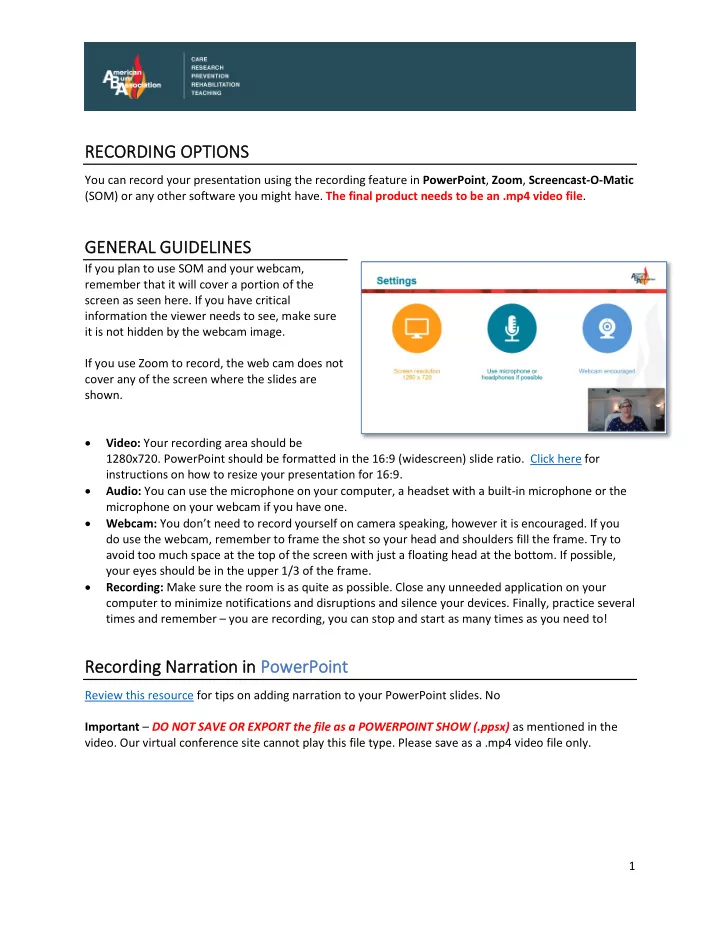
If you plan to use SOM and your webcam, remember that it will cover a portion of the screen as seen here. If you have critical information the viewer needs to see, make sure it is not hidden by the webcam image. If you use Zoom to record, the web cam does not cover any of the screen where the slides are shown.
- Video: Your recording area should be
- 1280x720. PowerPoint should be formatted in the 16:9 (widescreen) slide ratio. Click here for
instructions on how to resize your presentation for 16:9.
- Audio: You can use the microphone on your computer, a headset with a built-in microphone or the
microphone on your webcam if you have one.
- Webcam: You don’t need to record yourself on camera speaking, however it is encouraged. If you
do use the webcam, remember to frame the shot so your head and shoulders fill the frame. Try to avoid too much space at the top of the screen with just a floating head at the bottom. If possible, your eyes should be in the upper 1/3 of the frame.
- Recording: Make sure the room is as quite as possible. Close any unneeded application on your
computer to minimize notifications and disruptions and silence your devices. Finally, practice several times and remember – you are recording, you can stop and start as many times as you need to!
Recording g Narratio ion in in PowerPoin int
Review this resource for tips on adding narration to your PowerPoint slides. No Important – DO NOT SAVE OR EXPORT the file as a POWERPOINT SHOW (.ppsx) as mentioned in the
- video. Our virtual conference site cannot play this file type. Please save as a .mp4 video file only.