Step 1: Go to the Tools menu and select Options Back Next slide - PowerPoint PPT Presentation
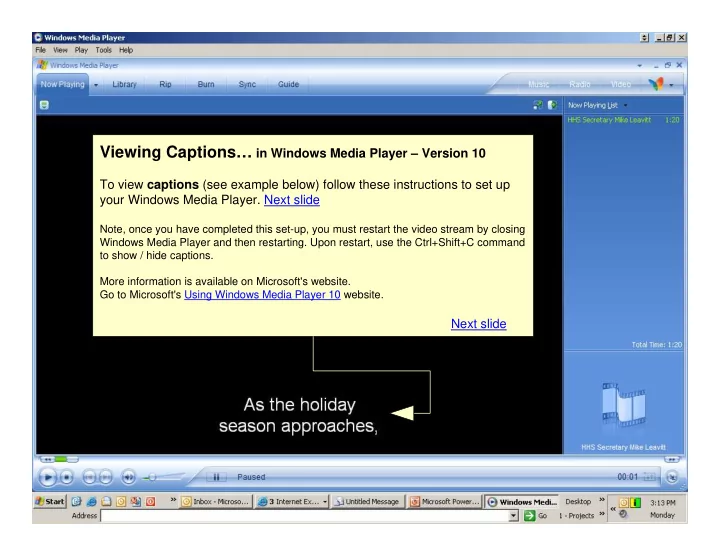
Viewing Captions in Windows Media Player Version 10 To view captions (see example below) follow these instructions to set up your Windows Media Player. Next slide Note, once you have completed this set-up, you must restart the video stream
Viewing Captions… in Windows Media Player – Version 10 To view captions (see example below) follow these instructions to set up your Windows Media Player. Next slide Note, once you have completed this set-up, you must restart the video stream by closing Wi ndows Media Player and then restart ng. Upon restart, use the Ctr +Shift+C command i l to show / hide captions. More information is available on Microsoft's website. Go to Microsoft's Using Windows Media Player 10 website. Next slide
Step 1: Go to the Tools menu and select Options… Back Next slide
Step 2: Select Security tab Step 3: Check Show local captions when present option. Step 4: Click Apply box Step 5 . Click OK box. Back Next slide .
Step 6: Under the Play menu, select Captions and Subtitles > English option. If the < English > option is not visible, change the Default to English. See more on changing default setting. Step 7: Close and restart your Windows Media Player. You should now see captions. Tip… Use the shortcut of Ctrl+Shift+C to show / hide captions. Back First slide
Change the default to English by clicking on the Defaults… option. Back Next slide
Select the English (United States [en-us] option from the Captions and subtitle : pull down menu. Click OK button. First slide
Recommend
More recommend
Explore More Topics
Stay informed with curated content and fresh updates.