Topics for today Introduction to R Graphics: Getting started with - - PowerPoint PPT Presentation

topics for today
SMART_READER_LITE
LIVE PREVIEW

Topics for today Introduction to R Graphics: Getting started with - - PowerPoint PPT Presentation

Topics for today Introduction to R Graphics: Getting started with R g U i R t t fi Using R to create figures Drawing common types of plots (scatter, box, MA) Comparing distributions (histograms, CDF plots) Customizing


slide-1
SLIDE 1

Introduction to R Graphics:

U i R t t fi Using R to create figures

BaRC Hot Topics – October 2011

George Bell, Ph.D.

http://iona.wi.mit.edu/bio/education/R2011/

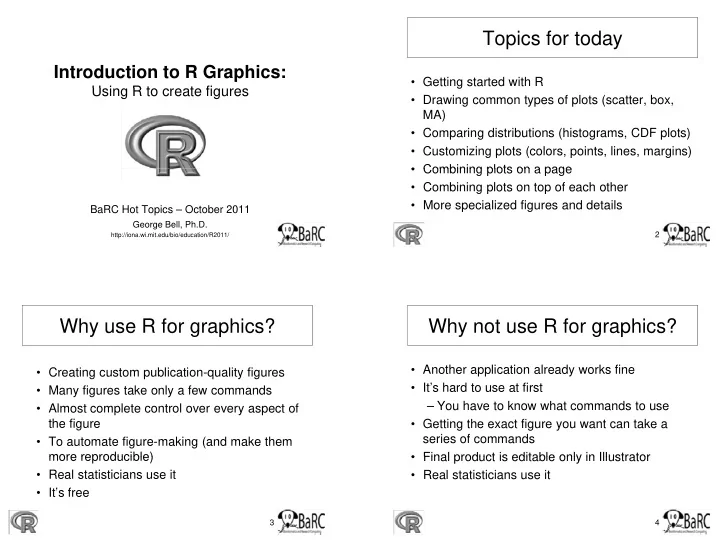
Topics for today

  • Getting started with R

g

  • Drawing common types of plots (scatter, box,

MA)

  • Comparing distributions (histograms, CDF plots)
  • Customizing plots (colors, points, lines, margins)
  • Combining plots on a page
  • Combining plots on a page
  • Combining plots on top of each other
  • More specialized figures and details

2

Why use R for graphics?

  • Creating custom publication-quality figures

Creating custom publication quality figures

  • Many figures take only a few commands
  • Almost complete control over every aspect of

the figure

  • To automate figure-making (and make them

more reproducible) more reproducible)

  • Real statisticians use it
  • It’s free

3

Why not use R for graphics?

  • Another application already works fine

pp y

  • It’s hard to use at first

– You have to know what commands to use

  • Getting the exact figure you want can take a

series of commands

  • Final product is editable only in Illustrator
  • Final product is editable only in Illustrator
  • Real statisticians use it

4

slide-2
SLIDE 2

Getting started

  • See previous session: Introduction to R:

See previous session: Introduction to R: http://iona.wi.mit.edu/bio/education/R2011/

  • Hot Topics slides:

http://iona.wi.mit.edu/bio/hot_topics/

  • R can be run on your computer or on tak.

5

Start of an R session

On tak On your own computer

6

Getting help

  • Use the Help menu
  • Check out “Manuals”
  • Check out Manuals

– http://www.r-project.org/ – contributed documentation

  • Use R’s help

?boxplot [show info] ??boxplot [search docs]

Html help

example(boxplot)[examples]

  • Search the web

– “r-project boxplot”

7

Reading files - intro

  • Take R to your preferred directory ()
  • Check where you are (e.g., get your working directory)

y

( g , g y g y)

and see what files are there

> getwd() [1] "X:/bell/Hot_Topics/Intro_to_R“ > dir() [1] “all_my_data.txt"

8

slide-3
SLIDE 3

Reading data files

  • Usually it’s easiest to read data from a file

Organize in Excel with one word column names – Organize in Excel with one-word column names – Save as tab-delimited text

  • Check that file is there

list.files()

  • Read file

tumors = read delim("tumors wt ko txt" header=T) tumors = read.delim( tumors_wt_ko.txt , header=T)

  • Check that it’s OK

> tumors wt ko 1 5 8 2 6 9 3 7 11

9

Figure formats and sizes

  • By default, a figure window will pop up from most R sessions.
  • Instead, helpful figure names can be included in code

– Pro: You won’t need an extra step to save the figure Pro: You won t need an extra step to save the figure – Con: You won’t see what you’re creating

  • To select name and size (in inches) of pdf file (which can be >1 page)

pdf(“tumor_boxplot.pdf”, w=11, h=8.5) boxplot(tumors) # can have >1 page dev.off() # tell R that we’re done

  • To create another format (with size in pixels)

png(“tumor_boxplot.png”, w=1800, h=1200) boxplot(tumors) dev.off()

  • Save your commands (in a text file)!
  • Final PDF figures

– can be converted with Acrobat – are be edited with Illustrator

10

Introduction to scatterplots

  • Simplest use of the ‘plot’ command

C d b f i t

  • Can draw any number of points
  • Example (comparison of expression values)

genes = read.delim(“Gene_exp_with_sd.txt”) plot(genes$WT, genes$KO) Gene WT KO A 6 8 B 5 5 11 C 9 12 D 4 5 E 8 9 F 6 8 But note that A = F

Boxplot conventions

wt ko IQR = interquartile range

75th percentile median 25th percentile <= 1.5 x IQR Any points beyond the whiskers are defined as

5 8 6 9 7 11

defined as “outliers”. Right-click to save figure

12

Note that the above data has no “outliers”. The red point was added by hand.

Other programs use different conventions!

slide-4
SLIDE 4

Comparing sets of numbers

  • Why are you making the figure?
  • What is it supposed to show?

pp

  • How much detail is best?
  • Are the data points paired?

13 Note the “jitter” (addition of noise) in the first 2 figures. boxplot(genes) stripchart(genes, vert=T) plot(genes)

Gene expression plots

Typical x-y scatterplot MA (ratio-intensity) plot x-y scatterplot with contour 14

plot(genes.all) abline(0,1) # Add other lines M = genes.all[,2] - genes.all[,1] A = apply(genes.all, 1, mean) plot(A,M) # etc. library(MASS) kde2d() # et density image() # Draw colors contour() # Add contour points() # Add points

Comparing distributions

  • Why are you making the figure?
  • What is it supposed to show?
  • How much detail is best?
  • Methods:

– Boxplot – Histogram – Density plot – Violin plot – CDF (cumulative distribution function) plot

15

Displaying distributions

  • Example dataset: log2 expression ratios

16

slide-5
SLIDE 5

Comparing similar distributions

  • Example dataset:

Density plot

  • Example dataset:

– MicroRNA is knocked down – Expression levels are assayed – Genes are divided into

CDF plot

those without miRNA target site (black) vs. with target site (red)

17

Customizing plots

  • About anything about a plot can be modified,

although it can be tricky to figure out how to do although it can be tricky to figure out how to do so.

– Colors ex: col=“red” – Shapes of points ex: pch=18 – Shapes of lines ex: lwd=3, lty=3 – Axes (labels scale orientation size) Axes (labels, scale, orientation, size) – Margins see ‘mai’ in par() – Additional text ex: text(2, 3, “This text”) – See par() for a lot more options

18

Point shapes by number

Ex: pch=21 19

Customizing a plot

  • plot(x, y, type="p")
  • plot(x, y, type="p", pch=21, col="black",

bg=rainbow(6), cex=x+1, ylim=c(0, max(c(y1,y2))), xlab="Time (d)", ylab="Tumor counts", las=1, cex.axis=1.5, cex.lab=1.5, main="Customized figure", cex.main=1.5)

  • Non-obvious options:

– type="p“ # Draw points yp p p – pch=21 # Draw a 2-color circle – col="black“ # Outside color of points – bg=rainbow(6) # Inside color of points – cex=x+1 # Size points using ‘x’ – las=1 # Print horizontal axis labels

20

slide-6
SLIDE 6

Combining plots on a page

  • Set up layout with command like

par(mfrow c(num rows num columns)) – par(mfrow = c(num.rows, num.columns)) – Ex: par(mfrow = c(1,2))

21

Merging plots on same figure

  • Commands:

plot # start figure – plot # start figure – points # add point(s) – lines # add line(s) – legend

  • Note that order of
  • Note that order of

commands determines

  • rder of layers

22

More graphics details

  • Creating error bars
  • Drawing a best-fit (regression) line
  • Using transparent colors
  • Creating colored segments
  • Creating log-transformed axes
  • Labeling selected points
  • Labeling selected points

23

Using error bars

library(plotrix) plotCI(x, y, uiw=y.sd, liw=y.sd) # vertical error bars p ( , y, y , y ) plotCI(x, y, uiw=x.sd, liw=x.sd, err="x", add=T) # horizontal

24

slide-7
SLIDE 7

Drawing a regression line

  • Use ‘lm(response~terms)’ for simple linear

regression: regression:

# Calculate y-intercept lmfit = lm(y ~ x) # Set y-intercept to 0 lmfit.0 = lm(y ~ x + 0)

  • Add line(s) with

abline(lmfit)

25

Transparent colors

  • Semitransparent colors can

be indicated by an extended RGB code (#RRGGBBAA)

– AA = opacity from 0-9,A-F (lowest to highest) – Sample colors:

Red #FF000066 Green #00FF0066 Blue #0000FF66

26

Colored bars

C l d b b d

  • Colored bars can be used

to label rows or columns

  • f a matrix

– Ex: cell types, GO terms

  • Limit each color code to 6-

8 l 8 colors

  • Don’t forget the legend!

27

Handling log tranformations

  • Data or axes can be transformed or scaled.

Whi h (if ith ) h ld b d?

  • Which (if either) should be used?

28

slide-8
SLIDE 8

Labeling selected points

1. Make figure 2. Run “identify” command

– identify(x, y, labels) – Ex: identify(genes, labels = rownames(genes))

3 Click at or near points 3. Click at or near points to label them 4. Save image

29

WT cells KO cells MUC5B::727897 31.7 41.7 HAPLN4::404037 37.3 47.7 SIGLEC16::400709 24.1 32.7

More resources

  • R Graph Gallery:

– http://addictedtor.free.fr/graphiques/ http://addictedtor.free.fr/graphiques/

  • R scripts for Bioinformatics

– http://iona.wi.mit.edu/bio/bioinfo/Rscripts/

  • List of R modules installed on tak

– http://tak/trac/wiki/R

  • Our favorite book:

– Introductory Statistics with R (Peter Dalgard)

  • We’re glad to share commands and/or scripts to get

you started

30

Upcoming Hot Topics

  • Introduction to Bioconductor - microarray and RNA-Seq

analysis (Thursday)

  • Unix, Perl, and Perl modules (short course)
  • Quality control for high-throughput data
  • RNA-Seq analysis
  • Gene list enrichment analysis
  • Galaxy

Sequence alignment: pairwise and multiple

  • Sequence alignment: pairwise and multiple
  • See http://iona.wi.mit.edu/bio/hot_topics/
  • Other ideas? Let us know.

31