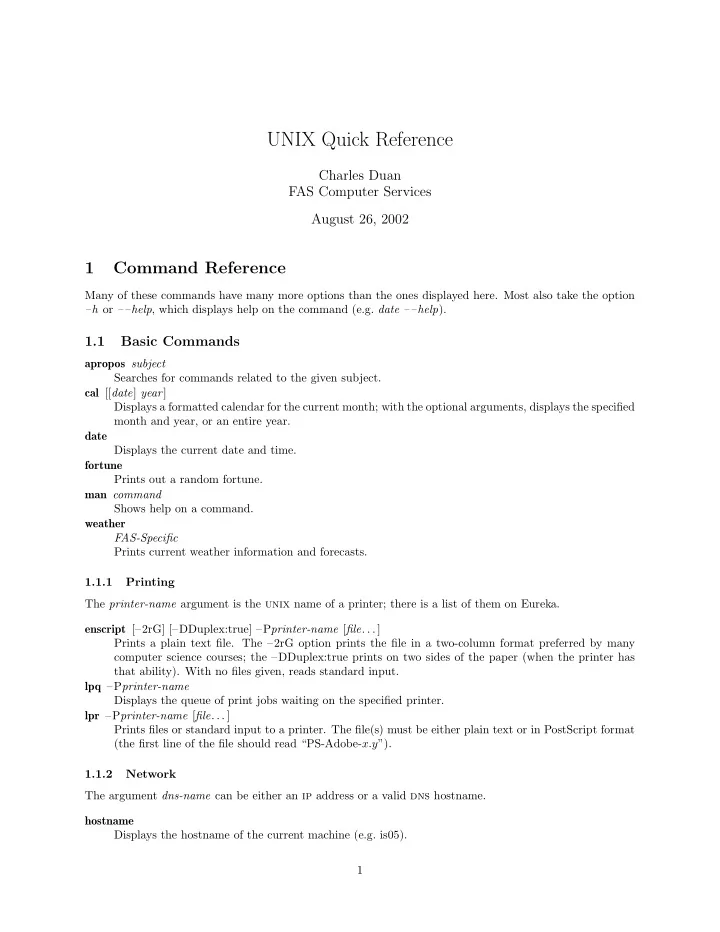
SLIDE 1
UNIX Quick Reference
Charles Duan FAS Computer Services August 26, 2002
1 Command Reference
Many of these commands have many more options than the ones displayed here. Most also take the option –h or ––help, which displays help on the command (e.g. date ––help).
1.1 Basic Commands
apropos subject Searches for commands related to the given subject. cal [[date] year] Displays a formatted calendar for the current month; with the optional arguments, displays the specified month and year, or an entire year. date Displays the current date and time. fortune Prints out a random fortune. man command Shows help on a command. weather FAS-Specific Prints current weather information and forecasts. 1.1.1 Printing The printer-name argument is the unix name of a printer; there is a list of them on Eureka. enscript [–2rG] [–DDuplex:true] –Pprinter-name [file. . . ] Prints a plain text file. The –2rG option prints the file in a two-column format preferred by many computer science courses; the –DDuplex:true prints on two sides of the paper (when the printer has that ability). With no files given, reads standard input. lpq –Pprinter-name Displays the queue of print jobs waiting on the specified printer. lpr –Pprinter-name [file. . . ] Prints files or standard input to a printer. The file(s) must be either plain text or in PostScript format (the first line of the file should read “PS-Adobe-x.y”). 1.1.2 Network The argument dns-name can be either an ip address or a valid dns hostname. hostname Displays the hostname of the current machine (e.g. is05). 1
SLIDE 2
nslookup dns-name Looks up the dns hostname by ip address, or vice versa. ping dns-name Pings the specified computer. If no output seems to be generated (other than the headers), then the computer is probably not on the network. Press Ctrl-C to stop. traceroute dns-name Displays diagnostic network information in an attempt to ping the given computer.
1.2 E-mail Commands
blockmail FAS-Specific Blocks e-mail by sending address or subject line. forwardmail FAS-Specific Sets a forwarding e-mail address and/or vacation message. pine [email-address. . . ] With no arguments, checks e-mail; with arguments, sends e-mails to the specified recipients. procmail Not actually a command Mail processing system; please refer to: http://www.people.fas.harvard.edu/˜cduan/technical/procmail/
1.3 FAS/UA Commands
fixdotfiles FAS-Specific Remakes basic account initialization files to their defaults; to be used in case there are account login problems. fixfinger FAS-Specific Sets up file permissions to make the .plan file readable by others; see the finger command. fixwebfiles FAS-Specific Sets up file permissions to make the web directory tree under public html usable by the webserver. nofinger FAS-Specific Prevents people from fingering you; see the finger command. quota Displays available and used disk space; sizes are in kilobytes. sudo command [arguments. . . ] Runs a special ua command; see Eureka for a list of available ones. usage FAS-Specific Displays print budget usage.
1.4 Multi-User, Multi-Process Commands
The fas network has several machines, but many of these commands only act on the machine currently being used. If you would like to view information for a different server, you may use the command “ssh server-name” to connect to that server. 2
SLIDE 3 1.4.1 User-Related finger user[@hostname] Displays various information regarding a user. These include the user’s full name and location infor- mation, current logins to all fas machines, and the user’s plan, which is the contents of their .plan file (which thus must be world-readable; see fixfinger). You may finger users on other unix machines as well, such as mit.edu, but their information may differ. last [user] Displays information on recent logins to the current machine. With a user argument, only displays information on that user. ph full-name FAS-Specific Looks up information on a person at Harvard. rwho [user. . . ] FAS-Specific Finds a user’s login sessions across all Harvard servers. Note that it is delayed by about thirty seconds. users Displays list of users on the current machine. who [am i] Normally displays login information for users on the current machine; “who am i” (or any other two words) displays information on just yourself. 1.4.2 Process-Related Processes are programs. bg [%job-number] “Background” a suspended process; it will run in the background, but you will not be able to provide input to it until you foreground it with fg. The job number is acquired with the jobs command. fg [%job-number] “Foreground” a process which was suspended with Ctrl-Z or bg. The job number is acquired with the jobs command. jobs Displays all of your suspended and backgrounded jobs and their job numbers. kill [–KILL] ( process-number | %job-number ) Terminates a process, by process number (given by ps) or job number (given by jobs). The –kill
- ption will forcibly kill the job if it is not responding. Processes may be killed through any of your
connections to the same machine; it does not have to be from the same shell which is running the program. ps [aux] Shows currently running process information. With no options, displays just your own process numbers and names; “ps aux” displays all processes on the current machine, with extra information. w [user] “Who is doing what”: shows users on the current machine and their currently running program.
1.5 Communication Commands
mesg y | n Permit or deny people to use write or talk with you. talk user[@machine] Initiates a two-way conversation with the given user on the specified machine (or the current machine if none is given). When done, press Ctrl-C to stop. write user[@machine] Writes a message to the given user. If no machine (e.g. is02) is specified, then the current machine is
- assumed. Type in the message, and press Ctrl-D on an empty line to stop.
3
SLIDE 4 1.6 File System Commands
1.6.1 Browsing cd [directory] Changes the current directory to the specified directory, or your home directory if none is specified. Note that, since “..” refers to the directory immediately above the current directory, “cd ..” will take you one directory level up. ls [directory. . . ] List the files in the specified directory or directories, or the current directory if none is specified. ll [directory. . . ] Produce a detailed listing of all files, including hidden ones, in the specified directory or directories, or the current directory if none is specified. This is in fact just an alias to “ls –la”. pwd Print the full path of the current directory. 1.6.2 Manipulating chmod mode file. . . Sets the permissions on the files to the given mode. cp file1 file2 Copies file1 to file2. cp file. . . directory Copies all of the files into the specified directory. mkdir directory Creates a directory with the specified name. mv file1 file2 Renames file1 to file2. mv file. . . directory Moves all of the files into the specified directory. rm [–r] file. . . Deletes the specified file or files. With the –r option, deletes recursively down subdirectories and removes the subdirectories as well. rmdir directory Removes the specified directory, which must be empty. 1.6.3 Viewing and Editing cat [file. . . ] Prints the specified file or files out in succession, or prints out standard input with no arguments (not too useful). head [–number] file Prints the specified number of lines from the start of the file (ten lines by default). grep [–r] [–i] pattern [file. . . ] Searches through the specified files for a pattern and prints out lines containing that pattern. With the –i option, the search is case-insensitive; with the –r option, subdirectories are searched as well. The pattern may be as simple as a single word; more complex patterns, know as regular expressions, may also be used. less file Shows a file, page by page. It is much like more, but it has extra functionalities, detailed in the man
- page. Accepts arrow keys to move up and down; type “q” to quit.
more file Shows a file, page by page. Press Space to go on to the next page once a page is displayed. 4
SLIDE 5
tail [–n number] file Prints the specified number of lines from the end of the file (ten lines by default). vim [file. . . ] Edits the specified file or files (with no arguments, opens a blank unnamed document). To learn to use Vim, please see: http://www.people.fas.harvard.edu/˜cduan/technical/vi/
2 File Permission Modes
2.1 Permission Types
Remember, for one to read, write, or execute a file, one must be able to execute all of that file’s containing directories. Level For Files For Directories ll chmod read Read file contents List files in directory r 4 write Change file contents Create/delete files in directory w 2 execute Run file as program Use files in directory x 1
2.2 Account Permission Types
Person Type Description Self Yourself Group People within the same predetermined unix group as you, such as students or User Assistants World All people with unix accounts on the server
2.3 Common Permission Values
ll chmod Description rw------- 600 Normal, private files rwx------ 700 Normal, private executable programs or directories rw-r--r-- 644 Publicly readable files (e.g. web pages) rwxr-xr-x 755 Publicly readable and accessible directories (e.g. public html) rwx--x--x 711 Publicly accessible directories whose contents cannot be listed
3 Making Your Life Easier
Put the following lines into the specified files.
3.1 The .aliases File
This file contains command aliases, which allow you to type in a command to be translated (or unaliased) into another command. Here are some useful ones: alias ls ls ––color=tty Highlight directories and special files in colors when listing. if (”$HOST” != ’admin’) alias sudo ’ssh –t admin sudo \!*’ If you try to use a sudo command on the wrong server, connect to the admin server and run the sudo command there. Add your own aliases to taste. 5
SLIDE 6
3.2 The .cshrc File
This file contains shell initialization settings. set prompt = ”%m:%˜> ” Displays the current path in your shell prompt (replacing your home directory with a tilde). This saves you from typing a lot of “pwd” commands. setenv PATH ${PATH}:$HOME/bin If you write or acquire a lot of executable scripts, create a directory named “bin” in your home directory, put those scripts in that directory, and put the above line into your .cshrc file.
3.3 The .login File
This file contains information you wish to have printed out upon every login session. weather | head –16 Displays the weather report, shortened to the first 16 lines so it fits on one screen. nfrm Shows the senders and subject lines of your new mail. fortune -s Displays a short fortune message. Fun! 6