Use of the Machine Translation Module within Dj Vu X2 Quick Guidance - - PDF document

use of the machine translation module within d j vu x2
SMART_READER_LITE
LIVE PREVIEW

Use of the Machine Translation Module within Dj Vu X2 Quick Guidance - - PDF document

Use of the Machine Translation Module within Dj Vu X2 Quick Guidance Introduction Machine Translation has now become incontrovertible in the translation industry. We at Atril put efforts in providing best help to the translation actors. In


slide-1
SLIDE 1

1/6

June 2012

Use of the Machine Translation Module within Déjà Vu X2 Quick Guidance

Introduction Machine Translation has now become incontrovertible in the translation industry. We at Atril put efforts in providing best help to the translation actors. In order to do so, we have designed a Machine Translation module within Déjà Vu X2 application that has a complete set of options for full flexibility and customization. It can be applied at different levels, and especially to combine your databases with Machine Translation intelligently for more productivity. This document presents how you can work with Machine Translation within Déjà Vu X2, from version 8.0.572 on. First of all, it describes how to activate the three Machine Translation systems currently integrated in Déjà Vu X2: Google Translate, SYSTRAN Enterprise Server and Microsoft Translator. Then, explanation on configuration and use Machine Translation in Déjà Vu is provided. Finally, a way to extract and work further with the Machine Translated items in your projects is presented. For guidance watch also our e-learning video here.

  • 1. Select your Machine Translation Provider

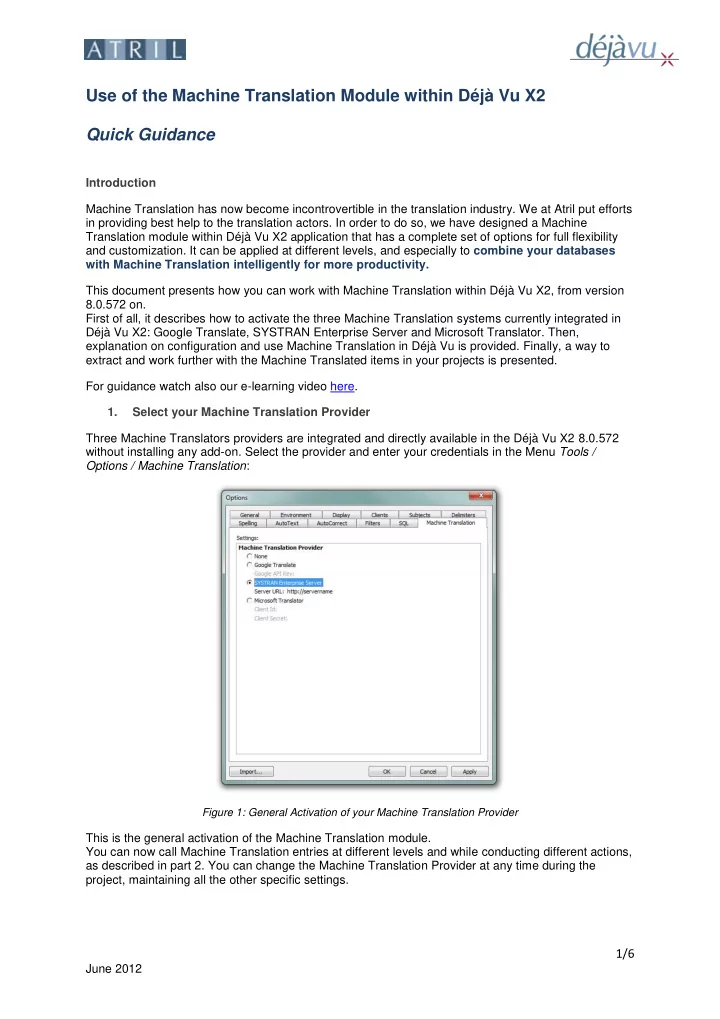
Three Machine Translators providers are integrated and directly available in the Déjà Vu X2 8.0.572 without installing any add-on. Select the provider and enter your credentials in the Menu Tools / Options / Machine Translation:

Figure 1: General Activation of your Machine Translation Provider

This is the general activation of the Machine Translation module. You can now call Machine Translation entries at different levels and while conducting different actions, as described in part 2. You can change the Machine Translation Provider at any time during the project, maintaining all the other specific settings.

slide-2
SLIDE 2

2/6

June 2012 1.1. For Google Translate You need to create a Google account. Google will provide you with a key and will charge you on a monthly basis. The cost is directly related to your use, on a basis of 20 euros per million characters entered in your Google Translate account. Get your Google Account here. 1.2. For SYSTRAN Enterprise Server In order to use SYSTRAN Enterprise Server’s powerful translation engine, enter your SYSTRAN Server client credentials. When equipped with SYSTRAN Enterprise Server, you can add different profiles then available in the profile list in the Machine Translation tab of Déjà Vu. 1.3. Select Microsoft Translator To get your Client Id and Client Secret for the Microsoft Translator, you must sign up on the Azure Data Market. To subscribe to the Microsoft Translator API and register your application Azure DataMarket follow this link. The service is free for the first 2 million characters per month. Then, different packages are available depending on the character amount you choose. Find the price of the packages here.

  • 2. Machine Translation Calls

Machine Translation results can be configured at several levels and for different actions. 2.1. In the pretranslation: Menu Translate / Pretranslate

Figure 2: Configure Machine Translation in the Pretranslation

The three levels are independent and the set of options can be configured any way you want them. When the first one Use Machine Translation for whole segments is activated, the whole segment will be translated with Machine Translation only if no match, neither exact nor fuzzy, is available in the Translation Memory. When DeepMiner statistical extraction is also turned on, statistically extracted Translation Memory results will, if found, have priority over Machine Translation entries when repairing fuzzy matches or assembling translations from portions. Additionally, both DeepMiner statistical extraction and Use Machine Translation have priority over Insert source text. Level 1 Level 2 Level 3

slide-3
SLIDE 3

3/6

June 2012 2.2. For fuzzy match repair: Menu Tools / Options / General

Figure 3: Configure Machine Translation calls in the General Fuzzy Match Repairs settings

When DeepMiner statistical extraction is turned on, statistically extracted Translation Memory results will, if found, have priority over Machine Translation entries when repairing fuzzy matches. Fuzzy match repair is called by the Scan and AutoSearch functions. 2.3. For Assemble: Menu Tools / Options / General

Figure 4: Configure Machine Translation calls in the General Assemble settings

slide-4
SLIDE 4

4/6

June 2012 Use Machine Translation for whole segments has priority on the options For Portions Not found in

  • Databases. When DeepMiner statistical extraction is

activated, statistically extracted Translation Memory results will, if found, have priority over Machine Translation entries when assembling translations from

  • portions. Additionally, both DeepMiner statistical

extraction and Use Machine Translation have priority

  • ver Insert source text.

Use of Assemble can be done on a specific segment with Ctrl + A. AutoAssemble can also be triggered when validating a segment using Ctrl + ArrowDown if the AutoAssemble option is enabled as shown below in the Menu Tools / Options / Environment.

Figure 5: Validation options (CTRL + DOWN ARROW)

2.4. On the fly calls in the translation grid 2.4.1. The segment you are working on with post edition possibility on both source and target Ctrl + G calls and inserts the Machine Translation for the current segment automatically a selection of text in the source. Ctrl + Shift + G allows you to edit the selected portion of text before it gets sent to the Machine Translation provider. You can also post edit the translation directly in this window before inserting it into the translation grid.

Figure 6: Machine Translation on a selection of text- CTRL + SHIFT + G

Important Note: Déjà Vu X2 users updating from versions prior to 8.0.572 will need to manually assign the keyboard shortcut to make Ctrl + Shift + G work. To do so, go to Tools / Customize / Keyboard, select the Translation category, select the Machine Translation (Interactive) command, click

  • n the Press new shortcut key box and press Ctrl + Shift + G, and finally click on the Assign button.
slide-5
SLIDE 5

5/6

June 2012 2.4.2. From AutoSearch Configure Machine Translation to be displayed in the AutoSearch window in the menu Tools / Options / Environment.

Figure 7: Configure Machine Translation in AutoSearch

If the Display Machine Translation results for whole segments is activated, the option by default is Only if there are no matches from the Translation Memory. You can manually configure it to display Machine Translation results for all segments by ticking Always or to display them only when there are no exact matches available in the Translation Memory.

Figure 8: Machine Translation results displayed in the AutoSearch Window

To use the results in AutoSearch, you can insert a result in your translation gird directly from AutoSearch in double-clicking on the AutoSearch portion or in inserting with Ctrl+ AutoSearch Number. Important Note: The source segments are sent to the Machine Translation provider every time you create/open a project with the settings enabling Machine Translation in AutoSearch. When you work

  • n a project and traverse the segments, the results are cached and the calls to the Machine

Translation engine are done only once per session, so that you are not charged several times for the same segments.

slide-6
SLIDE 6

6/6

June 2012

  • 3. Work further with your Machine Translated results

3.1. Filter on the Machine Translation selection All the Machine Translated segments have the status “Machine Translated” and you can filter on them with the row selector.

Figure 9: Filter on the Machine Translated Segment with the row selector

3.2. Filter on repaired fuzzy match segments All the repaired fuzzy match segments have the status “Repaired” and you can filter on them with the row selector. When passing the mouse over the repaired icon, the tooltip shows with which elements were used to repair the fuzzy match:

  • Repaired with Machine Translation
  • Repaired with Termbase
  • Repaired with Lexicon
  • Repaired with DeepMiner statistical extraction

Figure 10: Example fag for a repaired segment

A match repaired with Machine Translation will usually be better than a normal fuzzy match, and better than an entire Machine Translated segment. Your own data is considered to be of higher quality and will always have priority over the Machine Translation results. Conclusion Translation Memory Systems and Machine Translation System have been often seen as antagonist although they can be used to complement each other. Nowadays, awareness of this complementarity is growing, and we at Atril are convinced that combining both is the road to the success for translation providers. This module is just the beginning of the story and we will continue working in this direction, with integration of additional Machine Translation providers and more advanced options to come in the near future. So, go ahead with our new module, and experience it yourself!