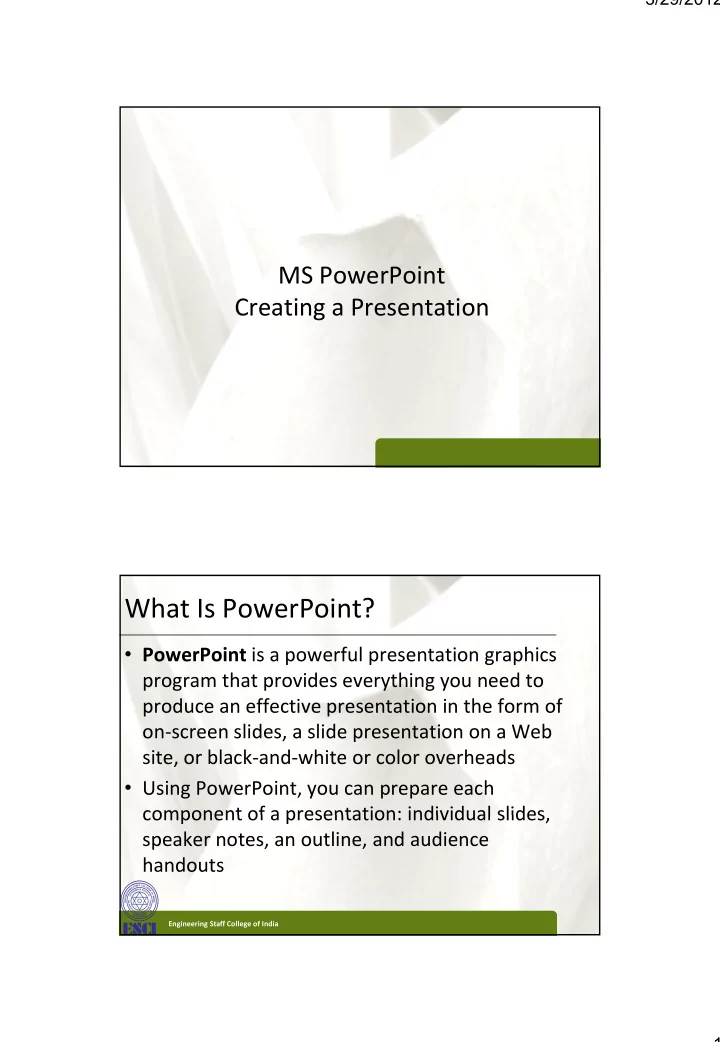
What Is PowerPoint? XP XP PowerPoint is a powerful presentation - - PDF document

what is powerpoint
SMART_READER_LITE
LIVE PREVIEW

What Is PowerPoint? XP XP PowerPoint is a powerful presentation - - PDF document

3/29/2012 MS PowerPoint Creating a Presentation What Is PowerPoint? XP XP PowerPoint is a powerful presentation graphics program that provides everything you need to produce an effective presentation in the form of on screen slides, a


slide-1
SLIDE 1

3/29/2012 1

MS PowerPoint Creating a Presentation

XP XP

What Is PowerPoint?

  • PowerPoint is a powerful presentation graphics

program that provides everything you need to produce an effective presentation in the form of

  • n‐screen slides, a slide presentation on a Web

site, or black‐and‐white or color overheads

  • Using PowerPoint, you can prepare each

component of a presentation: individual slides component of a presentation: individual slides, speaker notes, an outline, and audience handouts

Engineering Staff College of India

slide-2
SLIDE 2

3/29/2012 2

XP XP

Opening an Existing PowerPoint Presentation

Engineering Staff College of India

XP XP

Switching Views and Navigating a Presentation

  • The PowerPoint window contains features

common to all Windows programs, as well as features specific to PowerPoint

– Slide pane – Notes pane – Slides tab

  • Thumbnails

Thumbnails

– Outline tab

Engineering Staff College of India

slide-3
SLIDE 3

3/29/2012 3

XP XP

Switching Views and Navigating a Presentation

  • At the lower right of the PowerPoint window, on

the status bar to the left of the Zoom slider, are three buttons you can use to switch views

– Normal view – Slide Sorter view – Slide Show view

Engineering Staff College of India

XP XP

Viewing a Presentation in Slide Show View

  • Slide Show view is the view you use when you present

an on‐screen presentation to an audience

  • When you click the Slide Show button on the status bar,

the slide show starts beginning with the current slide

  • When you click the Slide Show button on the View tab
  • n the Ribbon or press the F5 key, the slide show starts

at the beginning of the presentation

  • In Slide Show view, you move from one slide to the next

by pressing the Spacebar, clicking the left mouse button, or pressing the → key

Engineering Staff College of India

slide-4
SLIDE 4

3/29/2012 4

XP XP

Viewing a Presentation in Slide Show View

  • When you prepare a slide show, you can add

special effects to the show:

– Slide transitions – Animations – Progressive disclosure – Footer

Engineering Staff College of India

XP XP

Planning a Presentation

  • Planning a presentation before you create it:

– Improves the quality of your presentation – Makes your presentation more effective and enjoyable y p j y – Saves you time and effort

  • As you plan your presentation, you should determine

the following aspects:

– Purpose of the presentation – Type of presentation – Audience for the presentation – Audience needs – Location of the presentation – Format

Engineering Staff College of India

slide-5
SLIDE 5

3/29/2012 5

XP XP

Using Templates

  • PowerPoint helps you quickly create effective

presentations by using a template

f l h h l – A PowerPoint file that contains the colors, background format, font styles, and accent colors for a presentation

  • Click the Office Button , and then click New
  • In the pane on the left side of the New

P t ti di l b li k N f i ti Presentation dialog box, click New from existing in the list under Templates

  • Double‐click the template you wish to use

Engineering Staff College of India

XP XP

Using Templates

Engineering Staff College of India

slide-6
SLIDE 6

3/29/2012 6

XP XP

Modifying a Presentation

  • A placeholder is a region of a slide, or a location

in an outline, reserved for inserting text or graphics

  • A text box is an object that contains text

– An Active text box appears with dashed lines and sizing handles around the text – Sizing handles are small circles and squares on the – Sizing handles are small circles and squares on the corners and sides of the text box

Engineering Staff College of India

XP XP

Modifying a Presentation

  • A bulleted list is a list of “paragraphs” with a special

character to the left of each paragraph

– Bulleted item – Bulleted item – First‐level bullet – Second‐level bullet

  • Subbullet
  • A numbered list is a list of paragraphs that are

numbered consecutively on the slide ll h ld f ll h

  • In all your presentations, you should follow the 6 x 6

rule as much as possible: Keep each bulleted item to no more than six words, and don’t include more than six bulleted items on a slide

Engineering Staff College of India

slide-7
SLIDE 7

3/29/2012 7

XP XP

Creating Effective Text Presentations

  • Think of your text presentation as a visual map of your oral
  • presentation. Show your organization by using overviews, making

headings larger than subheadings, and including bulleted lists to highlight key points and numbered steps to show sequences

  • Follow the 6 × 6 rule: Use six or fewer items per screen, and use

phrases of six or fewer words. Omit unnecessary articles, pronouns, and adjectives

  • Keep phrases parallel. For example, if one bulleted item starts

with a verb, all the other bulleted items should start with a verb. Or if one bulleted list is a complete sentence all the items should Or, if one bulleted list is a complete sentence, all the items should be complete sentences

  • Make sure your text is appropriate for your purpose and

audience

Engineering Staff College of India

XP XP

Editing Slides

  • The slide title text is a text box at the top of the

slide that gives the title of the information on that slide

  • The slide content is a large box in which you type

a bulleted or numbered list or insert some other kind of object Y l t t t i th O tli t b

  • You also can enter text using the Outline tab

Engineering Staff College of India

slide-8
SLIDE 8

3/29/2012 8

XP XP

Editing Slides

Engineering Staff College of India

XP XP

Deleting Slides

  • In Normal view, go to the slide you want to

delete so it appears in the slide pane, and then click the Delete button in the Slides group on the Home tab

  • r
  • Click the desired slide thumbnail in the Slides

t b li k th lid i i th O tli t b i tab, click the slide icon in the Outline tab, or in Slide Sorter view, select the slides you want to delete, and then press the Delete key

Engineering Staff College of India

slide-9
SLIDE 9

3/29/2012 9

XP XP

Adding a New Slide and Choosing a Layout

  • A layout is a predetermined way of organizing

the objects on a slide including placeholders for title text and other objects

  • When you insert a new slide, it appears after the

current slide, with the default layout, Title and Content

Engineering Staff College of India

XP XP

Adding a New Slide and Choosing a Layout

Engineering Staff College of India

slide-10
SLIDE 10

3/29/2012 10

XP XP

Promoting, Demoting, and Moving Outline Text

  • Working in the Outline tab gives you more

flexibility because you can see the outline of the entire presentation

  • To promote an item means to raise the outline

level of that item

  • To demote an item means to decrease the

tli l l

  • utline level

Engineering Staff College of India

XP XP

Promoting, Demoting, and Moving Outline Text

Engineering Staff College of India

slide-11
SLIDE 11

3/29/2012 11

XP XP

Promoting, Demoting, and Moving Outline Text

  • You can move outline text by dragging the text in

the Outline tab

Engineering Staff College of India

XP XP

Moving Slides in Slide Sorter View

  • In Slide Sorter view, PowerPoint displays all the

slides as thumbnails, so that several slides can appear on the screen at once

  • On the status bar, click the Slide Sorter button
  • Dragging and dropping slides in Slide Sorter view

will rearrange them in the presentation

Engineering Staff College of India

slide-12
SLIDE 12

3/29/2012 12

XP XP

Moving Slides in Slide Sorter View

Engineering Staff College of India

XP XP

Checking the Spelling in a Presentation

  • Before you print or present a slide show, you

should always perform a final check of the spelling of all the slides in your presentation

  • PowerPoint does two types of spell check:

– The regular type is when PowerPoint finds a word that’s not in its dictionary – The other type is called contextual spelling which – The other type is called contextual spelling, which checks the context in which a word is used

Engineering Staff College of India

slide-13
SLIDE 13

3/29/2012 13

XP XP

Checking the Spelling in a Presentation

Engineering Staff College of India

XP XP

Using the Research Task Pane

  • PowerPoint enables you to search online services
  • r Internet sites for additional help in creating a

presentation

  • A thesaurus contains a list of words and their

synonyms, antonyms, and other related words

  • You access the Research task pane by clicking the

R i t b th Ribb d th li ki Review tab on the Ribbon, and then clicking either the Research or the Thesaurus button in the Proofing group

Engineering Staff College of India

slide-14
SLIDE 14

3/29/2012 14

XP XP

Using the Research Task Pane

Engineering Staff College of India

XP XP

Creating Speaker Notes

  • Notes (also called speaker notes) help the speaker

remember what to say when a particular slide appears during the presentation during the presentation

  • They appear in the notes pane below the slide pane in

Normal view

  • You can also print notes pages with a picture of and

notes about each slide

Engineering Staff College of India

slide-15
SLIDE 15

3/29/2012 15

XP XP

Previewing and Printing a Presentation

  • PowerPoint provides several printing options

– Color, grayscale, or pure black and white – Handouts are printouts of the slides themselves; these can be arranged with several slides printed on a page – Overhead transparency film

  • Print Preview allows you to see the slides as they

Print Preview allows you to see the slides as they will appear when they are printed

Engineering Staff College of India

XP XP

Previewing and Printing a Presentation

Engineering Staff College of India

slide-16
SLIDE 16

3/29/2012 16

XP XP

Previewing and Printing a Presentation

Engineering Staff College of India