
Hierarchical Modeling
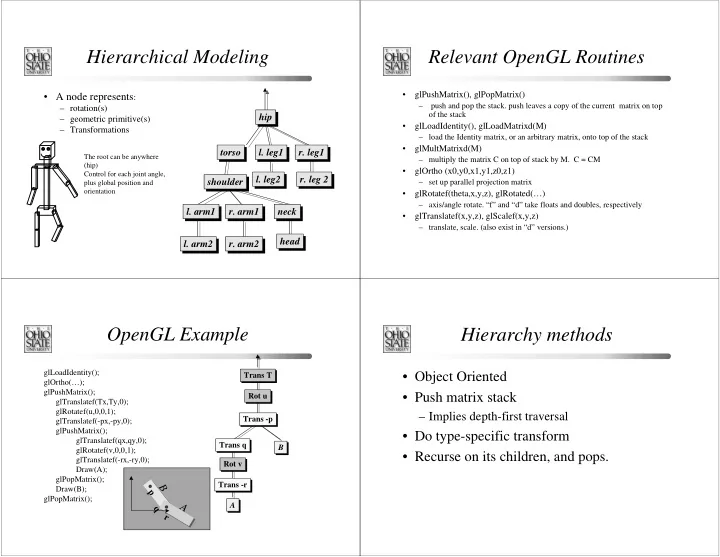
- A node represents:
– rotation(s) – geometric primitive(s) – Transformations
The root can be anywhere (hip) Control for each joint angle, plus global position and
- rientation
hip torso head
- l. arm2
- l. arm1
- r. arm1
- r. arm2
- l. leg1
- l. leg2
- r. leg1
- r. leg 2
shoulder neck
Relevant OpenGL Routines
- glPushMatrix(), glPopMatrix()
– push and pop the stack. push leaves a copy of the current matrix on top
- f the stack
- glLoadIdentity(), glLoadMatrixd(M)
– load the Identity matrix, or an arbitrary matrix, onto top of the stack
- glMultMatrixd(M)
– multiply the matrix C on top of stack by M. C = CM
- glOrtho (x0,y0,x1,y1,z0,z1)
– set up parallel projection matrix
- glRotatef(theta,x,y,z), glRotated(…)
– axis/angle rotate. “f” and “d” take floats and doubles, respectively
- glTranslatef(x,y,z), glScalef(x,y,z)
– translate, scale. (also exist in “d” versions.)
B
q p
A
r
Trans -r Rot v Trans q A Trans -p Rot u Trans T B
OpenGL Example
glLoadIdentity(); glOrtho(…); glPushMatrix(); glTranslatef(Tx,Ty,0); glRotatef(u,0,0,1); glTranslatef(-px,-py,0); glPushMatrix(); glTranslatef(qx,qy,0); glRotatef(v,0,0,1); glTranslatef(-rx,-ry,0); Draw(A); glPopMatrix(); Draw(B); glPopMatrix();
Hierarchy methods
- Object Oriented
- Push matrix stack
– Implies depth-first traversal
- Do type-specific transform
- Recurse on its children, and pops.