Introduction to Log into Angel and go to CSSE 120. 2. Do the - - PowerPoint PPT Presentation

introduction to
SMART_READER_LITE
LIVE PREVIEW

Introduction to Log into Angel and go to CSSE 120. 2. Do the - - PowerPoint PPT Presentation

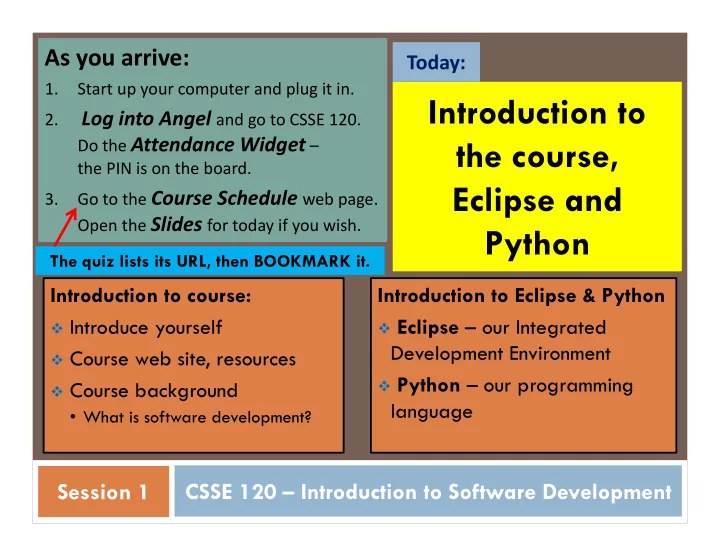
As you arrive: Today: 1. Start up your computer and plug it in. Introduction to Log into Angel and go to CSSE 120. 2. Do the Attendance Widget the course, the PIN is on the board. Eclipse and Go to the Course Schedule web page. 3. Open


slide-1
SLIDE 1

CSSE 120 – Introduction to Software Development

As you arrive:

1. Start up your computer and plug it in. 2.

Log into Angel and go to CSSE 120.

Do the Attendance Widget – the PIN is on the board. 3. Go to the Course Schedule web page. Open the Slides for today if you wish.

Session 1

Introduction to the course, Eclipse and Python

Introduction to Eclipse & Python

 Eclipse – our Integrated

Development Environment

 Python – our programming

language Introduction to course:

 Introduce yourself  Course web site, resources  Course background

  • What is software development?

Today:

The quiz lists its URL, then BOOKMARK it.

slide-2
SLIDE 2

 Introductions: students, assistants and instructor  Resources:  Course web site, CSSE lab hours, csse120-staff email  Course background:  What is computer science? Software development?  Hands-on introduction to Eclipse and Python  Eclipse – our Integrated Development Environment (IDE)

 Including Subversion – our version control system, for turning in work

 Python – our first programming language

 A whirl-wind tour, plus your first Python program  Including a little zellegraphics

Outline of today’s session

Robots starting at the next session

slide-3
SLIDE 3

 Name (nickname)  Hometown  Where you live on (or off) campus  Something about you that most people in the room

don't know

Roll Call & Introductions

This means you should be answering Question #1 on the quiz.

Q1

slide-4
SLIDE 4

 Course web site:

www.rose-hulman.edu/class/csse/csse120

then Robotics (Fisher and Mutchler)

 Course schedule – find it now (from course web site)  Slides  Topics and Reading  Homework  CSSE lab assistants in:  Email to:

Resources

Moench F-217 7 to 9 p.m. Sundays thru Thursdays

csse120-staff@rose-hulman.edu

Q2-4

slide-5
SLIDE 5

 The work of computer scientists falls into three broad categories:

 designing and building software;  developing effective ways to solve computing problems, such as:

 storing information in databases,  sending data over networks or  providing new approaches to security problems; and

 devising new and better ways of using computers and

addressing particular challenges in areas such as

 robotics,  computer vision, or  digital forensics.

What is Computer Science (CS)?

this course focuses on this Q5-6

from the Association for Computing Machinery (ACM)

slide-6
SLIDE 6

 Software development includes:  Market research  Gathering requirements for the proposed business solution  Analyzing the problem  Devising a plan or design

for the software-based solution

 Implementation (coding) of the software  Bug fixing  Testing the software  Maintenance

What is software development?

this course focuses on these

from Wikipedia, Software Development

slide-7
SLIDE 7

 Program  Detailed set of instructions  Step by step  Meant to be executed

by a computer

 A programming language

specifies the:

 Syntax (form), and  Semantics (meaning)

  • f legal statements

in the language

What is a program? A programming language?

There are thousands of computer

  • languages. We use Python because it:
  • Is powerful: strong programming

primitives and a huge set of libraries.

  • Has a gentle learning curve; you will

start using it today!

  • Plays well with others (e.g. COM, .NET,

CORBA, Java, C) and runs everywhere.

  • Is open source.
  • See Wikipedia’s

History of Programming Languages for a timeline of programming languages.

  • Python was introduced in 1991.
  • Its predecessors include ABC, Algol 68,

Icon and Modula‐3. Q7

slide-8
SLIDE 8

 Ambiguous vs. very precise  Syntax (form) must exactly match …  CaSe MAtTerS  Semantics (meaning)  Translation  From a high-level language (Maple, Java, Python, C)  To a low-level language (machine language)

Human Languages vs. Programming Languages

A compiler or interpreter does this translation. A loader puts the translated program into memory, and the CPU (Central Processing Unit) runs the program under the direction of the Operating System. Q8

slide-9
SLIDE 9

 What are they?  Why use one?  Our IDE  Eclipse  Why we chose it  Basic concepts in Eclipse

 Workspace, Workbench  Files, folders, projects  Views, editors, perspectives

Integrated Development Environments (IDEs) – Outline

The next slides address these points about IDEs.

slide-10
SLIDE 10

IDEs  What are they?

An IDE is an application that makes it easier to develop software. They try to make it easy to:

See the outline of the entire project See the outline of a chunk of code Get input and display output Type and change code (editors) Compile, run, debug, document, and more Checkout projects, see Tasks and Problems

slide-11
SLIDE 11

An IDE is an application that makes it easier to develop software. They try to make it easy to:

See the outline of the entire project See the outline of a chunk of code Get input and display output Type and change code (editors) Compile, run, debug, document, and more Checkout projects, see Tasks and Problems

IDEs  Why use one? Why Eclipse?

We will use an IDE called Eclipse. It is:

  • Powerful ‐‐ everything here and more
  • Easy to use
  • Free and open‐source
  • An IDE for any language, not just Python
  • What our upper‐class students told us to use!
slide-12
SLIDE 12

 Your instructor will show you’re the highlights.  They are summarized on the next several slides.

Open Eclipse

slide-13
SLIDE 13

 Workspace  where your projects are stored on your

computer

 Project  a collection of files, organized in folders, that

includes:

 Source code (the code that you write)  Compiled code (what your source code is translated into, for the

machine to run)

 Design documents  Documentation  Tests

 And more that you will learn about over time

 Workbench  what we saw on the previous slide, that is,

the tool in which you do your software development

Basic concepts in Eclipse

slide-14
SLIDE 14

Views, editors, perspectives

This view is controlled by an editor that lets you make changes to the file Tabbed views (Problems, Console) A view that lets you navigate the entire project (Package Explorer) A view that shows the outline of the module being examined (Outline View) Tabbed views of the source code of this project A perspective displays a set of views and editors that are appropriate for the task at hand. Perspectives include: PyDev, Java and lots more This is the PyDev perspective but just a button click brings us to another

slide-15
SLIDE 15

Eclipse in a Nutshell

 Workspace  where your projects are stored on your

computer

 Project  a collection of files, organized in folders,

that includes:

 Source code and Compiled code and more  Workbench  the tool in which to work  It has perspectives which organize the views and editors that

you use

 View  a "window within the window"  displays code, output, project contents, debugging info, etc.

slide-16
SLIDE 16
  • We will see a quick view of Python programming today, but

we will examine all of today’s ideas in more detail in forthcoming sessions.

  • Follow me as I demonstrate how to program in a Python

Shell:

  • Follow me. You’ll get a summary and transcript later.
  • Get an assistant to help if you have any troubles

during ANY of this “live coding” session.

Introduction to Python

slide-17
SLIDE 17

Key ideas from live coding session:

evaluation in the interpreter, variables (case matters!), assignment

 In the interactive Python shell (at the >>> prompt), try: 

3 + 4

3 + 4 * 2

width = 4

height = 5

width

width, height

width = width + 2

width

Width The interpreter evaluates the expression that it is given and shows the result. Note the use of “precedence”. Assignment: read it as “width GETS 4” Terrible mathematics, but common programming paradigm: increment width by 2 Case matters. Try to decipher the error message.

slide-18
SLIDE 18

Key ideas from live coding session:

importing modules

 In the interactive Python shell (at the >>> prompt), try:  abs(-7)  sin(pi/3)

You’ll get an error message from the above

 import math  math.sin(math.pi / 3)

Some functions are built‐in. There are other ways to do import, but they should be used with caution. Some aren’t. Importing module X lets you use X.name to refer to things defined in module X

slide-19
SLIDE 19

Key ideas from live coding session:

strings and comments

 In the interactive Python shell (at the >>> prompt), try:  “hello”  ‘hello’  width + height  “width” + “height”  “width” * height  “width” * “height”  # This is a comment.  # It is ignored by the interpreter,  # but is important help to human readers.

Double‐quotes … … are the same in Python as single‐ quotes (not typical of other languages) Do you see the difference between variable names and string constants? This one is cool! Can you guess what will happen? Note that height is NOT in quotes. The same thing with height is quotes yields an error. Do you see why?

slide-20
SLIDE 20

Key ideas from live coding session:

Loops! and range!

 Back in the interpreter (at the >>> prompt), try: 

list(range(12))

list(range(2, 12))

list(range(2, 12, 3))

for k in range(6): print(k, k * k)

Note that this yields 0 to 11 (not 12) Note the colon and subsequent indentation Your turn: Write a for loop that prints: 0, 8 1, 7 2, 6 3, 5 4, 4 5, 3 6, 2 7, 1

slide-21
SLIDE 21

Software Engineering Tools

 The computer is a powerful tool  We can use it to make software development easier

and less error prone!

 Some software engineering tools:  IDEs, like Eclipse and IDLE  Version Control Systems, like Subversion  Testing frameworks, like JUnit  Diagramming applications, like UMLet, Violet and Visio  Modeling languages, like Alloy, Z, and JML  Task management trackers like TRAC

slide-22
SLIDE 22

Version Control Systems

 Store “snapshots” of all the changes to a project over time  Benefits:  Multiple users

 Multiple users can share work on a project  Record who made what changes to a project  Provide help in resolving conflicts between what the multiple users do  Maintain multiple different versions of a project simultaneously

 Logging and Backups

 Act as a “global undo” to whatever version you want to go back to  Maintain a log of the changes made  Can simplify debugging

 Drop boxes are history!

 Turn in programming projects  Get it back with comments from the grader embedded in the code

slide-23
SLIDE 23

Our Version Control System

 Subversion, sometimes called SVN  A free, open-source application  Lots of tool support available  Works on all major computing platforms  TortoiseSVN for version control in Windows Explorer  Subclipse for version control inside Eclipse

slide-24
SLIDE 24

Version Control Terms

Subversion Server Alice's Computer Bob's Computer Instructor's Computer

Alice's Repository Bob's Repository …

Repository: the copy of your data on the server, includes all past versions Working copy: the current version of your data on your computer

Working Copy Working Copy Working Copy Working Copy

slide-25
SLIDE 25

Version Control Steps—Check Out

Subversion Server Alice's Computer Bob's Computer Instructor's Computer

Alice's Repository Bob's Repository … …

Working Copy Working Copy Working Copy Working Copy

Check out: grab a new working copy from the repository

slide-26
SLIDE 26

Version Control Steps—Edit

Subversion Server Alice's Computer Bob's Computer Instructor's Computer

Alice's Repository Bob's Repository …

Working Copy Working Copy Working Copy Working Copy

Edit: make independent changes to a working copy

slide-27
SLIDE 27

Version Control Steps—Commit

Subversion Server Alice's Computer Bob's Computer Instructor's Computer

Alice's Repository Bob's Repository …

Working Copy Working Copy Working Copy Working Copy

Commit: send a snapshot of changes to the repository

slide-28
SLIDE 28

Version Control Steps—Update

Subversion Server Alice's Computer Bob's Computer Instructor's Computer

Alice's Repository Bob's Repository …

Working Copy Working Copy Working Copy Working Copy

Update: make working copy reflect changes from repository

slide-29
SLIDE 29

Checkout today’s project: Session01_Introduction

Are you in the Pydev perspective? If not:

Window ~ Open Perspective ~ Other then Pydev

Messed up views? If so:

Window ~ Reset Perspective

No SVN repositories view (tab)? If it is not there:

Window ~ Show View ~ Other then SVN ~ SVN Repositories 1. In your SVN repositories view (tab), expand your repository (the top‐level item) if not already expanded.

  • If no repository, perhaps you are in the wrong Workspace. Get help.
  • 2. Right‐click on today’s project, then select Checkout.

Press OK as needed. The project shows up in the

Pydev Package Explorer

to the right. Expand and browse the modules under src as desired.

Troubles getting today’s project? If so:

slide-30
SLIDE 30

A simple program that defines and invokes a function called main()

30

# A simple program illustrating chaotic behavior. # From Zelle, 1.6 def choas(): print "This program shows a chaotic function" x = float(input("Enter a number: ")) for i in range(10): x = 3.9 * x * (1 - x) print(x) chaos()

comments Define a function called “main” A variable called x An input assignment A loop The loop’s body Assignment statement Invoke function chaos

slide-31
SLIDE 31

 Check your Quiz answers versus the solution  An assistant may check your Quiz to ensure you are using

the Quizzes appropriately

 Work on today’s homework  Ask questions as needed!  Sources of help after class:

Assistants in the CSSE lab

 And other times as well (see link on the course home page)

Email

 You get faster response from the above than from just your instructor

Rest of Session

Moench F-217 7 to 9 p.m. Sundays thru Thursdays

csse120-staff@rose-hulman.edu