OpenGL and Assignment #1 Intensive introduction to OpenGL whirlwind - - PDF document

opengl and assignment 1
SMART_READER_LITE
LIVE PREVIEW

OpenGL and Assignment #1 Intensive introduction to OpenGL whirlwind - - PDF document

OpenGL and Assignment #1 Intensive introduction to OpenGL whirlwind tour of: window setup (using glut) displaying polygons drawing smooth shaded polygons transform commands camera setup double buffering (for smooth


slide-1
SLIDE 1

1

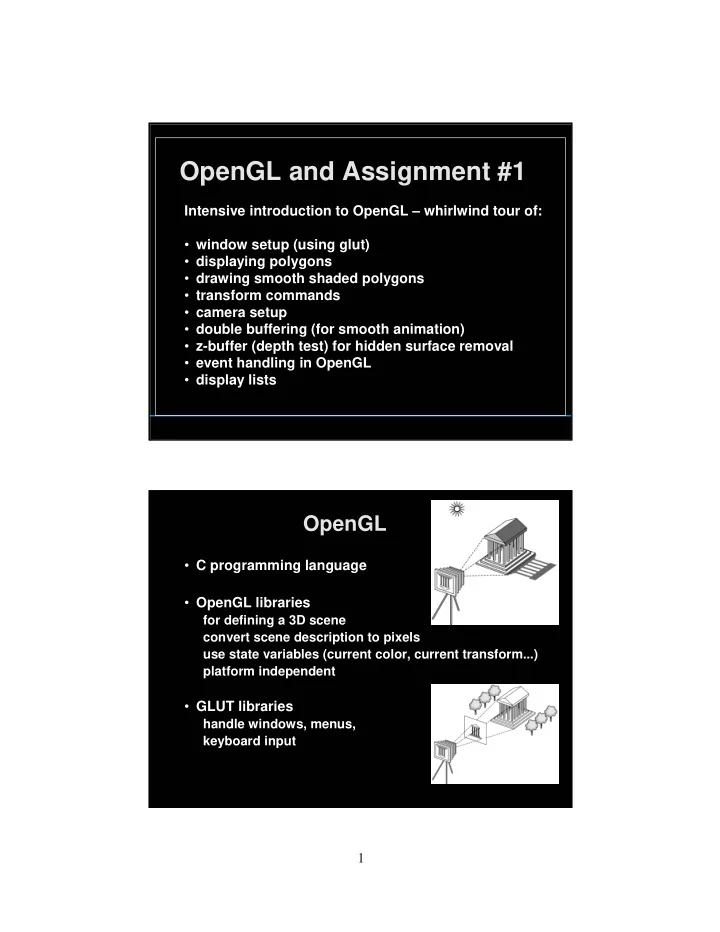
OpenGL and Assignment #1

Intensive introduction to OpenGL – whirlwind tour of:

  • window setup (using glut)
  • displaying polygons
  • drawing smooth shaded polygons
  • transform commands
  • camera setup
  • double buffering (for smooth animation)
  • z-buffer (depth test) for hidden surface removal
  • event handling in OpenGL
  • display lists

OpenGL

  • C programming language
  • OpenGL libraries

for defining a 3D scene convert scene description to pixels use state variables (current color, current transform...) platform independent

  • GLUT libraries

handle windows, menus, keyboard input

slide-2
SLIDE 2

2

OpenGL – “Hello World” example

int main (int argc, char *argv[]) { glutInit(&argc, argv); glutInitDisplayMode(GLUT_RGB); glutInitWindowSize(640, 480); glutCreateWindow(“Hello World”); glutDisplayFunc(display); glutMainLoop( ); return(0); }

OpenGL – “Hello World” example

void display( ) { glClearColor(0.5, 0.5, 0.5, 1); glClear(GL_COLOR_BUFFER_BIT); glColor3f(1, 0, 0); glBegin(GL_TRIANGLES); glVertex2f(-0.5, -0.5); glVertex2f( 0.5, -0.5); glVertex2f( 0 , 0.5); glEnd( ); glFlush( ); }

slide-3
SLIDE 3

3

  • glColor3f(r,g,b);

All subsequent primitives will be this color.

Colors are not attached to objects.

glColor3f(r,g,b) changes the system state.

Aside: State variables in OpenGL

OpenGL – “Hello World” example

  • You also need headers:

#include <stdlib.h> #include <GL/gl.h> #include <GL/glu.h> #include <GL/glut.h>

  • ..and a Makefile that links in the proper

libraries

See the starter code!

slide-4
SLIDE 4

4

OpenGL functionality --- Primitives

  • Why triangles, quads, and strips?

Primitives

slide-5
SLIDE 5

5

Polygon Restrictions

  • OpenGL Polygons must be simple
  • OpenGL Polygons must be convex

(a) simple, but not convex (b) non-simple convex

Why Polygon Restrictions?

  • Non-convex and non-simple polygons are

expensive to process and render

  • Convexity and simplicity is expensive to test
  • Better to fix polygons as a pre-processing

step

  • Behavior of OpenGL implementation on

disallowed polygons is “undefined”

  • Triangles are most efficient in hardware
slide-6
SLIDE 6

6

Code for all of today’s examples available from http://www.xmission.com/~nate/tutors.html

Specifying Primitives shapes.exe Shading: How do we draw a smooth shaded polygon?

/* glShadeModel (GL_FLAT); */ glShadeModel (GL_SMOOTH);

called once, in main

slide-7
SLIDE 7

7

Smooth shaded polygon

glBegin (GL_TRIANGLES); glColor3f (1.0, 0.0, 0.0); /* red */ glVertex2f (5.0, 5.0); glColor3f (0.0, 1.0, 0.0); /* green */ glVertex2f (25.0, 5.0); glColor3f (0.0, 0.0, 1.0); /* blue */ glVertex2f (5.0, 25.0); glEnd(); glShadeModel(GL_FLAT) glShadeModel(GL_SMOOTH)

...in display function

The Image

glShadeModel(GL_FLAT)

  • Color of last vertex with flat shading

glShadeModel(GL_SMOOTH)

slide-8
SLIDE 8

8

transformation.exe Transforms

  • Read transforms from the description of the

geometry upward. The following produce very different effects:

Transform order

glTranslate3f( ... ); glRotate3f( ... ); glScale3f( ... ); glBegin(GL_TRIANGLES); ... glEnd( ); glScale3f( ... ); glRotate3f( ... ); glTranslate3f( ... ); glBegin(GL_TRIANGLES); ... glEnd( );

slide-9
SLIDE 9

9

Camera

void gluLookAt (eyex,eyey,eyez, centerx,centery,centerz, upx,upy,upz )

up COP eye

  • Perspective projection
  • Default camera is
  • at the origin,
  • pointing in the –z direction,
  • with y as the up vector

Camera

  • Orthographic projection
  • long telephoto lens.
  • Flat but preserving distances and shapes. All

the projectors are now parallel.

void glOrtho(left, right, bottom, top, near, far);

slide-10
SLIDE 10

10

Animation and Double Buffering

  • (on the board)

Double Buffering Summary

  • Screen refreshing technique
  • Common refresh rate: 60-100 Hz
  • Flicker if drawing overlaps screen refresh
  • Problem during animation
  • Example (cube_single.c)
  • Solution: use two frame buffers

–Draw into one buffer –Swap and display, while drawing other buffer

  • Desirable frame rate >= 30 fps

(fps = frames/second)

slide-11
SLIDE 11

11

Double Buffering in OpenGL

  • glutInitDisplayMode(GLUT_DOUBLE);
  • glSwapBuffers( );

called once, in main called when a new image is ready to be displayed (in the display function)

How do objects get correctly hidden behind other objects?

slide-12
SLIDE 12

12

The z-Buffer Algorithm

  • z-buffer with depth value z for each pixel
  • Before writing a pixel into framebuffer

Compute distance z of pixel origin from viewer If closer write and update z-buffer, otherwise discard

z-Buffer Algorithm Assessment

  • Strengths

Simple (no sorting or splitting) Independent of geometric primitives

  • Weaknesses

Memory intensive (but memory is cheap now) Tricky to handle transparency and blending Depth-ordering artifacts for similar distances Render some wasted polygons

  • Usage

OpenGL when enabled

slide-13
SLIDE 13

13

z-buffer algorithm is implemented using the Depth Buffer in OpenGL

  • glutInitDisplayMode(GLUT_DEPTH);
  • glEnable(GL_DEPTH_TEST);
  • glClear(GL_DEPTH_BUFFER_BIT);

called once, in main called before the new image is rendered into the frame buffer (in the display function)

Event handling is done through callbacks

glutDisplayFunc(display); glutReshapeFunc(reshape); glutKeyboardFunc(keyboard); glutMouseFunc(mousebutton); glutMotionFunc(mousedrag); glutPassiveMotionFunc(mouseidle); glutIdleFunc(doIdle);

called once, in main

g_iMenuId = glutCreateMenu(menufunc); glutSetMenu(g_iMenuId); glutAddMenuEntry(“Quit”,0); glutAttachMenu(GLUT_RIGHT_BUTTON);

slide-14
SLIDE 14

14

Event handling – Routines you might write to handle various events

  • display( ) when window must be drawn
  • doIdle( ) when no other events to be handled
  • keyboard(unsigned char key, int x, int y) key events
  • menufunc (int value) after selection from menu
  • mousebutton (int button, int state, int x, int y)

mouse

  • mousedrag (int x, int y) mouse movement
  • reshape (int w, int h) window resize
  • Any callback can be NULL

Example: Rotating Color Cube

  • Draw a color cube
  • Rotate it about x, y, or z axis,

depending on left, middle or right mouse click

  • Stop when space bar is pressed
  • Quit when q or Q is pressed
slide-15
SLIDE 15

15

Step 1: Defining the Vertices

  • Use parallel arrays for vertices and colors

/* vertices of cube about the origin */ GLfloat vertices[8][3] = {{-1.0, -1.0, -1.0}, {1.0, -1.0, -1.0}, {1.0, 1.0, -1.0}, {-1.0, 1.0, -1.0}, {-1.0, -1.0, 1.0}, {1.0, -1.0, 1.0}, {1.0, 1.0, 1.0}, {-1.0, 1.0, 1.0}}; /* colors to be assigned to edges */ GLfloat colors[8][3] = {{0.0, 0.0, 0.0}, {1.0, 0.0, 0.0}, {1.0, 1.0, 0.0}, {0.0, 1.0, 0.0}, {0.0, 0.0, 1.0}, {1.0, 0.0, 1.0}, {1.0, 1.0, 1.0}, {0.0, 1.0, 1.0}};

Step 2: Set Up

  • Enable depth testing and double buffering

int main(int argc, char **argv) { glutInit(&argc, argv); /* double buffering for smooth animation */ glutInitDisplayMode (GLUT_DOUBLE | GLUT_DEPTH | GLUT_RGB); ... /* window creation and callbacks here */ glEnable(GL_DEPTH_TEST); glutMainLoop(); return(0); }

slide-16
SLIDE 16

16

Step 3: Install Callbacks

  • Create window and set callbacks

glutInitWindowSize(500, 500); glutCreateWindow("cube"); glutReshapeFunc(myReshape); glutDisplayFunc(display); glutIdleFunc(spinCube); glutMouseFunc(mouse); glutKeyboardFunc(keyboard);

Step 4: Reshape Callback

  • Enclose cube, preserve aspect ratio

void myReshape(int w, int h) { GLfloat aspect = (GLfloat) w / (GLfloat) h; glViewport(0, 0, w, h); glMatrixMode(GL_PROJECTION); glLoadIdentity(); if (w <= h) /* aspect <= 1 */ glOrtho(-2.0, 2.0, -2.0/aspect, 2.0/aspect, -10.0, 10.0); else /* aspect > 1 */ glOrtho(-2.0*aspect, 2.0*aspect, -2.0, 2.0, -10.0, 10.0); glMatrixMode(GL_MODELVIEW); }

slide-17
SLIDE 17

17

Step 5: Display Callback

  • Clear, rotate, draw, flush, swap

GLfloat theta[3] = {0.0, 0.0, 0.0}; void display(void) { glClear(GL_COLOR_BUFFER_BIT | GL_DEPTH_BUFFER_BIT); glLoadIdentity(); glRotatef(theta[0], 1.0, 0.0, 0.0); glRotatef(theta[1], 0.0, 1.0, 0.0); glRotatef(theta[2], 0.0, 0.0, 1.0); colorcube(); glFlush(); glutSwapBuffers(); }

Step 6: Drawing Faces

  • Call face(a,b,c,d) with vertex index
  • Orient consistently

void colorcube(void) { face(0,3,2,1); face(2,3,7,6); face(0,4,7,3); face(1,2,6,5); face(4,5,6,7); face(0,1,5,4); }

slide-18
SLIDE 18

18

Step 7: Drawing a Face

  • Use vector form of primitives and attributes

void face(int a, int b, int c, int d) { glBegin(GL_POLYGON); glColor3fv (colors[a]); glVertex3fv(vertices[a]); glColor3fv (colors[b]); glVertex3fv(vertices[b]); glColor3fv (colors[c]); glVertex3fv(vertices[c]); glColor3fv (colors[d]); glVertex3fv(vertices[d]); glEnd(); }

Step 8: Animation

  • Set idle callback: spinCube()

GLfloat delta = 2.0; GLint axis = 2; void spinCube() { /* spin cube delta degrees about selected axis */ theta[axis] += delta; if (theta[axis] > 360.0) theta[axis] -= 360.0; /* display result */ glutPostRedisplay(); }

slide-19
SLIDE 19

19

Step 9: Change Axis of Rotation

  • Mouse callback

void mouse(int btn, int state, int x, int y) { if (btn==GLUT_LEFT_BUTTON && state == GLUT_DOWN) axis = 0; if (btn==GLUT_MIDDLE_BUTTON && state == GLUT_DOWN) axis = 1; if (btn==GLUT_RIGHT_BUTTON && state == GLUT_DOWN) axis = 2; }

Step 10: Toggle Rotation or Exit

  • Keyboard callback

void keyboard(unsigned char key, int x, int y) { if (key==’q’ || key == ’Q’) exit(0); if (key==’ ’) {stop = !stop;}; if (stop) glutIdleFunc(NULL); else glutIdleFunc(spinCube); }

slide-20
SLIDE 20

20

How do we display complex

  • bjects efficiently?

Display Lists

  • Encapsulate a sequence of drawing commands
  • Optimize and store on server
  • Retained mode (instead of immediate mode)

Gluint myObject; ... myObject = glGenLists(1); glNewList (myObject, GL_COMPILE); /* new list */ glColor3f(1.0, 0.0, 1.0); glBegin(GL_TRIANGLES); glVertex3f(0.0, 0.0, 0.0); ... glEnd(); glEndList(); ... glCallList(myObject); /* draw one */

slide-21
SLIDE 21

21

Display Lists

  • Important for complex surfaces
  • Display lists cannot be changed
  • Display lists can be replaced
  • Not necessary in first assignment
  • -- Due midnight Tuesday, September 21

Height Fields