Using CellProfiler for Biological Image Analysis Quantitative - - PDF document

using cellprofiler for biological image analysis
SMART_READER_LITE
LIVE PREVIEW

Using CellProfiler for Biological Image Analysis Quantitative - - PDF document

Using CellProfiler for Biological Image Analysis Quantitative Analysis of Large-Scale Biological Image Data Mark-Anthony Bray, Ph.D Imaging Platform, Broad Institute Cambridge, Massachusetts, USA mbray@broadinstitute.org 0.4233 54,454


slide-1
SLIDE 1

1

Mark-Anthony Bray, Ph.D Imaging Platform, Broad Institute Cambridge, Massachusetts, USA

mbray@broadinstitute.org

0.4233 54,454 45.777 0.6886 0.0055 6.9994 83.333 14.113 1.5567 0.0954 0.5553
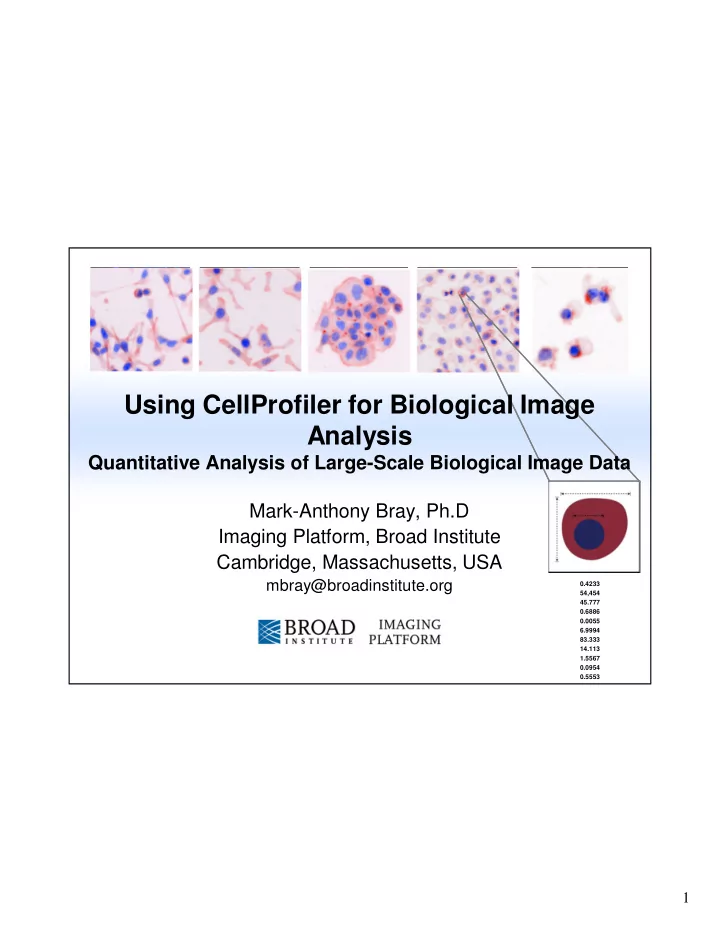
Using CellProfiler for Biological Image Analysis

Quantitative Analysis of Large-Scale Biological Image Data

slide-2
SLIDE 2

2

2

Summary

  • Background on image-based screening
  • Introduction to CellProfiler considerations

in image analysis

  • Construction and use of a pipeline for

analyzing typical image data

  • Measurement export and preparation for

additional analysis

slide-3
SLIDE 3

3

3

Images Contain A Wealth Of Information

http://www.microscopyu.com Image: Javier Irazoqui

slide-4
SLIDE 4

4

4

Visual Appearance Indicates Biological State

  • Automatic image analysis is

– Objective – Quantitative, with statistics – Can measure multiple properties at once for every cell – Distinguishes subtle changes, even those undetectable by eye – Faster, less tedious

  • Images contain a wealth of

biological information

  • That information can be

quantified

Localization … + hundreds of other features mRNA or protein levels morphology

slide-5
SLIDE 5

5

5

Cells or organisms in multiwell plates, each well treated with a gene or chemical perturbant

Automated microscopy (any manufacturer)

High-Content Screening

Data exploration & machine learning

Anne Carpenter Ray Jones

Cell measurements

(size, shape, intensity, texture, etc.)

slide-6
SLIDE 6

6

6

Software Overview

  • Available from www.cellprofiler.org
  • Free, open source (Python)
  • Software available for Windows, Mac and Linux

Image Analysis & Quantification Image-centric Data Analysis

slide-7
SLIDE 7

7

7

CellProfiler: Overview

  • Process large sets of images
  • Identifies and measures objects
  • Export data for further analysis
  • Goal: Provide powerful image analysis methods with a

user-friendly interface

  • Philosophy: Measure everything, ask questions later...
  • Support data analysis based on individual cells
slide-8
SLIDE 8

8

8

Typical CellProfiler Pipeline Workflow

  • For image-based assays, the

basic objective is always to

– Identify cells/organisms – Measure feature(s) of interest

  • The uniqueness of each

assay comes in

– Deciding what compartments to identify and how to identify them – Determining which measure(s) are most useful to identify interesting samples

slide-9
SLIDE 9

9

9

Typical CellProfiler Pipeline Workflow

slide-10
SLIDE 10

10

10

The CellProfiler Interface

  • Pipeline panel: Displays modules in pipeline

– Modules executed in order from top to bottom

Change module position Add or remove modules Module help

slide-11
SLIDE 11

11

11

Load pipeline by double-clicking on it View images by double-clicking on the filename

The CellProfiler Interface

  • File panel: Displays files in default image folder
slide-12
SLIDE 12

12

12

The CellProfiler Interface

  • The figure window

has additional menu options

  • Toolbar menu:

Pan, zoom in/out

  • CellProfiler Image

Tools

– Image Tool (also displayed by clicking on image) – Interactive zoom – Show pixel data (location, intensity)

slide-13
SLIDE 13

13

13

The CellProfiler Interface

  • Folder panel: Change default input and output directories

– Usually these should be separate folders

Input folder: Contains images to be analyzed Output folder: Contains the output file plus exported data and images

slide-14
SLIDE 14

14

14

The CellProfiler Interface

  • Settings panel: View and change settings for each module

– Clicking on a different module updates the settings view

slide-15
SLIDE 15

15

15

Module Categories

  • File processing: Image

input, file output

  • Image processing: Often

used for pre-processing prior to object identification

  • Object processing:

Identification, modification

  • f objects of interest
  • Measurement: Collection
  • f measurements from
  • bjects of interest
  • Data Tools: Measurement

exploration, measurement

  • utput
slide-16
SLIDE 16

16

16

The First Module: LoadImages

  • Related how? Depending on the imaging device, one file

may represent

– One channel at one imaging location – Multiple channels at one imaging location – Multiple channels at multiple locations – Etc…

  • Loads an image set

̶ A group of related images to be processed

DNA GFP

slide-17
SLIDE 17

17

17

The First Module: LoadImages

  • Can use text matching to define the difference between images in a set

All images stained for GFP have the text Channel1- in the name Same for DNA images (Channel2-) Assign each image a meaningful name for downstream reference

slide-18
SLIDE 18

18

18

Object Identification

  • Once the images are loaded, how do you find objects of

interest?

  • Step 1: Distinguish the

foreground from the background by picking a good threshold

  • Step 2: Identify objects as

regions brighter than the threshold

  • Step 3: Cut and join
  • bjects to “improve” their

shape

slide-19
SLIDE 19

19

19

Primary Object Identification

  • Many options for thresholding, cut and join methods, etc.
slide-20
SLIDE 20

20

20

Thresholding

  • Definition: Division of the

image into background and foreground

  • Method: Pick the method that provides the best results

– Otsu: Default - Good for readily identifiable foreground / background – Background, RobustBackground: Good for images in which most of the image is comprised of background

  • What is the best threshold

value for dividing the intensity into foreground and background pixels?

Pixel values Frequency

slide-21
SLIDE 21

21

21

Thresholding

  • Correction factor

– Multiplication factor applied to threshold – Adjusts threshold stringency/leniency – Setting this factor is empirical

  • Upper/lower bounds

– Set safety limits on automatic threshold to guards against false positives – Helpful for unexpected images: Empty wells, images with dramatic artifacts, etc

slide-22
SLIDE 22

22

22

Object Separation

  • We need to distinguish multiple objects

contained in the same “clump”

Images from Carolina Wahlby

  • Once the foreground objects have been

identified, what next?

slide-23
SLIDE 23

23

23

Object Separation

  • Two step process in “de-clumping”
  • 1. Identification of the objects in a clump
  • 2. Drawing boundaries between the clumped objects

Adjust settings to “de-clump” objects

slide-24
SLIDE 24

24

24

Object Separation

– Intensity: Works best if

  • bjects are brighter at

center, dimmer at edges – Shape: Works best if

  • bjects have

indentations where clumps touch (esp. if

  • bjects are round)

Peaks

2 1 2

Indentations

  • Clump identification: Two options

1 1

slide-25
SLIDE 25

25

25

Object Separation

– Distance: Draws boundary lines midway between

  • bject centers

– Intensity: Draws boundary lines at dimmest line between

  • bjects
  • Test Mode allows users to view results of all

setting combinations

  • Drawing boundaries: Two options

1

slide-26
SLIDE 26

26

26

Object Separation

  • Additional separation settings: Adjust these

settings if objects are being incorrectly split into pieces or merged together

Original image Smoothing filter size = 4 Smoothing filter size = 8

  • Smoothing: Increase to reduce intensity

irregularities which produce over-segmentation

  • f objects
slide-27
SLIDE 27

27

27

Object Separation

  • Suppress Local Maxima

– Smallest distance allowed between object intensity peaks to be considered one object rather than a clump – Decrease to reduce improper merging of objects in clumps

Original image Maxima distance = 4 Maxima distance = 8

Maxima

slide-28
SLIDE 28

28

28

Object Separation

  • Adjusting can produce more improper segmentation than

it solves

  • The proper settings are usually a matter of trial and error

– The automatic settings are a good starting point, though

  • However….

Original image Smoothing filter size = 4 Smoothing filter size = 8

slide-29
SLIDE 29

29

29

Filtering Invalid Objects

  • See FilterObjects module for more advanced filtering options

Discard objects that fail size criterion or touch the image border

slide-30
SLIDE 30

30

30

Primary Object Identification

  • Segmented objects are

colored

– Shows if each object has been identified and separated properly

  • Outlines: Valid objects

– Green: Valid – Yellow: Invalid – Touching border – Red: Invalid – Size criterion

  • Also outputs object count
slide-31
SLIDE 31

31

31

Secondary Object Identification

  • Goal: Identify cell boundaries by “growing” primary objects

– Nuclei typically more uniform in shape, more easily separated than cells

  • Approach: Segment nuclei → Seeds for cell segmentation by using a

cell stain channel

slide-32
SLIDE 32

32

32

Secondary Object Identification

  • Methods

– Distance-N: Ignores image information

  • Useful in cases where no cell

stain is present

– Watershed, propagate, Distance-B: Uses image information

  • Finds dividing lines between
  • bjects and background /

neighbors

  • Test mode allows user to

view results of all methods

Propagation Distance-N

slide-33
SLIDE 33

33

33

Tertiary Object Identification

  • Goal: Identify tertiary objects by removing

the primary objects from secondary objects

– “Subtract” the nuclei objects from cell objects to obtain cytoplasm

Cells Nuclei Cytoplasm — ═

slide-34
SLIDE 34

34

34

Pixel-Based Image Classification

  • For images where a threshold cannot be found…
  • CellProfiler is packaged with ilastik, a pixel-based

classification tool

– User manually labels regions of image – ilastik uses features to distinguish regions and create a classifier – Classifier used as input into ClassifyPixels module – Currently, Windows only

DIC ilastik Foreground/background mask

slide-35
SLIDE 35

35

35

Measurement Modules: Object Morphology

Select the objects to measure

slide-36
SLIDE 36

36

36

Module: MeasureObjectAreaShape

  • Goal: Measure morphological features such as

– Area – Perimeter – Eccentricity – MajorAxisLength – MinorAxisLength – Orientation – FormFactor: Compactness measure, circle = 1, line = 0

slide-37
SLIDE 37

37

37

Measurement Modules: Object Intensity

Select the image to measure from Select the objects to measure

slide-38
SLIDE 38

38

38

Module: MeasureObjectIntensity

  • Goal: Measure object intensity features such as

– Integrated intensity: Sum of the pixel intensities within an object – Mean, median, standard deviation intensities – Maximal and minimal pixel intensities – Lower/Upper quartile

  • The object intensity may be obtained from any

image, not just the image used to identify the

  • bject

– Example: Ph3 intensity may be measured using the nuclei objects

slide-39
SLIDE 39

39

39

Measurement Modules: Object Texture

Select the image to measure from Select the objects to measure Select the spatial scale

slide-40
SLIDE 40

40

40

MeasureObjectTexture

  • Goal: Determine whether the staining pattern is

smooth on a particular scale

  • Selection of the appropriate texture scale is

essentially empirical

– A higher number measures larger patterns of texture – Smaller numbers measure more localized (finer) patterns of texture

  • Can also add several texture modules to the

pipeline, each measuring a different texture scale

slide-41
SLIDE 41

41

41

Other Measurement Modules

  • CalculateMath: Arithmetic operations for measurements
  • CalculateStatistics: Assay quality (V and Z' factors) and

dose response data (EC50) for all measurements

  • Image-based measures

– MeasureImageAreaOccupied – MeasureImageGranularity – MessureImageIntensity

  • Object-based measures

– MeasureCorrelation – MeasureObjectNeighbors – MeasureRadialDistribution

slide-42
SLIDE 42

42

42

Data Export Modules

  • User may output images or image measurements

Select the objects to export

slide-43
SLIDE 43

43

43

Measurement Display

  • The average

measurements for all objects in the image are displayed in the figure window

  • However, the

individual measurements for each object are stored in the output file

slide-44
SLIDE 44

44

44

Data Export Modules

  • Goal: Retain images of intermediate image processing

steps for quality control or save measurements for later analysis and exploration

  • SaveImages: Writes an image to a file

– Intermediate images in the pipeline are not saved unless requested – Choice of many image formats to write → module can be used as an image format converter

  • ExportToSpreadsheet: Export measurements as a

comma-separated file readable by spreadsheet programs

  • ExportToDatabase: Export measurements as a per-
  • bject and per-table plus configuration file for a MySQL
  • r SQLite database
slide-45
SLIDE 45

45

45

Cluster Computing

  • If processing time is too great on a single

computer, then run the pipeline on a cluster

– Install CellProfiler on a computing cluster – Add the ExportToDatabase module – Add/configure the CreateBatchFiles module to the end

  • f the pipeline

– Run the pipeline to create a batch file – Submit the batches to your cluster for processing – Check the progress of processing

  • For really big screens, it is necessary to process

images in batches on a computing cluster.

slide-46
SLIDE 46

46

46

Megakaryocyte Polyploidization: Leukemia

DNA stain, with

  • utlines

identifying the nuclei

Martha Vokes Mark Bray

SU6656 (positive control)

Project in progress

per-cell DNA content (log2) proportion of cells

SU6656 DMSO DMSO (negative control)

John Crispino, Northwestern University Jeremy Wen, postdoc

Status: Identified 206 polyploidization regulators from 10k compound screen

slide-47
SLIDE 47

47

47 Images from BioImage SBS image analysis comparison. Thanks to Ilya Ravkin

Carpenter, et al., Genome Biology, 2006

Measuring Morphology

slide-48
SLIDE 48

48

48

Upcoming: CellProfiler 2.1

  • Major changes

– Streamlined loading of images and associated data – Takes advantage of multiple CPU cores, so very large sets of images can now be processed

  • n a regular desktop

computer

  • Release scheduled for early 2014
slide-49
SLIDE 49

49

49

Final Notes

  • Where to get help

– Access help from the CellProfiler main window – Ask for help on the CellProfiler.org forum

slide-50
SLIDE 50

50

50

Annual Support Training Plan

  • Contact imagingadmin@broadinstitute.org for more details
slide-51
SLIDE 51

51

51

Image assay development

Apply image analysis methods to biological questions Mark Bray Anne Carpenter David Logan

Algorithm development & software engineering

Develop & test new image analysis and data mining methods and create open-source software tools

IT/Administration

Matthew Veneskey Vebjørn Ljoså Carolina Wählby

Carpenter Lab / Broad Institute Imaging Platform

Lee Kamentsky Shantanu Singh

Director

Holger Hennig

slide-52
SLIDE 52

52

52

Acknowledgments

  • Free, at www.cellprofiler.org:

Recent funding for this work provided by: NIH NIGMS (Carpenter: R01 GM089652 and Wahlby: R01 GM095672) The Broad Institute of Harvard and MIT

Many thanks to our many biology collaborators who provide images Contact:

imagingadmin@broadinstitute.org